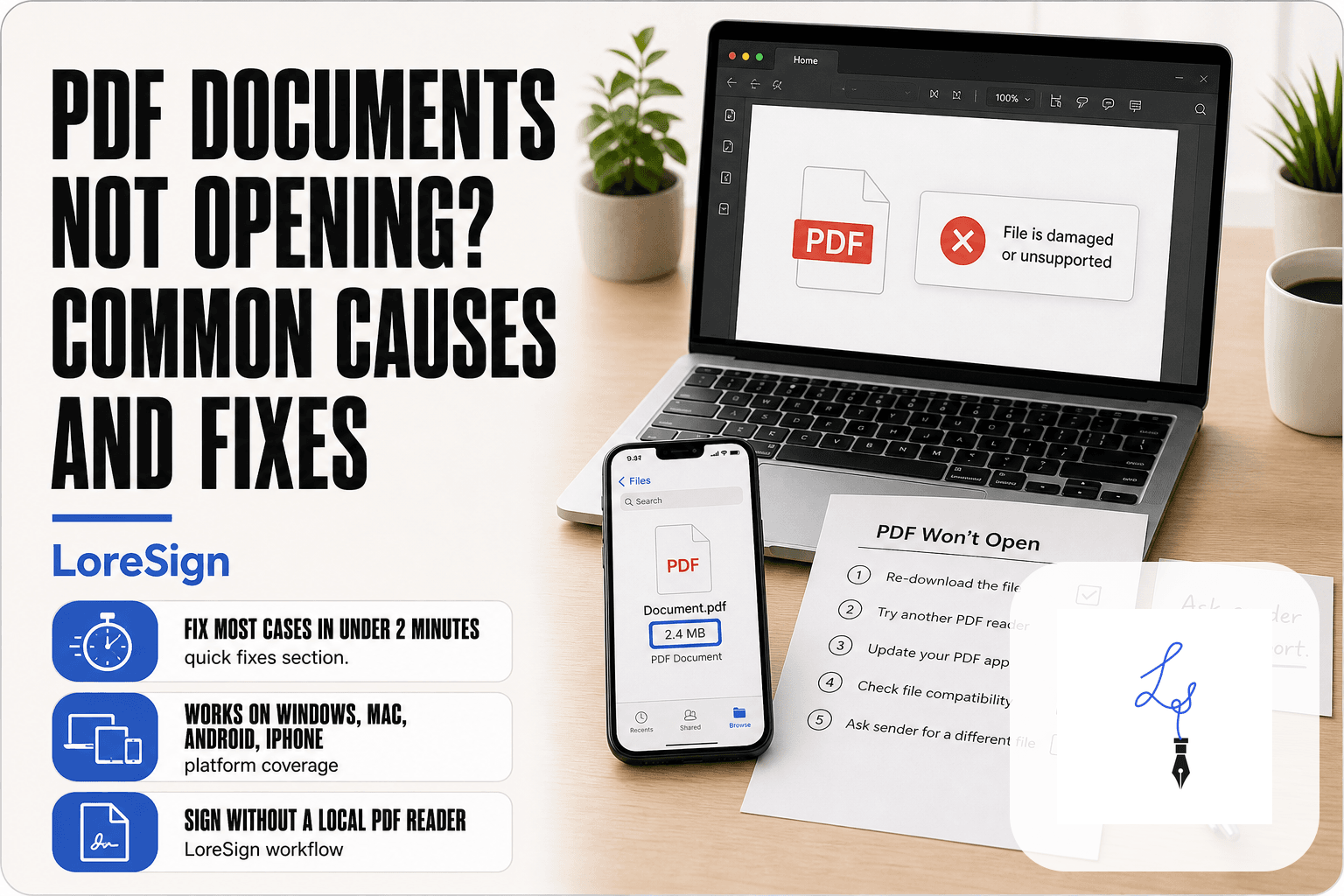
PDF Documents Not Opening? Common Causes and Fixes
A contract lands in your inbox, you click to open it, and nothing happens. Or an error box appears that tells you nothing useful. If you're a professional who needs to review and sign agreements, PDF documents not opening is more than an annoyance: it's a deadline risk.
Most failures fall into a handful of common causes: an outdated reader, a corrupted file, a wrong default app, a password you don't have, or a device-specific glitch. None of them require a computer science degree to diagnose. This guide walks through each cause with fixes for Windows, Mac, Android, and iPhone, plus a section on what to do when a PDF won't open during a signing workflow. The honest answer: some corrupted files can't be recovered without the original source or specialized repair tools. But if the document ultimately needs signing, LoreSign can handle that workflow even when your local PDF reader fails.
| At a glance | Details |
|---|---|
| Most common cause | Corrupted or incomplete download |
| Quick first fix | Re-download the file |
| Desktop fix | Repair or reinstall reader |
| Mobile fix | Open in a different app |
| Password-protected PDFs | Need the correct password |
| Signing context | Request a new signing link |
In This Guide
- Common Causes of PDF Documents Not Opening
- Desktop vs Mobile: Where PDF Opening Problems Usually Start
- Quick Fixes for PDF Documents Not Opening
- PDF Documents Not Opening: A Step-by-Step Guide
- How to Reset PDF Opening Settings and File Associations
- How PDF Files Get Corrupted and How to Recover Them
- PDF Not Opening on Android or iPhone? Mobile Fixes
- PDF Won't Open During Signing? What to Do
- What You Cannot Do When a PDF Won't Open
- Preventing PDF Opening Problems in the Future
- Final Thoughts on PDF Documents Not Opening
Common Causes of PDF Documents Not Opening
Most PDF opening failures come down to one of six causes: an outdated reader, a corrupted file, a wrong default app, a password restriction, a browser problem, or a device issue. The fix depends on which one you're dealing with, so start by matching your symptom to the list below.
Outdated or incompatible PDF reader
Your reader can't open a PDF built with a newer version of the format than the reader supports. Adobe updates the PDF specification regularly, and older readers lag behind. The symptom is usually an error message telling you the file is damaged or unsupported, when the file itself is fine. Updating your reader usually resolves it.
Corrupted or damaged PDF file
A corrupted file fails to open no matter which reader you try. Corruption happens during interrupted downloads, faulty storage writes, or malware. The tell is that other PDFs open fine but this one doesn't. Re-downloading from the source fixes most cases. If the source is gone, recovery gets harder.
Wrong default app or file association
Your operating system tries to open the PDF with an app that can't read it. This happens after installing new software that hijacks the PDF association. The file is fine. The routing is wrong. Resetting the default app fixes it in under a minute.
Password-protected or restricted PDF
Some PDFs require a password before they'll open at all. Others open but block printing, copying, or editing. If you don't have the password, no reader trick will get you in. You need to request it from the sender.
Browser-related opening problems
Browsers have built-in PDF viewers that sometimes fail silently. A PDF that opens in a desktop reader may show a blank tab or a download loop in Chrome or Safari. Clearing the browser cache or switching to a dedicated reader usually sorts it.
Device-specific issues (storage, permissions, malware)
Phones and tablets add their own failure points. Low storage blocks PDFs from opening. App permissions can prevent a reader from accessing the file. Malware on any device can corrupt or block PDFs outright. Check storage and permissions first, then scan for malware.
[!note] A PDF that fails to open is usually damaged, incomplete, or protected rather than malicious — but you should still only open files from senders you trust. If a PDF opens on one device but not another, the problem is almost always the device or app, not the file itself.
Desktop vs Mobile: Where PDF Opening Problems Usually Start
| Factor | Desktop | Mobile |
|---|---|---|
| Typical cause | Reader software or file association | App permissions or default app |
| First thing to try | Open in a different PDF reader | Open in a different app |
| File access | Local folders and downloads | Downloads folder or cloud app |
| Signing fallback | Browser-based signing link | Mobile browser signing link |
| Repair options | Built-in repair tools available | Limited; re-download or reinstall |
Quick Fixes for PDF Documents Not Opening
Before you dig into settings or repair tools, try the low-effort stuff. Most PDFs that won't open are fixed in under two minutes with one of these.
Restart your PDF reader or device
Close the reader completely, then reopen it. On Windows, use Task Manager to confirm the process is actually gone. On a phone, swipe the app away from recent apps rather than just tapping the home button. If the reader still fails, restart the device. A hung process or a full memory buffer blocks PDFs from loading, and a restart clears both.
Re-download the PDF from the source
An interrupted download produces a file that looks complete but isn't. The file size is the tell: if it's smaller than the sender said, or smaller than a previous copy, the download didn't finish. Go back to the email, portal, or message where the PDF came from and download it again. Don't reuse the old copy.
Open the PDF in a different reader or browser
If the file opens elsewhere, the problem is your reader, not the PDF. Try a different browser first: Chrome, Firefox, and Edge each use their own PDF engine. Then try a dedicated reader like Adobe Acrobat Reader or your operating system's built-in viewer. One of them will usually open a file the others choke on.
Check for reader updates
An outdated reader can't handle PDFs saved with newer format features. Open your reader's settings or app store page and check for updates. Install any that are pending, then try the file again. This fixes a surprising share of "file is damaged" errors, because the file was never damaged. The reader was just behind.
[!tip] If you regularly receive contracts and agreements, ask senders to share a secure signing link instead of a raw PDF attachment — this avoids download and reader issues entirely and lets you sign from any device.
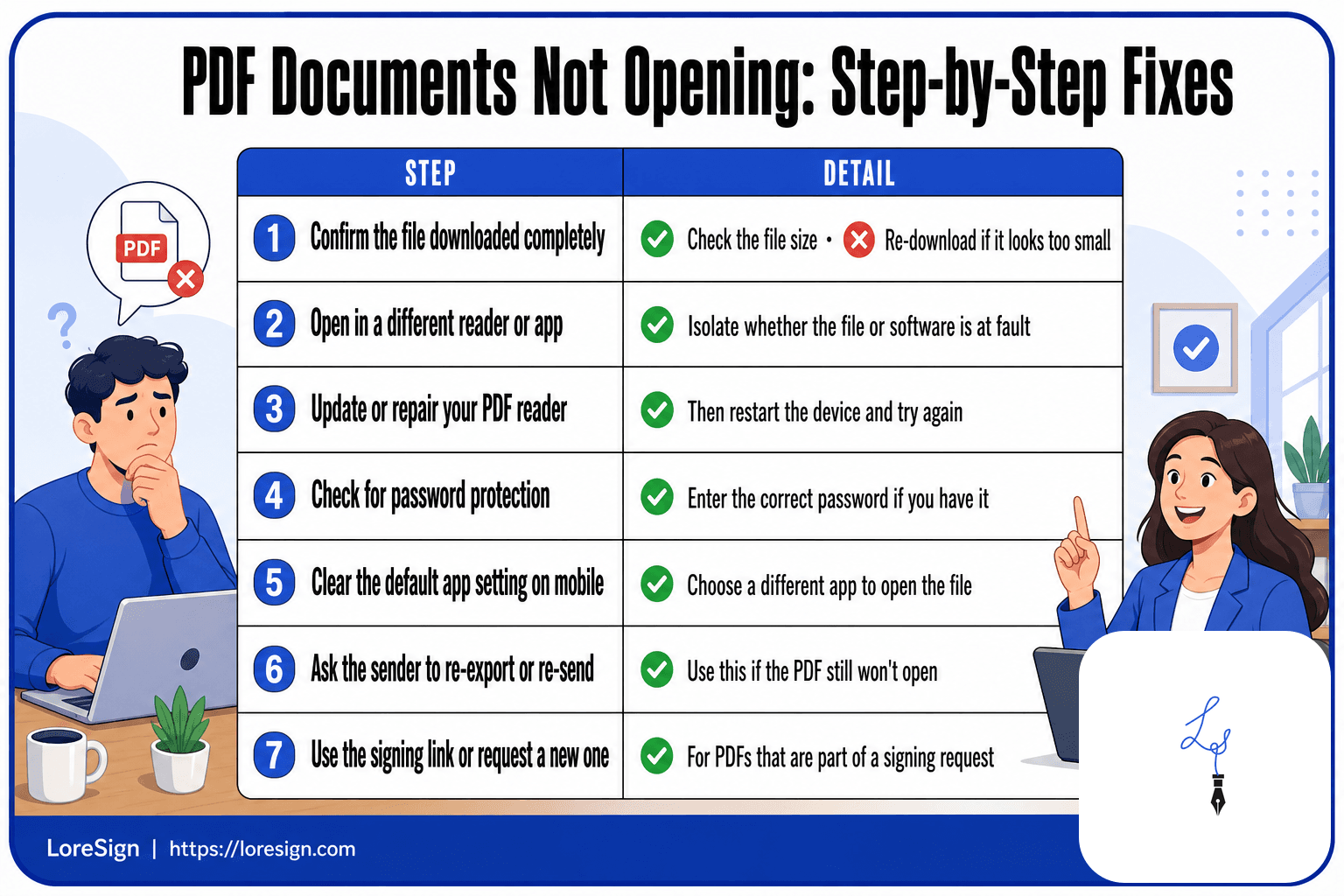
PDF Documents Not Opening: A Step-by-Step Guide
- Confirm the file downloaded completely — check the file size and re-download if it looks too small.
- Try opening the PDF in a different reader or app to isolate whether the file or the software is at fault.
- Update or repair your PDF reader, then restart the device and try again.
- Check whether the PDF is password-protected or restricted, and enter the correct password if you have it.
- On mobile, clear the default app setting and choose a different app to open the file.
- If the PDF still won't open, ask the sender to re-export or re-send the file.
- If the PDF is part of a signing request, use the signing link or request a new one.
How to Reset PDF Opening Settings and File Associations
A wrong file association is the most common reason a healthy PDF won't open. Your operating system points PDFs at an app that can't handle them, or at nothing at all. Resetting that association takes under a minute.
Reset default PDF app on Windows 10/11
Open Settings, then Apps, then Default apps. Scroll to "Choose defaults by file type" and find .pdf in the list. Click the current app next to it and pick the reader you want. Adobe Acrobat Reader, Edge, or any installed PDF tool will appear as options.
If the PDF still opens in the wrong app, right-click any PDF file, choose "Open with," then "Choose another app." Tick the box that says "Always use this app" and select your reader. That overrides the system setting for that file type.
Reset default PDF app on macOS
Click any PDF file once, then press Command-I to open the Get Info panel. Find the "Open with" section, pick your reader from the dropdown, and click "Change All." macOS asks you to confirm. After that, every PDF on the machine opens in the app you chose.
The same setting lives in System Settings under Desktop & Dock, but the Get Info route is faster and applies to all files of that type in one step.
Clear browser PDF viewer settings
Browsers intercept PDFs before your desktop reader ever sees them. If Chrome or Edge opens PDFs in a broken internal viewer, the fix is in the browser, not the operating system.
In Chrome, go to Settings, then Privacy and security, then Site settings, then "Additional content settings," then PDF documents. Toggle off "Open PDFs in Chrome" to force downloads instead. In Edge, the same toggle sits under Settings, then Cookies and site permissions, then PDF documents. Firefox has a similar option under Applications in General settings.
After clearing the browser setting, PDFs download to your device and open in whatever app you set as default in the steps above.
How PDF Files Get Corrupted and How to Recover Them
A PDF is a structured file. The text, images, and layout instructions sit in specific positions, and a small index at the end tells the reader where everything lives. If that index gets damaged, or if bytes in the middle get scrambled, the whole file can refuse to open.
Common causes of PDF corruption
Interrupted downloads are the biggest culprit. The file arrives incomplete, the index is missing, and no reader can make sense of it. Storage failures come next: a failing hard drive, a corrupted USB stick, or a cloud sync that cut out mid-transfer. Malware can also rewrite file contents, though this is rarer than people assume.
Recovery methods: re-download, repair tools, source request
Start with the source. If the PDF came by email or from a website, download it again. That fixes interrupted transfers instantly and costs nothing.
If the original source is gone, try a repair tool. Some PDF readers include a basic repair function, and dedicated tools can rebuild the index from whatever data survives. Results vary. A file with a damaged index but intact content often recovers. A file with scrambled content does not.
Your last option is asking whoever sent the PDF to send it again. That is the most reliable fix and the one people skip because it feels like giving up. It isn't.
When a corrupted PDF cannot be recovered
If the file is truncated, meaning large chunks never arrived, no tool can rebuild what was never there. If the storage device physically failed, the data may be gone for good. And if the PDF was encrypted and the encryption layer is damaged, recovery without the original password is effectively impossible.
The honest answer is that some corrupted PDFs are dead files. Re-download or request a fresh copy before spending money on repair software.
PDF Not Opening on Android or iPhone? Mobile Fixes
Mobile PDF failures usually come down to three things: a stale reader cache, missing storage permissions, or an outdated app. The file itself is rarely the problem.
Android: clear cache, update reader, check storage permissions
Start with the cache. Open Settings, go to Apps, find your PDF reader, and tap Storage. Clear the cache, not the data. Clearing data wipes your saved files and preferences; clearing cache just removes temporary junk that can block a PDF from rendering.
Next, update the reader. Google Drive's built-in viewer and Adobe Acrobat both ship fixes for PDF compatibility issues. An outdated reader will refuse files saved in newer PDF formats.
Check storage permissions too. If your reader can't access the Downloads folder, it can't open anything. Go to Settings, then Apps, then Permissions, and make sure Files and Media access is on.
iPhone/iPad: use Files app, update iOS, re-download from source
On iOS, the Files app is the most reliable way to open a PDF. If a PDF won't open from Mail or Safari, save it to Files first, then tap it there. The Files previewer handles most PDFs without needing a third-party app.
Update iOS. Older iOS versions have known PDF rendering bugs that Apple patches regularly. A stuck PDF often opens fine after a system update.
If the file still won't open, delete it and download it again from the original source. Interrupted downloads are as common on phones as on desktops.
Best mobile PDF readers for opening and signing
Adobe Acrobat Reader is the default choice and handles most files. Google Drive's viewer works well on Android. For signing, LoreSign opens PDFs in the browser, so you don't need a local reader at all. Upload the file, place the signing fields, and send one secure link. The completed PDF comes back automatically once everyone signs.
PDF Won't Open During Signing? What to Do
A PDF that won't open locally doesn't have to block the signature. The signing workflow can move forward without fixing the reader first.
Why PDFs fail to open in signing tools
Signing tools often fail on the same things local readers do: outdated software, corrupted files, or browser restrictions. Some e-signature platforms require a specific PDF version or reject files with embedded scripts. If the tool shows a blank preview or an "unsupported file" error, the problem is usually the file's internal structure, not your device.
Alternative signing methods when the PDF won't open
Try a different browser first. Chrome's built-in PDF viewer handles most files, but Firefox and Safari render some PDFs differently. If the file still won't load, ask the sender to re-export it as a flattened PDF. Flattening strips embedded scripts and form fields that can crash signing tools.
Print-to-PDF is another workaround. Open the file in any viewer that will display it, even partially, then print it to a new PDF. The new file often opens cleanly in the signing tool.
Using LoreSign to sign without a local PDF reader
LoreSign skips the local reader entirely. Upload the PDF to LoreSign in your browser, place the signing fields, and send one secure link. The signer opens the document in their browser, not in a desktop app. No local PDF reader means no local reader failure.
The completed PDF comes back automatically once everyone signs. You get a certificate of completion and an audit trail. If the original file was corrupted beyond repair, you'll still need a clean copy from the sender. LoreSign can't reconstruct a file that was never fully downloaded.
What You Cannot Do When a PDF Won't Open
Some fixes are not fixes. They're dead ends. Knowing which is which saves you an hour of clicking.
You cannot open a password-protected PDF without the password
No reader, browser, or signing tool bypasses a PDF's password. The encryption is built into the file itself, not the software opening it. If you don't have the password, your only move is to ask the sender for it or for an unprotected copy. Password recovery tools exist, but they work by brute-forcing weak passwords. A strong password won't fall.
You cannot always recover a severely corrupted PDF
A PDF with a damaged internal structure may be beyond repair. Repair tools can rebuild the file's cross-reference table and salvage partial content. But if the underlying data is gone, overwritten, or truncated, no tool reconstructs it. You'll need the original source file or a fresh export from the sender.
You cannot fix a PDF that was never fully downloaded
A truncated download looks like a corrupted file. It isn't. The bytes simply aren't all there. No repair tool, reader update, or file association reset adds back missing data. Re-download the file from the source and check the file size against what the sender reports. If the sizes don't match, the download is still incomplete.
Preventing PDF Opening Problems in the Future
Most PDF failures are avoidable. The habits below take minutes to build and stop the common causes before they hit.
Keep PDF readers and OS updated
Outdated readers are the top cause of compatibility failures. A PDF saved in a newer format won't open in a reader that predates it. Set your PDF reader to update automatically, and check your operating system updates monthly. On Windows, that's Settings > Windows Update. On macOS, System Settings > General > Software Update. On Android and iPhone, update apps through the Play Store or App Store.
Download PDFs only from trusted sources
A PDF from an unknown sender or sketchy site can carry malware or arrive truncated. Download contracts, forms, and agreements only from the sender's official email, portal, or website. If a PDF arrives through a forwarded message or a link shortener, ask the sender to resend it directly. Check the file size against what the sender reports before opening.
Back up important documents before signing
Once a PDF is signed, the signature is embedded. If the file later corrupts, you can't always recover the signed version. Save a copy of the original unsigned PDF to cloud storage or a separate folder before you start signing. That way, a failed open or a corrupted file costs you a re-download, not a lost document.
Final Thoughts on PDF Documents Not Opening
Most PDF opening failures come down to one of five things: an outdated reader, a corrupted file, a wrong default app, a missing password, or a browser hiccup. Work through those in order and you'll fix the large majority of cases without outside help.
The honest limit: a severely corrupted file or a password you don't have is a dead end. Don't burn an afternoon on it. Ask the sender to resend or re-export the PDF. That single request solves more PDF documents not opening problems than any repair tool.
If the document needs signing and your local reader still won't cooperate, LoreSign handles the workflow without one. Upload the PDF, place the signing fields, and send one secure link. The signer opens it in a browser, signs, and you get the completed document back automatically. No local PDF reader involved.
Frequently Asked Questions
What are the reasons why a PDF file isn't opening?
The most common reasons are a corrupted or incomplete download, an outdated or faulty PDF reader, a missing file association, or password protection. Less often, the file may be restricted by permissions or damaged at the source. Identifying which of these applies usually points straight to the fix.
How to fix a PDF that won't open?
Start by re-downloading the file and opening it in a different PDF reader. If that fails, update or repair your reader, restart your device, and check for password protection. If the file still won't open, ask the sender to re-export or re-send it.
How do I reset PDF opening settings?
On Windows, go to Settings > Apps > Default apps and set your preferred PDF reader for the .pdf file type. On Android, clear the default app for PDFs in Settings > Apps. On iPhone, PDFs typically open in the app you choose from the share sheet.
How do PDF files get corrupted?
PDFs can be corrupted by an interrupted download, a failed transfer, a crash during saving, or storage errors. Sending a file through some channels can also damage it. Re-downloading or asking the sender to re-export usually resolves corruption.
Why is my PDF not opening on my phone?
On mobile, the usual causes are a missing or misconfigured default PDF app, insufficient storage, or a download that didn't complete. Try opening the file in a different app, clear the default app setting, and re-download the PDF.
What should I do if a PDF won't open during a signing process?
Don't try to sign a file you can't open. Instead, use the signing link provided by the sender, which opens in a browser and doesn't require a separate PDF reader. If the link fails, contact the sender to request a new one.
Can a password-protected PDF be opened without the password?
No. If a PDF is encrypted with a password, you need that password to open it. There is no legitimate way around it without the password or the sender's help. Contact the sender if you don't have it.
About LoreSign
LoreSign helps For people looking to get documents and contracts signed. get this right. Track every signer and receive the completed document automatically. Whether you are working through PDF Documents Not Opening? Common Causes and Fixes or something adjacent, we publish what we have actually tested, including where it falls short.