How to Fix a File Upload Failure When Signing Documents
How to fix a file upload failure starts with knowing you're not alone, and the fix is usually faster than the frustration. You need a contract signed, the deadline's closing in, and the upload bar just sits there or spits back an error. Most upload failures trace to four things: file size, file type, browser state, or your network. Platforms like LoreSign are built to handle document uploads smoothly, but when an upload fails, the cause is almost always on your side of the screen. The good news is you don't need to guess. Work through the fixes in order of likelihood, from checking your file size to turning off your VPN. In most cases, you'll have the document uploading again in under five minutes.
| At a glance | Details |
|---|---|
| Most common cause | File too large or wrong file type |
| First thing to try | Re-save or compress the PDF |
| Typical size limit | Often 10-25 MB per file |
| Best file format | PDF, flattened and not password-protected |
| If nothing works | Switch browser, network, or device |
| What you can't do | Force a platform to accept unsupported files |
In This Guide
- Why Your File Upload Failed: The 5 Most Common Causes
- File Too Large vs Wrong File Type: Which Upload Error Do You Have?
- Step 1: Check the File Size and Format
- How To Fix A File Upload Failure: A Step-by-Step Guide
- Step 2: Try a Different Browser or Incognito Mode
- Step 3: Turn Off VPN and Check Your Firewall
- Step 4: Check Your Internet Connection
- Step 5: Fix Upload Failures on iPhone, iPad, and Android
- Step 6: What to Do When Word Says "Upload Failed"
- What You Cannot Do When a File Upload Fails
- How to Fix a File Upload Failure: Quick Checklist
- When to Contact Support (and What to Tell Them)
- FAQ: File Upload Failures When Signing Documents
- The Bottom Line
Why Your File Upload Failed: The 5 Most Common Causes
Most upload failures come down to five causes: the file is too large, the file type isn't supported, the browser is acting up, the network is blocking the request, or the platform itself is down. Work through them in that order and you'll fix the problem in under five minutes.
File size exceeds the platform limit
Every e-signature platform caps upload size. Most set the limit between 10 MB and 25 MB per file. A scanned contract with high-resolution images can blow past that fast. Check the file size first. It's the quickest thing to rule out.
Unsupported file type
Platforms accept PDF, DOCX, and common image formats. They don't accept ZIP files, HEIC from iPhones, or proprietary formats. If your file extension isn't on the platform's accepted list, it won't upload no matter what you do.
Browser or cache issues
A stale cache or a misbehaving extension can block the upload request before it leaves your machine. Incognito mode isolates this in seconds.
Network, VPN, or firewall interference
VPNs route your traffic through servers that some platforms flag as suspicious. Corporate firewalls can block upload endpoints outright. Turn the VPN off and retry.
Platform-side outage or bug
Sometimes it's not you. Check the platform's status page before you spend an hour troubleshooting your own setup.
A platform cannot be forced to accept a file type or size it does not support — the fix is always on the file, browser, network, or device side. If the error persists after all of these, the issue is likely on the platform's servers and only their support team can resolve it.
File Too Large vs Wrong File Type: Which Upload Error Do You Have?
| Factor | File Too Large | Wrong File Type |
|---|---|---|
| Typical error message | Upload failed, file exceeds limit | Unsupported file format |
| Usual fix | Compress or split the PDF | Convert to PDF or accepted format |
| Time to fix | A few minutes | A few minutes |
| Risk of losing content | Low if compressed carefully | Low if converted properly |
| When it happens | Often on scanned or image-heavy files | Often with Word, Pages, or image files |
Step 1: Check the File Size and Format
Start here. It's the most common cause and the fastest fix.
How to check your file size
Right-click the file and select Properties on Windows or Get Info on Mac. The size shows in KB or MB. On iPhone, open the Files app, tap the file, and check the info panel.
Common size limits for e-signature platforms
Most platforms cap uploads at 10 MB to 25 MB per file. Scanned documents with high-resolution images hit that ceiling quickly. If your file is over the limit, you have two options: compress it or convert it.
How to compress a PDF or image
Use a free tool like Adobe's online compressor or macOS Preview's Export function. For images, reduce resolution to 150 DPI. That's plenty for on-screen signing. A 30 MB scan usually drops below 10 MB this way.
Supported file types for document signing
PDF is the standard. DOCX works on most platforms. JPEG and PNG upload fine. HEIC from iPhones, ZIP files, and proprietary formats won't. Convert HEIC to JPEG in your phone's settings before uploading.
Before you upload, flatten your PDF (print to PDF) and keep the file under the platform's limit, this single habit prevents most signing-day upload failures, especially for scanned contracts with large images.
How To Fix A File Upload Failure: A Step-by-Step Guide
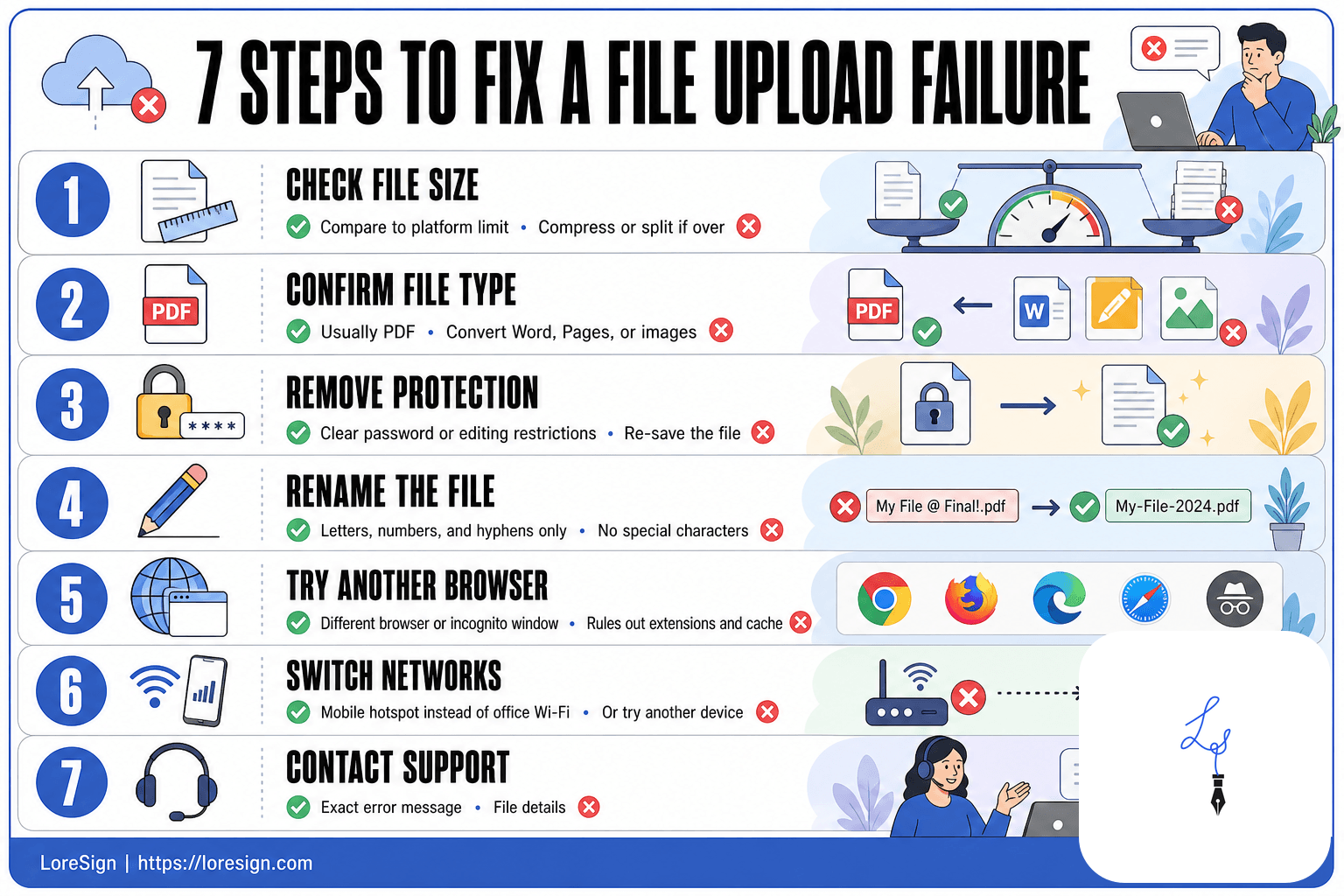
- Check the file size and compare it to the platform's stated limit; compress or split if it's over.
- Confirm the file type is accepted (usually PDF) and convert Word, Pages, or image files to PDF.
- Remove password protection or editing restrictions, then re-save the file.
- Rename the file using simple letters, numbers, and hyphens only — no special characters.
- Try a different browser or an incognito window to rule out extensions and cached data.
- Switch networks (mobile hotspot instead of office Wi-Fi) or try another device.
- If it still fails, contact the platform's support with the exact error message and file details.
Step 2: Try a Different Browser or Incognito Mode
If the file size and format check out, the browser is the next suspect. Cached data, extensions, and cookies can all block an upload silently.
Clear cache and cookies
Go to your browser's privacy settings and clear cached images and files plus cookies for the last hour. Then reload the signing page and retry.
Disable browser extensions
Ad blockers and privacy extensions sometimes intercept upload requests. Turn them off one at a time, or use an extension-free profile.
Use incognito or private mode
Incognito mode loads no extensions and no cached data. If the upload works there, the problem is local to your browser setup.
Switch to Chrome, Firefox, or Edge
Some platforms handle uploads better in one browser than another. If you're on Safari, try Chrome or Edge. A two-minute switch often settles it.
Step 3: Turn Off VPN and Check Your Firewall
If incognito mode didn't fix it, the block is probably upstream. VPNs and firewalls sit between your browser and the signing platform, and either one can kill an upload without showing an obvious error.
Why VPNs cause upload failures
A VPN routes your traffic through a server somewhere else. That server's IP address may be flagged, or the extra hop can break the upload session mid-transfer. Corporate VPNs are the worst offenders because they often block non-approved domains outright.
How to temporarily disable your VPN
Disconnect from the VPN app, wait a few seconds, then retry the upload. Don't leave it off longer than you need to. If the upload works, your VPN was the problem.
Checking firewall settings on Windows and Mac
Windows Defender and macOS's built-in firewall rarely block browser uploads, but third-party security software can. Open your firewall's app list and confirm your browser has permission to send data. If you're on a work machine, your IT team may need to whitelist the signing platform's domain.
Step 4: Check Your Internet Connection
A weak connection can fail an upload halfway through without showing an error. The file just stops. Test before you change anything else.
Test your connection speed
Run a speed test. You need at least 1 Mbps upload speed for a small document. Less than that, and the transfer times out.
Switch from Wi-Fi to mobile data or ethernet
Wi-Fi drops packets. Ethernet or mobile data doesn't. Switch, then retry.
Retry the upload after reconnecting
Turn Wi-Fi off, wait ten seconds, turn it back on. Retry the upload once. If it fails again, the network isn't your problem.
Step 5: Fix Upload Failures on iPhone, iPad, and Android
Mobile uploads fail for different reasons than desktop. The file picker is the usual culprit.
Why your phone won't let you select a file
The button is there. You tap it. Nothing happens, or the picker opens and shows no files. That's an OS-level restriction, not a platform bug. iOS and Android sandbox apps so they can only see files the user explicitly grants access to.
Checking app permissions for file access
On iPhone, go to Settings > Privacy > Files and Folders. Make sure the browser or signing app has access turned on. On Android, check Settings > Apps > [your app] > Permissions > Files and media. If it says "Allow only while using the app," that's fine. If it's denied, the picker shows nothing.
Uploading from Files app vs. Photos app
Photos only shows images and videos. If your contract is a PDF, it won't appear there. Open the Files app instead, or tap "Browse" inside the picker. On Android, use "Documents" rather than "Gallery."
If the file still won't select, save it to a different location and try again.
Step 6: What to Do When Word Says "Upload Failed"
Word upload failures usually come down to the file itself, not the platform. The fix is quick.
Save as PDF before uploading
Don't upload the .docx. Word files carry formatting metadata that some upload systems choke on. Go to File > Save As, pick PDF, then upload that. It's smaller and cleaner.
Check for file corruption
If the PDF export also fails, the document is likely corrupt. Open it, copy the content into a new blank Word file, and save that. Corrupted files fail at the upload stage, not after.
OneDrive sync conflicts
If the file lives in OneDrive and shows a sync error, Word may block the upload. Right-click the file and choose "Always keep on this device," then try again.
What You Cannot Do When a File Upload Fails
Some upload failures are not yours to fix. Knowing which ones saves you an hour of retrying the same thing.
You cannot force an unsupported file type
If the platform says it takes PDF, DOCX, and PNG, it means that. Renaming a .pages file to .pdf does not change what it is. The upload system checks the file header, not the name. Convert it properly or export it as a supported type.
You cannot bypass platform size limits
Compression helps up to a point. But if the platform caps uploads at 25 MB and your file is 90 MB, no browser trick gets around that. The limit is enforced server-side. Split the document or ask the sender for a smaller export.
You cannot fix a platform-side outage
If the upload endpoint is down, every retry fails the same way. Check the platform's status page. Then wait.
How to Fix a File Upload Failure: Quick Checklist
Work through these in order. Most upload failures clear by step 3.
- Check file size and format. Compress or convert if needed.
- Clear cache and cookies, then retry.
- Try incognito mode or a different browser.
- Turn off your VPN. Check firewall settings.
- Test your connection. Switch to ethernet or mobile data.
- On mobile, check app permissions and try the Files app.
- If Word says "upload failed," save as PDF first.
Still stuck? Note the exact error message, then contact support.
When to Contact Support (and What to Tell Them)
If you've worked through the checklist and the upload still fails, stop retrying. Contact support.
What information support needs
Give them the exact error message, the file type and size, and the browser you used. Say what you already tried. That cuts the back-and-forth.
Screenshot the error message
Capture the full screen, not just the dialog. Include the URL bar so support can see the page you were on.
Note your browser, device, and file details
List the browser and version, operating system, and whether you were on Wi-Fi or mobile data. Include the file name and size.
FAQ: File Upload Failures When Signing Documents
Why won't it let me click a file to upload?
The button is there, but the picker won't open or shows no files. That's usually an OS-level permission issue on mobile, or a browser extension blocking the picker on desktop. Check app permissions first, then try incognito mode.
Why isn't my document upload working?
Work through the five causes in order: file size, file type, browser state, network, and platform status. Most failures clear by step 3.
Why is my Word saying "upload failed"?
Word files carry formatting metadata that some upload systems reject. Save the document as a PDF first. If the PDF export also fails, the file is likely corrupt.
Why won't my phone let me upload a file?
Your phone's OS restricts which files an app can see. Check the app's file access permission in Settings. Then use the Files app rather than Photos, which only shows images and videos.
How do I fix an upload error on Windows 11?
Clear your browser cache, disable extensions, and retry. If that doesn't work, turn off your VPN and check your firewall's app permissions. Then test your connection speed.
How do I fix an upload error on Mac?
Same order as Windows: clear cache, try incognito mode, disable VPN, check firewall settings. Then switch from Wi-Fi to ethernet if the upload still fails.
Why does my file say error on iPhone?
The file is likely in a format the platform doesn't accept, such as HEIC. Convert it to JPEG or PDF in your phone's settings, then retry.
What file types are accepted for e-signature uploads?
PDF is the standard. DOCX, JPEG, and PNG work on most platforms. ZIP files, HEIC images, and proprietary formats like .pages won't upload.
The Bottom Line
How to fix a file upload failure is rarely a mystery once you work through the causes in order. Check the file size and format first. Then clear your browser, turn off the VPN, and test the connection. Most uploads clear by step 3. If yours doesn't, you know what to tell support. And when the upload finally goes through, a platform like LoreSign takes it from there: place the signing fields, send one secure link, and get the completed document back automatically.
Frequently Asked Questions
Why won't it let me click a file to upload?
This usually means the upload button is disabled because no file has been selected yet, or the page hasn't fully loaded. Try refreshing the page, disabling browser extensions, or using a different browser. If the button stays greyed out, the platform may be having a temporary issue.
Why isn't my document upload working?
The most common reasons are file size, file type, password protection, or a network problem. Check the platform's stated limits first, then try a different browser or network. If nothing changes, the issue may be on the platform's side.
Why is my Word document saying 'upload failed'?
Many e-signature platforms only accept PDFs, so a .docx file will be rejected. Open the Word file and save or export it as a PDF, then upload that. Also check that the document isn't password-protected or in 'read-only' mode.
Why won't my phone let me upload a file?
Mobile browsers sometimes struggle with large files or certain file types. Try saving the file to your device's Files app first, then upload from there. Switching to a desktop browser or a different mobile browser often resolves it.
How do I fix a file upload failure on Windows 11 or Mac?
The operating system rarely causes the failure — it's usually the file or the browser. On both systems, re-save the file as a flattened PDF, clear your browser cache, and try a different browser. If you're on a corporate network, a firewall may be blocking the upload.
What does 'Upload Failed' mean on iPhone or iPad?
On iOS, this often happens when the file is in iCloud Drive and hasn't fully downloaded, or when the browser can't access the file. Open the Files app, make sure the file is downloaded (not just in the cloud), then try uploading again.
Can I upload a file that's too large by splitting it?
Yes, you can split a large PDF into smaller parts using free tools, but the signing platform may require the full document as one file. Check the platform's rules first — some allow multiple uploads that are combined, others don't.
About LoreSign
LoreSign helps individuals and businesses create, send, sign, and track documents in one place. You can upload a PDF or create an agreement, add the required signing fields, send it to recipients, and automatically receive the completed document once everyone has signed.