How to Request a Signature on a PDF
You need a PDF signed, and you want it done without printing, scanning, or chasing anyone down. That's the whole job: get the file to the right person, show them where to sign, and get the completed document back. The process is straightforward, but most guides skip the parts that actually trip people up. Free tiers cap how many requests you can send. Some tools won't let you set a signing order. Others bury the tracking page so deep you'll spend ten minutes looking for it. LoreSign handles the basics cleanly: upload any PDF, place the signing fields, and send one secure link. But this guide isn't a pitch. It's a walkthrough of how to request a signature on a PDF, what to watch out for at each step, and honest answers to the questions people actually search: why can't I request signatures, how many signers can I add, and is any of this legally binding.
| At a glance | Details |
|---|---|
| What it is | Sending a PDF for electronic signature |
| Typical time | A few minutes to prepare and send |
| Free tier reality | Often limited requests or watermarks |
| Recipient limits | Vary by plan; check before sending |
| What you need | PDF, signer email, signing fields |
| Proof after signing | Audit trail and completed PDF |
In This Guide
- What Requesting a Signature on a PDF Actually Means
- Free e-signature tools vs paid plans: what changes?
- Step 1: Prepare Your PDF for Signing
- Step 2: Upload the PDF to Your Signature Tool
- Step 3: Add Recipients and Assign Signature Fields
- Step 4: Send the Signature Request
- Step 5: Track Progress and Follow Up
- Common Problems When You Request a Signature on a PDF
- Is an E-Signature Request Legally Binding?
- Free vs. Paid Signature Request Tools: What to Expect
- Final Thoughts on Requesting PDF Signatures
What Requesting a Signature on a PDF Actually Means
You're not signing the PDF yourself. You're sending it to someone else and asking them to sign. The tool handles the routing, the reminders, and the proof.
E-signature vs. digital signature: what you're actually requesting
An e-signature is a mark of intent: a typed name, a drawn signature, a click on "I agree." A digital signature is a cryptographic seal that proves the document hasn't changed since signing. When you request a signature on a PDF, you're asking for the first one. Most contracts, agreements, and forms only need that.
What the signer sees on their end
They get an email with a link. They click it, the PDF opens in a browser, and fields show exactly where to sign, initial, or date. No account needed. They sign, click done, and you get the completed document back automatically.
What you can and cannot do with a free request
Free tiers typically cap you at a few documents per month, often three to five. You can't always set a signing order or add your own branding. What you can do: upload a PDF, place fields, send one link, and track who has signed. That covers most single-signer requests.
A 'signature request' is not the same as adding a visible signature image to a PDF yourself it sends the document to the other party so they sign it on their own device, and the tool records when and how they did it.
Free e-signature tools vs paid plans: what changes?
| Factor | Free tier | Paid plan |
|---|---|---|
| Monthly signature requests | Usually capped or limited | Higher or unlimited volume |
| Branding | Tool branding or watermark | Custom branding, watermark-free PDFs |
| Templates | Rarely included | Reusable templates for repeat documents |
| Reminders and routing | Manual follow-up | Automated reminders, ordered signers |
| Audit trail | Basic or none | Certificate of completion and audit trail |
Step 1: Prepare Your PDF for Signing
Before you upload anything, get the document right. Once you send a signature request, the PDF is locked. You can't edit it without starting over.
Finalize the document — no edits after sending
Read it twice. Check names, dates, amounts, and page numbers. If you spot a typo after sending, you'll have to void the request, fix the file, and resend. That resets any progress the signer made.
Identify where signatures, initials, and dates go
Know the spots before you open your tool. Most tools let you drag fields onto the page, but you'll move faster if you already know there's one signature on page 2 and initials on page 4. Don't guess while the signer waits.
Check the PDF isn't password-protected or corrupted
A password-protected PDF won't upload to most signature tools. Remove the password first. If the file won't open in a normal PDF reader, it's corrupted. Export a fresh copy from Word or Google Docs and use that instead.
If you send the same type of document often (NDAs, onboarding forms, client agreements), save it as a template with the fields already placed, it turns a five-minute setup into a one-minute send, and keeps your branding consistent across every request.
Step 2: Upload the PDF to Your Signature Tool
Open your signature tool and look for the upload button. It's usually labelled "Upload," "New document," or "Request signatures." Click it, pick your PDF from your files, and wait for the tool to load it. That's the whole step.
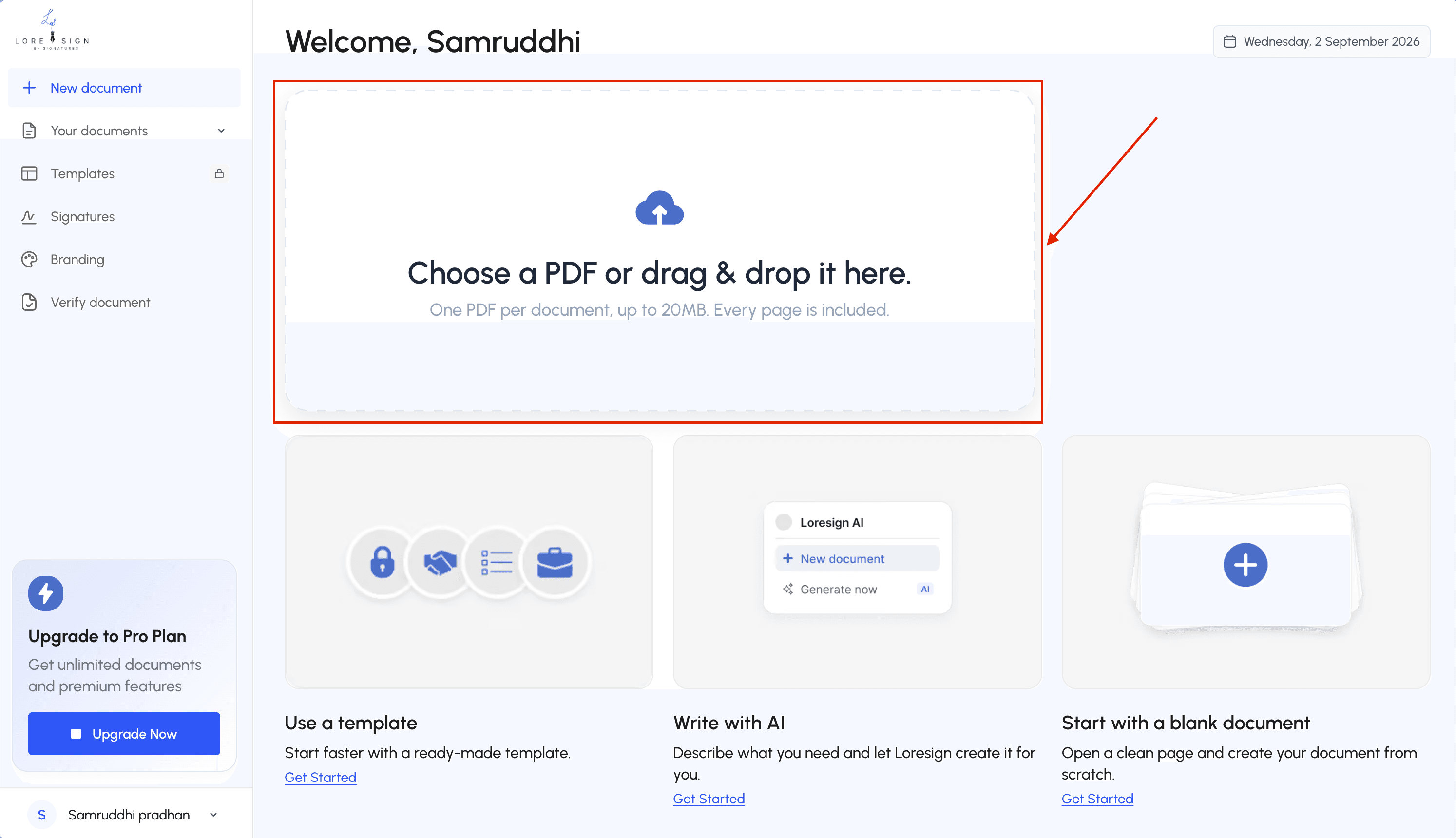
Supported file types and size limits
PDF is the standard, but most tools also accept Word files, images, and sometimes Google Docs. If you upload a Word file, the tool converts it to PDF for you. Size limits vary. Free tiers often cap files at 10 MB or 25 MB. A scanned contract with images can blow past that fast. If your upload fails, compress the PDF or split it.
What happens after upload
The tool renders your PDF as a preview. You'll see the pages exactly as the signer will. Some tools run a quick check for password protection or corruption here. If the file is locked, you'll get an error and have to fix it before moving on. Once the preview loads, you're ready to add recipients and place fields.
Step 3: Add Recipients and Assign Signature Fields
You're past the upload. Now the tool asks who signs and where.
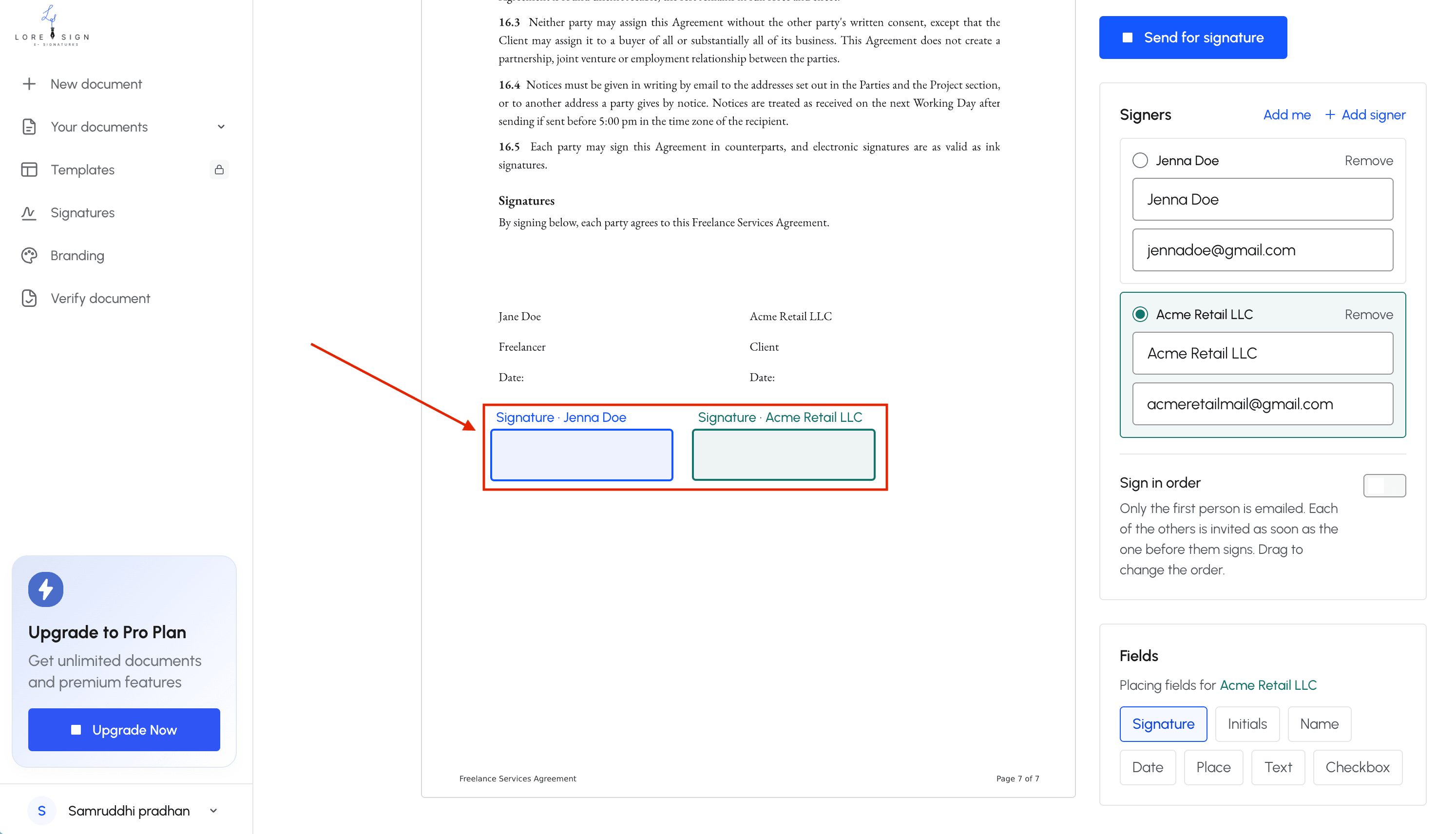
Adding recipient emails and names
Type each signer's email and full name. Double-check the spelling. A typo sends the request to the wrong inbox, and you won't know until the signer tells you they never got it. Most tools let you add up to 10 recipients on free plans.
Setting a signing order (and when to skip it)
Signing order controls who signs first. Use it when the document needs sequential approval: a manager signs, then HR, then the employee. Skip it when signers can act independently. If you don't set an order, everyone gets the link at once and signs in any sequence.
Placing signature, initial, and date fields
Drag fields onto the PDF where each signer should act. Signature fields, initial fields, date fields. Place them precisely. The signer sees exactly where to click. If you skip this, the signer has to figure it out themselves, and you'll get documents back with signatures in the wrong spot.
Step 4: Send the Signature Request
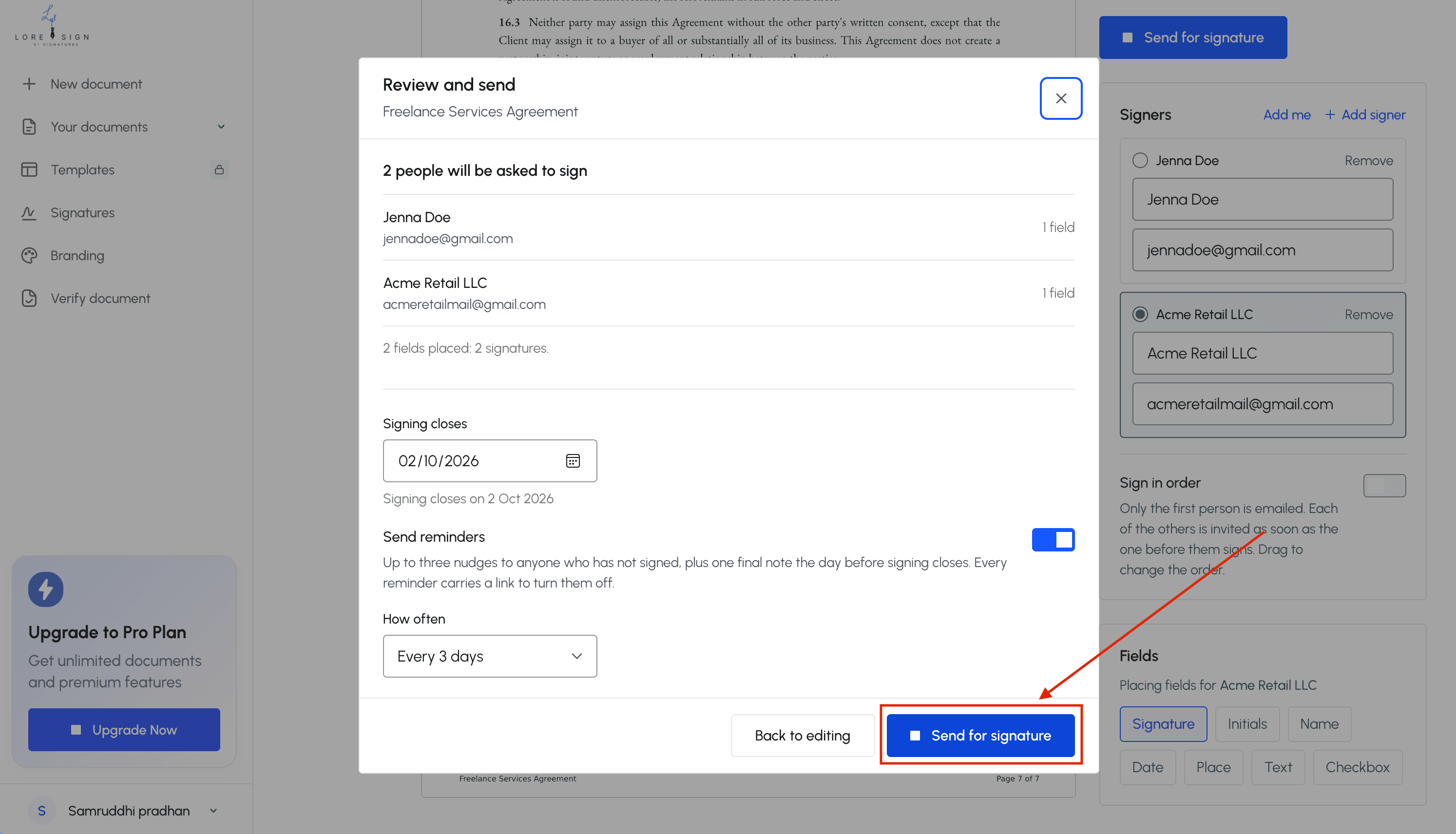
You've placed the fields. Now you hit send. The tool generates an email and a signing link, and the clock starts.
What the signer receives
The signer gets an email from the tool, not from you directly. It contains a button or link that opens the document in a browser. No account needed. They click, review the PDF, and tap each field you placed. Once they finish, the tool locks the document and sends you the completed copy automatically.
Customizing the email message
Most tools let you edit the subject line and message before sending. Do it. A default "Please sign this document" reads as spam. Write one sentence naming the document and the deadline: "Please sign the lease agreement by Friday." The signer is more likely to open it.
Sending to multiple recipients
If you set a signing order, the tool sends to the first signer only. When they finish, the next signer gets their email automatically. If you skipped the order, everyone gets the link at once. Keep that in mind: parallel sending means no one waits, but you can't control who signs first.
Step 5: Track Progress and Follow Up
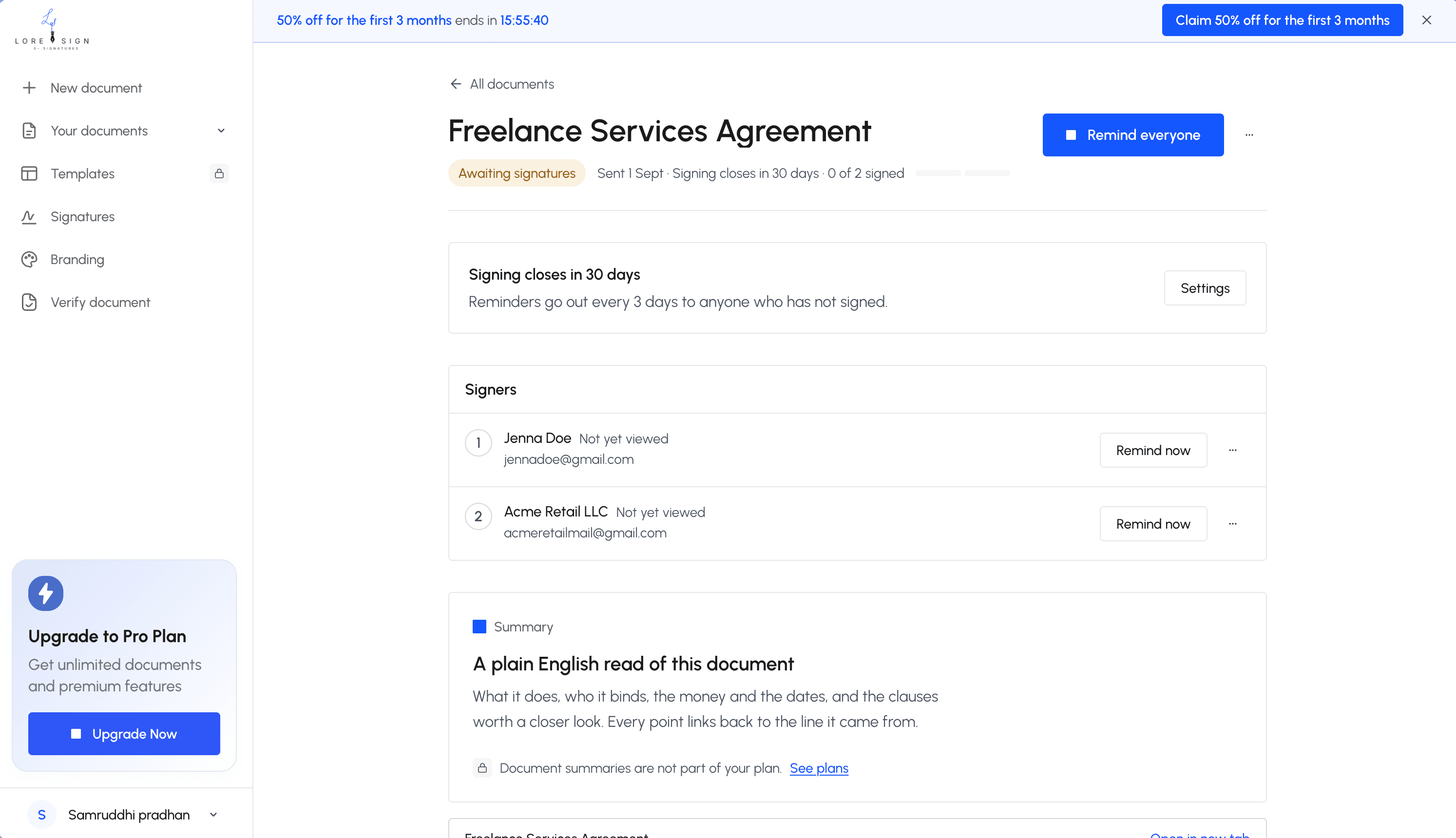
Once the request is out, your job shifts to watching statuses and nudging people. Most tools show a dashboard with each signer marked as sent, viewed, or signed.
Checking signing status
Open the document in your tool. You'll see a list of recipients and where each one stands. "Viewed" means they opened it but haven't signed. "Signed" means done. If it still says "Sent" after two days, they haven't opened it at all.
Sending reminders
Don't chase manually. Most tools have a reminder button that re-sends the email. One reminder after three days is reasonable. Two is fine. After that, call them. The tool won't fix a signer who's avoiding you.
Downloading the signed document
When the last signer finishes, the tool emails you the completed PDF. It includes a signature certificate and audit trail. Download it and store it somewhere you'll find it again. The signed copy is the one that matters.
Common Problems When You Request a Signature on a PDF
Most signature request failures come down to three things: you hit a plan limit, the file is too big or locked, or the signer never saw the email. Fix those and you fix most of it.
Why can't I request signatures?
It depends on your tool and your plan. Free tiers cap how many requests you can send per month. Adobe's free tier limits you to a small number of active agreements. If the button is greyed out, you've likely hit that cap. Check your plan's usage page before assuming the tool is broken.
Recipient limits on free plans
Free plans restrict how many people can sign one document. Some cap it at three signers. Others at ten. If you need a document signed by more people than your plan allows, you'll have to upgrade or split the document into separate requests.
File size and format errors
Most tools reject PDFs over 25 MB. Password-protected PDFs won't upload at all. If your file won't load, remove the password first, then compress it. Scanned PDFs without text layers sometimes fail field placement.
Signer says they never got the email
Check the spam folder first. Then check you typed the address correctly. If both are fine, the email likely bounced because the signer's inbox blocked automated messages. Re-send from the tool, or copy the signing link and send it yourself.
Is an E-Signature Request Legally Binding?
Yes. In the US, an e-signature holds the same legal weight as a pen-and-ink one, as long as both parties agreed to sign electronically. Two laws make that clear: the ESIGN Act and UETA.
ESIGN Act and UETA in plain English
The ESIGN Act (2000) says a contract can't be thrown out just because it was signed electronically. UETA is the state-level version, adopted by 49 states. Together they mean: if a wet signature would work, an e-signature works too.
What makes an e-signature enforceable
The signer must clearly intend to sign. The tool should record who signed, when, and what they signed. An audit trail and certificate of completion do that. The signer also needs a copy of the final document.
When you should NOT use an e-signature
Some documents still require a physical signature: wills, trusts, adoption papers, and certain court filings. Check your state's rules before sending those electronically.
Free vs. Paid Signature Request Tools: What to Expect
Free tiers are real, but they're narrow. Most tools let you send a handful of requests per month, often three to five, before asking you to pay. If you sign documents occasionally, that's enough. If you send contracts weekly, it isn't.
Typical free tier limits
Expect caps on requests, recipients per document, and features like templates or branding. Some free plans watermark your PDFs. Others limit you to one signer per request. The honest answer: free works for testing the workflow, not for running a business on it.
What paid plans add
Paid tiers unlock more requests, multiple signers, signing order, reminders, and audit trails. You also get templates and custom branding. The main catch is price: plans range from roughly $10 to $40 per month, depending on volume.
How to choose without overpaying
Count your monthly signing volume first. If it's under five, stay free. If it's over ten, paid is cheaper than the time you'll spend chasing unsigned documents. Don't pay for features you won't use.
Final Thoughts on Requesting PDF Signatures
The workflow is simple: prepare the PDF, upload it, place your fields, send the link. Most people get their first request out in under ten minutes.
The limitation nobody expects is the free tier ceiling. You'll hit it fast if you sign documents weekly.
If you're sending more than a handful of requests each month, LoreSign handles the full loop: upload any PDF, place the signing fields, send one secure link, and track every signer until the completed document lands back in your inbox. That's how to request a signature on a PDF without the usual friction.
Frequently Asked Questions
How do I request a signature on a PDF file?
Upload the PDF to an e-signature tool, place the signing fields, add the signer's email, and send. The signer receives a secure link, signs on their device, and you get the completed PDF back automatically.
How to send a PDF with a signature request?
Most tools let you upload the PDF directly, or send it from within the tool after placing fields. You typically enter the recipient's email and an optional message, then the tool delivers the signing link for you.
How to get a signature from a PDF?
You cannot extract a signature from a PDF on your own — you request one. The recipient signs through the tool's link, and the tool returns the signed document with a record of the signing event.
Why can't I request signatures in Adobe?
In many Adobe plans, the 'Request Signatures' feature is tied to a paid subscription or a specific Acrobat tier. If the option is missing or greyed out, check your plan level or sign in with the account that holds the entitlement.
Can I request a signature on a PDF for free?
Yes, several tools offer a free tier, but expect limits — often a small number of requests per month, tool branding on the document, or no templates and automated reminders. Check the limits before you rely on it for client work.
What happens after the recipient signs the PDF?
The tool notifies you and delivers the completed, signed PDF. Most tools also provide a certificate of completion and an audit trail showing who signed, when, and from what email address.
Is an electronic signature on a PDF legally binding?
In many jurisdictions, yes — electronic signatures are recognized for most everyday agreements. Requirements vary by country and document type, so for high-stakes contracts, confirm the rules that apply to you.
About LoreSign
LoreSign helps individuals and businesses create, send, sign, and track documents in one place. You can upload a PDF or create an agreement, add the required signing fields, send it to recipients, and automatically receive the completed document once everyone has signed.
We also publish practical guides based on real signing workflows, including topics like how to sign a PDF on iPhone, collect e-signatures, send contracts, and troubleshoot common document-signing issues.