How to Add Initials to a PDF
How to add initials to a PDF splits into two jobs, and most guides only cover one. You're either signing: adding your own initials to a document someone sent you. Or you're requesting: setting up a PDF so a client, tenant, or employee can add theirs. The mechanics differ, the tools differ, and the legal weight differs. This guide covers both paths.
The honest answer about initials is that they aren't a signature. They confirm you've seen a page or agree to a specific clause, but courts treat them differently from a full signature, and some documents won't accept them at all. I'll say plainly where initials work and where they don't.
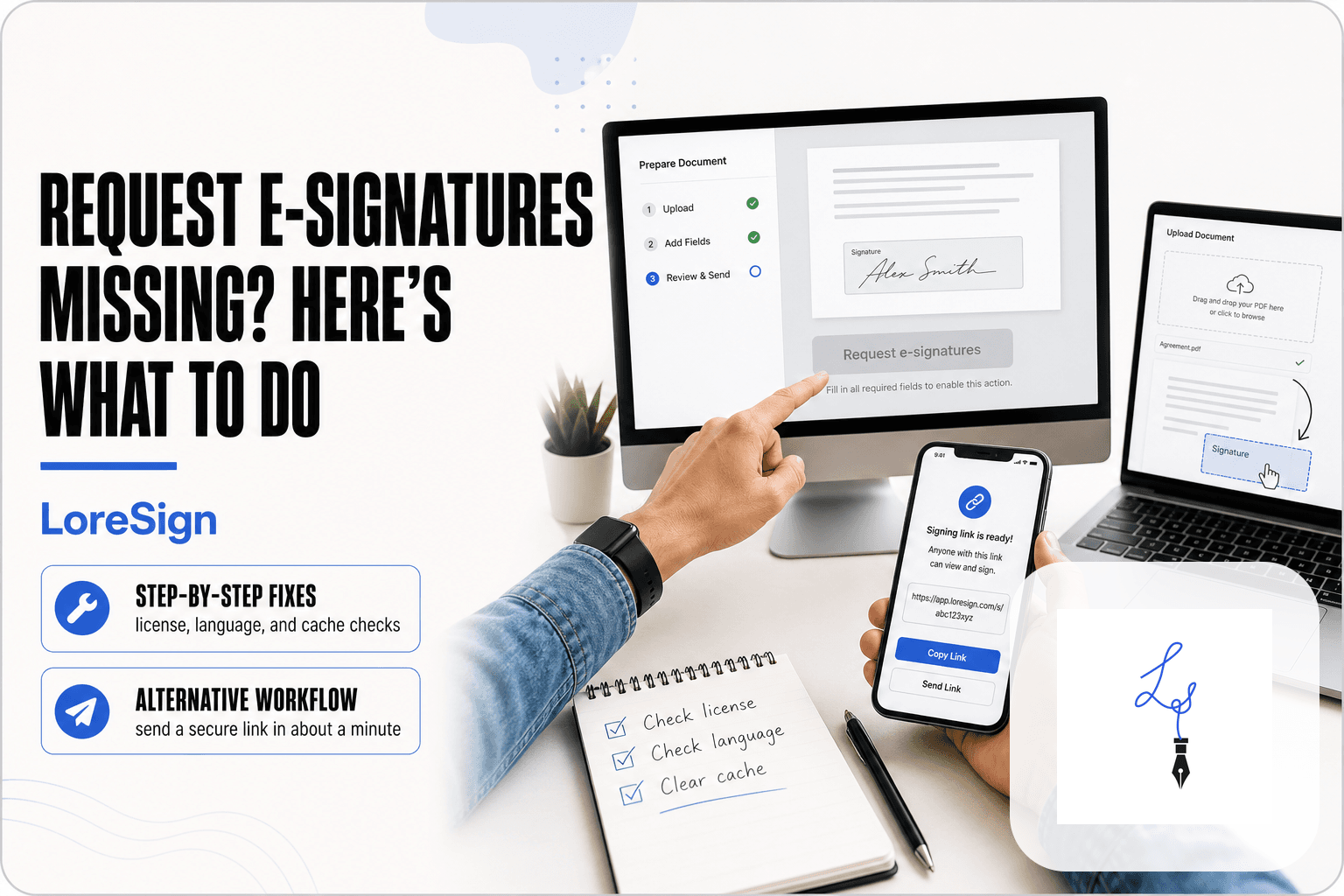
LoreSign handles the requesting side well: you upload the PDF, place initials fields, and send one link. But it's one option among several, and I won't pretend otherwise. You'll get step-by-step methods for online tools, desktop software, and mobile apps, plus how to apply initials to every page of a multi-page contract.
| At a glance | Details |
|---|---|
| What it is | Short sign-off proving you reviewed a page |
| Best method | Typed or drawn initials via a PDF tool |
| Multi-page docs | Apply initials to every page individually |
| Requesting from others | Use a tool with initials fields and routing |
| Legally sufficient? | Often yes for page review, not for binding terms |
| Full signature needed | When the document must be legally executed |
In This Guide
- What Does It Mean to Add Initials to a PDF?
- Adding Your Own Initials vs Requesting Initials From Someone Else
- How to Add Initials to a PDF: Step-by-Step Methods
- How To Add Initials To A PDF: A Step-by-Step Guide
- How to Add Initials to All Pages in a PDF
- How to Request Initials from Another Person
- How to Set Up Initials in Adobe
- How to Add Letters to a PDF (Typed vs. Drawn Initials)
- Common Mistakes When Adding Initials to a PDF
- Final Thoughts
What Does It Mean to Add Initials to a PDF?
Adding initials to a PDF means placing a short, personal mark, usually your first and last initials, on a document to show you've seen or agreed to a specific part of it. It's not the same as a full signature.
Initials vs. full signature: what's the difference?
A full signature is your complete name, written or drawn. An initial is a shortened mark: "JD" instead of "Jane Doe." Signatures carry more legal weight because they're harder to dispute.
When are initials legally sufficient?
Initials work for acknowledging individual clauses, confirming each page of a multi-page contract, or approving minor changes. Courts generally accept them as evidence of intent, but the document itself should state that initials count as agreement.
What initials cannot do
Initials alone won't replace a full signature where one is explicitly required. Loan documents, wills, and notarized forms typically demand the complete signature. If the document says "sign here," don't initial.
Initials typically indicate that a signer has reviewed or acknowledged a specific page or change; they are not a substitute for a full signature when a document must be legally executed or when the parties intend to be bound by the terms.
Adding Your Own Initials vs Requesting Initials From Someone Else
| Factor | Adding Your Own Initials | Requesting Initials From Someone Else |
|---|---|---|
| Who acts | You mark up the PDF yourself | You set up fields; the other party completes them |
| Typical tools | PDF editor, viewer, or e-sign tool | E-sign platform with field placement and routing |
| Multi-page handling | Repeat the initial on each page manually | Place an initials field on each page once |
| Tracking | No built-in tracking | Track who has initialed and who has not |
| Completed copy | You save or export the file | Completed PDF delivered automatically when done |
How to Add Initials to a PDF: Step-by-Step Methods
To add initials to a PDF, use an online tool like iLovePDF or Smallpdf, desktop software like Adobe Acrobat or Preview, or a mobile app. Upload the file, select the initials or text tool, click where you want the mark, and type or draw your initials. Save and download the updated PDF.
Method 1: Online tools (browser-based)
Online tools are the fastest option when you don't want to install anything. Upload your PDF to a tool like iLovePDF or Smallpdf, select the "Add text" or "Initials" option, click the spot where the initials go, and type them. Download the file when done. Free tiers usually cap file size or add watermarks.
Method 2: Desktop software (Adobe Acrobat, Preview, Master PDF Editor)
Desktop software gives you more control. In Adobe Acrobat, open the PDF, go to Tools > Fill & Sign, and select "Add initials." Click the page, then type or draw. On a Mac, Preview's annotation toolbar has a text box you can position anywhere. Master PDF Editor works the same way on Windows and Linux.
Method 3: Mobile apps
Mobile apps work when you're away from a desk. Adobe Acrobat Reader and DocHub both let you add initials from a phone. Open the PDF, tap the initials tool, and place the mark with your finger or stylus. The screen is small, so precise placement takes patience.
If you regularly send multi-page contracts, set up an initials field on every page in your e-sign tool once and save it as a template, this keeps page-level sign-off consistent and avoids chasing signers for missed pages.
How To Add Initials To A PDF: A Step-by-Step Guide
- Open the PDF in a tool that supports annotations or form fields.
- Choose the initials or text tool, then type or draw your initials.
- Place the initials in the margin or designated initial box on the first page.
- Repeat for every page that requires initialing, keeping placement consistent.
- If you are requesting initials from someone else, upload the PDF and place an initials field on each required page.
- Send one secure link to the signer and set reminders for unsigned documents.
- Once all initials and signatures are complete, download the finished PDF and keep the audit trail.
How to Add Initials to All Pages in a PDF
Most PDF editors place initials on one page at a time. That's fine for a single-page form. It's not fine for a 12-page contract where every page needs a mark.
Why multi-page initials matter
Multi-page initials signal that the signer reviewed each page, not just the last one. Some agreements state this explicitly: "Please initial each page." If the document says that, a single initial on the signature page won't satisfy the requirement.
Online tools that support all-page initials
Tools built for signing workflows handle this natively. When you set up a document for signature, you place an initials field once and apply it to all pages with a single toggle. LoreSign does this: upload the PDF, place the initials field, and select "apply to all pages." The signer then sees the field on every page without you placing it 12 times.
General PDF editors like iLovePDF don't have this feature. You place each initial manually.
Desktop workaround for all-page initials
In Adobe Acrobat, there's no one-click "all pages" option for initials. The workaround: create the initials field once, then copy and paste it onto each page. Tedious, but it works. Preview on Mac has no field duplication at all, so you're placing a text box on every page by hand.
How to Request Initials from Another Person
You're not signing. You're sending. That changes the workflow entirely: you don't add initials, you place fields where initials should go and let the other party fill them.
Setting up initials fields for a signer
Start by uploading the PDF to a signing tool. Then place an initials field wherever the signer needs to mark. Most tools let you drag the field onto the page and resize it. You can assign the field to a specific signer by name and email, which matters when multiple people sign the same document.
Make sure you place the field before you send. Once a signing request goes out, editing the document usually means cancelling and resending.
Sending a signing request
You send one link, not the PDF itself. The signer opens the link, sees the fields you placed, and adds their initials. No account needed on their end in most tools.
LoreSign works this way: upload the PDF, place the initials fields, and send one secure link. The signer completes the fields and the finished PDF comes back to you automatically.
Tracking completion
You'll see the status of each signer: sent, viewed, signed. Automated reminders nudge people who haven't opened the document. Once everyone has initialed, you receive the completed PDF with a certificate of completion and an audit trail showing who did what and when.
How to Set Up Initials in Adobe
Adobe splits this across two products: Acrobat for editing, Adobe Sign for requesting. Know which one you're in before you start.
Adobe Acrobat: creating an initials field
Open the PDF in Acrobat and go to Tools > Prepare Form. Acrobat auto-detects fields, but you can add your own. Drag a text field onto the page, then set its name to "Initials" so the signer knows what goes there. You can't force initials-only input in a plain text field. It's just a labelled box.
Adobe Sign: adding initials for signers
In Adobe Sign, upload the document and open the authoring view. Drag the Initials field from the right panel onto the page. Assign it to a signer. Repeat for each page that needs initials. Adobe Sign does support multi-page placement, but you place each field manually. There's no one-click "apply to all pages" option.
The main catch: Adobe Sign requires a paid plan for sending requests. Acrobat's form tools are free, but the signer still fills fields manually without legal weight.
How to Add Letters to a PDF (Typed vs. Drawn Initials)
Adding letters to a PDF means one of three things: typing text, drawing with a mouse or stylus, or uploading an image. They look similar on screen. They are not the same thing.
Typed initials: fast but not a signature
Typing "J.S." into a text field is quick and readable. It works for internal markups, form fills, or noting who reviewed a page. But typed text carries no biometric or behavioural evidence. A court can't distinguish you from anyone else who typed the same letters. Treat it as annotation, not consent.
Drawn initials: closer to a real signature
Drawing with a stylus, finger, or mouse captures stroke order, pressure, and speed. That's the data eSign platforms store in the audit trail. If the document needs legal weight, drawn initials are the minimum. Mouse-drawn initials look rough, but they still record intent.
Image-based initials: when to use
Uploading a PNG of your initials is fine for branding or letterhead. Don't use it for signing. A pasted image has no signing metadata, no timestamp, no audit trail. It's decoration.
Common Mistakes When Adding Initials to a PDF
Most failures come down to three errors. They're easy to make and easy to fix.
Initials not appearing on all pages
You add an initial to page one, then send the document. The signer initials page one only. Pages two through nine have nothing. That's not a bug. You placed one field. Multi-page documents need an initials field on every page, or a tool that replicates fields across pages. Check before you send.
Using typed initials when a signature is required
Typed initials are annotation. They carry no signing metadata. If the document needs legal weight, a typed "J.S." won't hold up the way a drawn initial will. Use drawn initials for anything that could end up disputed.
Confusing initials with a full signature
Initials acknowledge a page or a clause. They don't replace a signature line. A contract that requires a full signature still requires one, even if every page carries initials.
Final Thoughts
The right method depends on what you're doing. Adding your own initials to a PDF is a quick annotation job: an online tool or desktop editor handles it in under a minute. Requesting initials from someone else is a workflow. You need fields, a secure link, and a way to track who has signed and who hasn't.
Initials are not a substitute for a full signature. They acknowledge a page or a clause. They don't close a contract on their own.
If you're sending documents for initials and signatures, LoreSign handles both: upload the PDF, place the fields, and send one link. The completed document comes back automatically once everyone has signed.
Frequently Asked Questions
How do I add initials to all pages in a PDF?
In a PDF editor, place your initials on the first page, then copy and paste them onto each subsequent page, adjusting placement as needed. In an e-sign tool, you can add an initials field to every page in one setup step so the signer is prompted on each page.
How do I put initials in a document?
Use the text or initials tool in your PDF software to type or draw your initials, then position them in the margin or a designated initial box. If you are preparing the document for someone else, place an initials field where they should sign.
How to set up initials in Adobe?
In Adobe Acrobat, you can use the Fill & Sign tool to add your initials as text or a drawn mark. In Adobe Sign, you can drag an initials field onto the document and assign it to a recipient before sending.
How do I add letters to a PDF?
Use the Add Text or Typewriter tool in your PDF editor to place letters anywhere on the page. For form-like documents, use a text field so the letters are captured as fillable content.
Are initials legally binding on a contract?
Initials can be legally binding in some contexts, especially when they indicate review of specific pages or changes. However, for the main execution of a contract, a full signature is usually required, and you should check the governing law and the document's own terms.
Can I request initials from someone else without a paid e-sign plan?
Many e-sign tools offer a free tier that allows you to send documents for signature, though features like multiple signers or templates may be limited. Check the plan details for limits on documents per month and available fields.
What is the difference between an initial and a signature?
A signature is your full legal mark used to execute a document, while initials are a shorter mark typically used to acknowledge review of a page or a specific change. Initials are not a replacement for a signature when the document must be formally executed.
About LoreSign
LoreSign helps individuals and businesses create, send, sign, and track documents in one place. You can upload a PDF or create an agreement, add the required signing fields, send it to recipients, and automatically receive the completed document once everyone has signed.
We also publish practical guides based on real signing workflows, including topics like how to sign a PDF on iPhone, collect e-signatures, send contracts, and troubleshoot common document-signing issues.