How to Fix "Invalid Signature Detected"
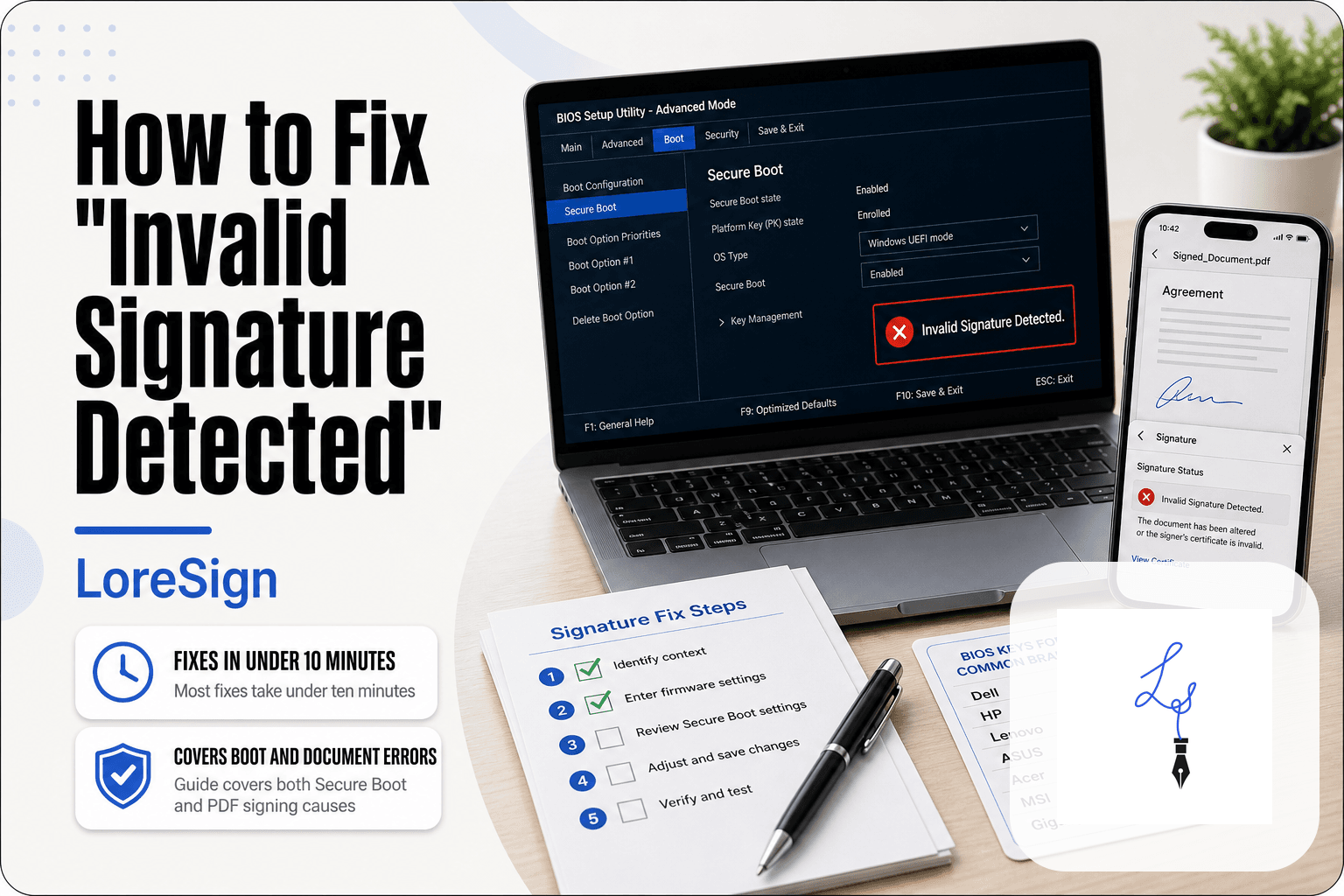
How to Fix "Invalid Signature Detected" starts with a frustrating moment: you see the error and you don't know if your computer won't boot or your document won't sign. It's the same four words in two very different places. At startup, it means Secure Boot found a bootloader or driver it can't verify. In a PDF, it means the digital signature's certificate or hash doesn't match. This guide covers both. The good news is most fixes take under ten minutes. The honest answer is that one common fix, disabling Secure Boot, trades real security for convenience, and you shouldn't do it unless you understand what you're giving up. If your error is document-related, LoreSign handles signature verification automatically so you never see this message.
| At a glance | Details |
|---|---|
| Error appears in | Two places: boot screen or document signing |
| Boot cause | Secure Boot rejecting unsigned bootloader |
| Signing cause | Document altered after signing |
| First step | Identify which context you are in |
| Safe fix | Repair bootloader or re-sign document |
| Last resort | Disable Secure Boot (reduces protection) |
In This Guide
- What Does "Invalid Signature Detected" Actually Mean?
- Fixing the Bootloader vs Disabling Secure Boot
- Before You Start: What You Need to Know
- How To Fix "Invalid Signature Detected": A Step-by-Step Guide
- How to Fix "Invalid Signature Detected" in BIOS/UEFI
- Restore Factory Keys (The Safer Fix)
- Update Your BIOS to Fix Signature Errors
- Disable Driver Signature Enforcement (Windows Fix)
- Brand-Specific Fixes (Razer, HP Omen, Lenovo, Gigabyte)
- What If the Error Appears When Signing a Document?
- Common Mistakes to Avoid When Fixing Invalid Signature Errors
- Final Thoughts: Fixing Invalid Signature Detected Safely
What Does "Invalid Signature Detected" Actually Mean?
"Invalid Signature Detected" means your computer checked a digital signature, found it didn't match what it expected, and blocked the action. The signature is a cryptographic stamp that proves a file or document hasn't been tampered with.
How Secure Boot verifies signatures
Secure Boot checks the bootloader's signature against keys stored in your firmware. If the signature is missing, altered, or signed by an untrusted key, the boot stops. That's the error.
Why the error appears at boot vs. in documents
At boot, the firmware refuses to load unsigned code. In a document, the reader's software checks the signer's certificate against a trusted authority. Both fail the same way: the signature doesn't verify.
The difference between a BIOS signature error and a document signature error
A BIOS error blocks your whole system from starting. A document error just flags one file. The fixes are completely different, so identify which one you're seeing before you change anything.
[!note] The same error text appears in two unrelated systems: a PC's firmware refusing to load an unsigned bootloader, and a document platform flagging a file whose contents changed after it was signed. The fix depends entirely on which one you are looking at.
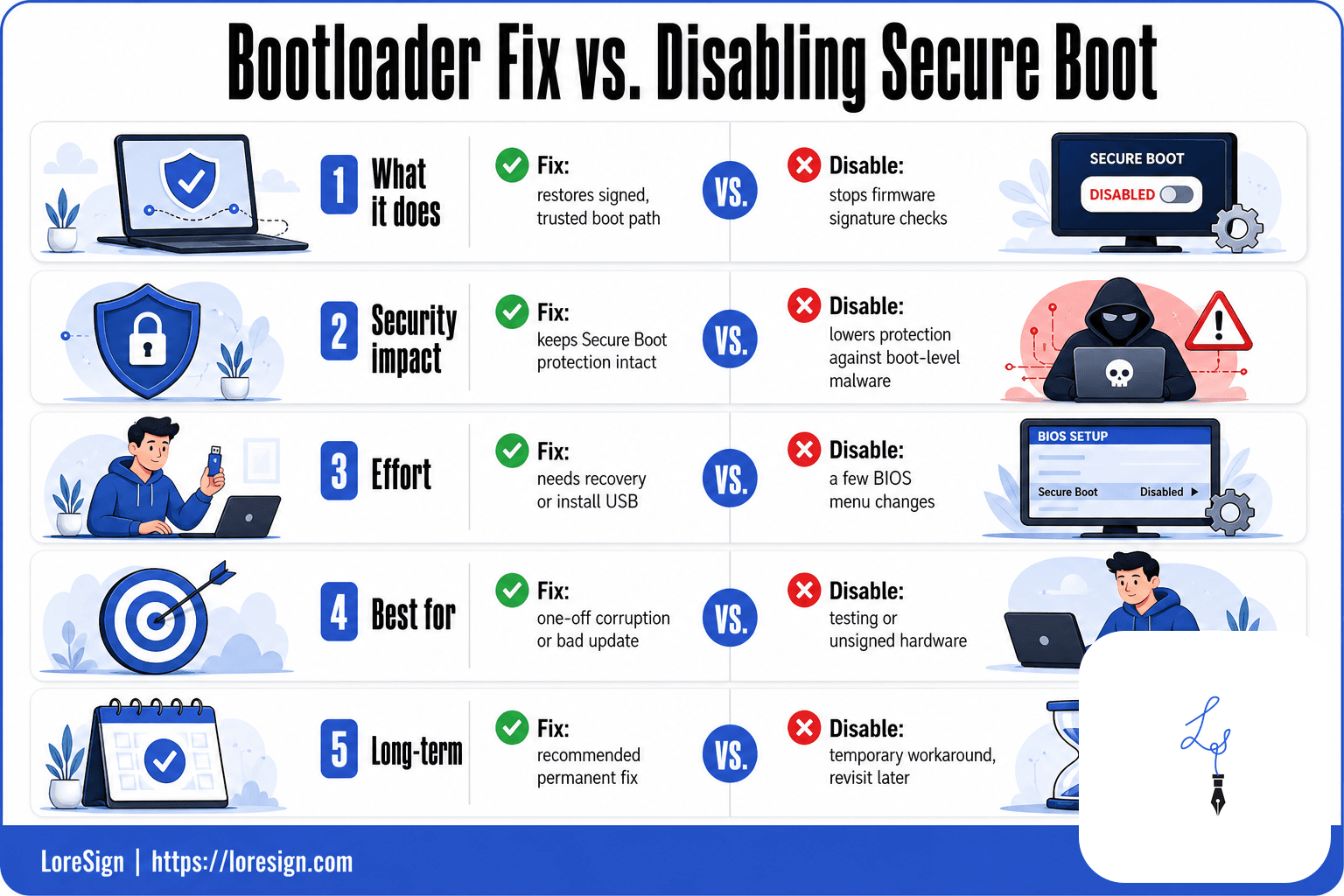
Fixing the Bootloader vs Disabling Secure Boot
| Factor | Fix the bootloader | Disable Secure Boot |
|---|---|---|
| What it does | Restores a signed, trusted boot path | Stops the firmware from checking signatures |
| Security impact | Keeps Secure Boot protection intact | Lowers protection against boot-level malware |
| Effort | Needs a recovery or install USB | A few BIOS menu changes |
| Best for | A one-off corruption or bad update | Testing or hardware that cannot be signed |
| Long-term | Recommended permanent fix | Temporary workaround, revisit later |
Before You Start: What You Need to Know
You'll need admin rights on the machine and a way into BIOS/UEFI, usually by pressing F2, F10, Del, or Esc during startup. Write down your current settings before changing anything.
The risks of disabling Secure Boot
Disabling Secure Boot removes the check that blocks unsigned bootloaders. That opens the door to rootkits and boot-level malware. It also breaks Windows 11's requirements and can trigger BitLocker recovery prompts.
When it's safe to disable Secure Boot vs. when to fix the underlying issue
Disable it only as a temporary test. If the error clears, you've confirmed the cause, but the fix is restoring factory keys or updating the BIOS, not leaving it off. Leaving it off is the unsafe shortcut.
[!tip] Before changing any BIOS setting, photograph the error screen and note your exact model. Vendor support and forums can resolve it faster when they know whether it is a Secure Boot policy message or a bootloader file name.
How To Fix "Invalid Signature Detected": A Step-by-Step Guide
- Note the exact wording on screen, including any file name or policy message.
- Enter your firmware settings (usually F2, F10, Del or Esc at startup).
- Check the boot order and confirm the correct drive is first.
- If you recently changed hardware or updated firmware, restore default Secure Boot keys.
- Boot from a Windows recovery USB and run startup repair.
- If the error persists, rebuild the bootloader from the recovery environment.
- Only if none of the above works, consider temporarily disabling Secure Boot and seek vendor support.
How to Fix "Invalid Signature Detected" in BIOS/UEFI
The fix happens in your firmware settings, not Windows. Restart the machine and get into BIOS/UEFI first.
Step 1: Restart and enter BIOS/UEFI
Restart your computer. As it powers on, press the BIOS key repeatedly before Windows loads. Common keys: F2 (Dell, Acer, Asus), F10 (HP), Del (Gigabyte, MSI), F1 (Lenovo). If you miss it, restart and try again.
Step 2: Find Secure Boot settings
Look for a tab called Security, Boot, or Authentication. Secure Boot sits under one of those. On some boards it's under Advanced Mode, so switch out of Easy Mode if you see that option.
Step 3: Disable Secure Boot or restore factory keys
You have two choices. Disable Secure Boot to test whether it clears the error. Or restore factory keys, which is the safer fix and keeps protection on. Try factory keys first.
Step 4: Save and restart
Press F10 (usually) to save and exit. The machine reboots. If the error is gone, you've found the cause. If not, the problem is a driver or a corrupted bootloader, not the Secure Boot policy itself.
Restore Factory Keys (The Safer Fix)
Disabling Secure Boot works, but it leaves your machine open to boot-time malware. Restoring factory keys fixes the error without that trade-off.
What factory keys are and why they matter
Secure Boot checks every bootloader against a list of trusted signatures. That list is stored as keys in your firmware. When those keys get corrupted or deleted, valid software fails the check. Restoring them puts the original Microsoft and manufacturer keys back.
How to restore factory keys in BIOS
Enter BIOS the same way as before. Find Secure Boot settings, then look for an option called Restore Factory Keys, Reset to Setup Mode, or Load Default Keys. Select it, confirm, save and exit. The error usually clears on the next boot.
When restoring keys won't work
If the keys were never the problem, this changes nothing. A corrupted bootloader or an unsigned driver will still fail. And some boards hide the restore option behind a BIOS update.
Update Your BIOS to Fix Signature Errors
If restoring factory keys didn't work, the firmware itself may be the problem.
Why outdated BIOS causes signature errors
Older BIOS versions ship with outdated Secure Boot databases. They reject newer bootloaders and drivers whose signatures weren't in the list when the board shipped. A BIOS update refreshes those databases and fixes the false positive.
How to check your BIOS version
Press Windows + R, type msinfo32, and check the BIOS Version/Date field. Compare it against the latest version on your motherboard or laptop manufacturer's support page.
How to update BIOS safely
Download the update only from the manufacturer's site. Follow their instructions exactly. Don't interrupt the process. A failed BIOS flash can brick the board.
Disable Driver Signature Enforcement (Windows Fix)
If the error appears inside Windows rather than at boot, the problem is usually an unsigned driver, not Secure Boot.
When driver signature enforcement is the culprit
Windows blocks drivers that lack a valid digital signature. You'll see the error when installing hardware, loading a kernel tool, or after a driver update. The fix is temporary, not permanent.
How to disable driver signature enforcement temporarily
Hold Shift and click Restart. Go to Troubleshoot > Advanced options > Startup Settings > Restart. Press 7 or F7 for "Disable driver signature enforcement." Windows boots once with enforcement off.
How to re-enable it afterward
Restart normally. Enforcement returns automatically. Don't leave it off. Unsigned drivers can be malware.
Brand-Specific Fixes (Razer, HP Omen, Lenovo, Gigabyte)
The BIOS menus differ by manufacturer. The fix is the same, but the path to it isn't.
Razer Blade: BIOS key and Secure Boot location
Press F1 or Del repeatedly as the Razer logo appears. In the BIOS, go to the Security tab, then Secure Boot. Change Secure Boot Control to Disabled, or select Restore Factory Keys if the option exists. Save with F10.
HP Omen: Restoring factory keys
Press F10 at startup to enter BIOS. Go to Security > Secure Boot Configuration. Select Restore Factory Keys and confirm. This is the safer fix on Omen laptops. If the error persists, disable Secure Boot from the same menu.
Lenovo: Secure Boot policy setup
Press F2 or Fn+F2 at the Lenovo logo. Go to the Security tab, then Secure Boot. Set Secure Boot to Disabled, or choose Reset to Setup Mode to clear custom keys. Save and exit with F10.
Gigabyte: BIOS navigation
Press Del at startup. Go to the BIOS tab, then Secure Boot. Change Secure Boot to Disabled, or select Restore Factory Keys under Key Management. Save with F10.
What If the Error Appears When Signing a Document?
The same phrase shows up in a completely different place: a PDF or e-signature platform. It means the document's digital signature failed verification. The certificate expired, the document was altered after signing, or the signer's identity couldn't be confirmed.
Why a document signature shows as invalid
A digital signature works by creating a cryptographic hash of the document at the moment of signing. If anything changes afterward, even a single character, the hash no longer matches. The signature shows as invalid. Expired certificates and revoked keys cause the same result.
How to fix invalid signatures in PDFs
Open the signature panel in your PDF reader and check the certificate status. If the document was altered, you need a fresh signature from the original signer. If the certificate expired, the signer must re-sign with a valid one. There's no way to repair a broken hash.
Common Mistakes to Avoid When Fixing Invalid Signature Errors
The wrong fix can leave your system less secure than before. Don't trade one problem for a bigger one.
Don't permanently disable Secure Boot without understanding the risks
Disabling Secure Boot removes the check that caught the bad signature. Your machine will boot, but it will also boot malware that Secure Boot would have blocked. If you disable it, re-enable it after you've fixed the underlying issue.
Don't ignore driver signature warnings
A driver that fails signature verification is either corrupted or not from a trusted source. Installing it anyway gives that code deep access to your system.
Don't download unsigned software to "fix" the problem
Forums will point you to unsigned utilities that claim to patch signature errors. They can't. They're just another unsigned binary asking for the same trust you're trying to protect.
Final Thoughts: Fixing Invalid Signature Detected Safely
The fix that works depends on where the error appears. At boot, restore factory keys before you disable Secure Boot. In Windows, check the driver first. In a PDF, the signature broke because the file changed after signing.
The honest answer is that "Invalid Signature Detected" is a trust check doing its job. It caught something that didn't match. Your fix should remove the mismatch, not the check.
If the error shows up when you're signing a document, you don't need to touch your BIOS. LoreSign handles signature verification automatically, so you upload the PDF, place the signing fields, and send one secure link. The platform tracks every signer and delivers the completed document once everyone's signed. No invalid signature errors, no manual certificate checks.
Frequently Asked Questions
What does "Invalid Signature Detected" mean?
It means a signature check failed. On a PC boot screen, the firmware found a bootloader that is not signed with a key it trusts. In document signing, it means the file was changed after it was signed, so the signature no longer matches the content.
How do I fix the "Secure Boot Violation. Invalid signature detected" error?
First confirm the correct boot drive is selected. If that fails, boot from a recovery USB and run startup repair or rebuild the bootloader. Disabling Secure Boot should be a last resort because it removes a layer of protection.
How do I fix the "Invalid signature detected check Secure Boot policy" error on my Razer Blade?
Razer laptops often show this after a firmware or Windows update changes the boot entries. Enter the BIOS, load default Secure Boot keys, and confirm the Windows Boot Manager is first in the boot order. If it persists, use a Windows recovery USB to repair startup.
What does the "Invalid signature Detected" error mean on an HP Omen computer?
On HP Omen machines it usually means Secure Boot rejected a bootloader, often after a BIOS update or a change to the boot drive. Check the boot order, restore Secure Boot defaults, and repair the bootloader from recovery media if needed.
Is it safe to disable Secure Boot to get past this error?
It will usually let the machine boot, but it lowers your protection against boot-level malware and is not a real fix. Treat it as a temporary diagnostic step and re-enable Secure Boot once the underlying bootloader issue is resolved.
Why does my signed document show an invalid signature?
The most common cause is that the file was edited, re-saved, or converted after signing, which changes its contents and breaks the signature. Download the original signed copy from the platform rather than a forwarded or re-saved version.
How can I avoid invalid signature errors when signing documents?
Use a platform that tracks every signer and delivers the completed document automatically, so you always work from the original file. Avoid editing or re-saving a signed PDF, and verify authenticity through the platform's audit trail or public verification page.
About LoreSign
LoreSign helps For people looking to get documents and contracts signed. get this right. Track every signer and receive the completed document automatically. Whether you are working through How to Fix "Invalid Signature Detected or something adjacent, we publish what we have actually tested, including where it falls short.