Custom E Signatures: A Practical Guide for Documents and Contracts
Search "custom e signatures" and you'll mostly find email signature generators, tools that stamp your name and title at the bottom of a Gmail message. That's not what you need if you're trying to get a contract signed. This guide is about the other thing: legally binding custom e signatures for documents and contracts, the kind that hold up under the ESIGN Act and UETA. If you run a small business or handle paperwork regularly, you already know the pain of printing, signing, scanning, and emailing documents back. LoreSign exists to remove that loop: upload a PDF, place the signing fields, send one link, and the completed document comes back automatically. Here's what you'll get: a plain-language definition of custom e signatures, the legal rules that make them enforceable, three ways to create one, a comparison of six signing tools, and an honest list of what e-signatures cannot do.
| At a glance | Details |
|---|---|
| Definition | Legally binding digital mark on documents |
| Legal Basis | ESIGN Act & UETA in the US |
| Key Difference | Not email signatures; for contracts |
| Creation | Draw, type, or upload your signature |
| Limitations | Doesn't replace notarization or wills |
| Best Tool | LoreSign for secure document signing |
In This Guide
- What Are Custom E Signatures?
- Email Signatures vs. E-Signatures: What’s the Difference?
- Are Custom E Signatures Legally Binding in the US?
- Custom E Signatures: A Step-by-Step Guide
- How to Create a Custom E Signature
- Key Features to Look for in Custom E Signature Tools
- Best Custom E Signature Tools for Documents and Contracts
- What Custom E Signatures Cannot Do
- Common Mistakes When Creating Custom E Signatures
- How to Choose the Right Custom E Signature Tool
What Are Custom E Signatures?
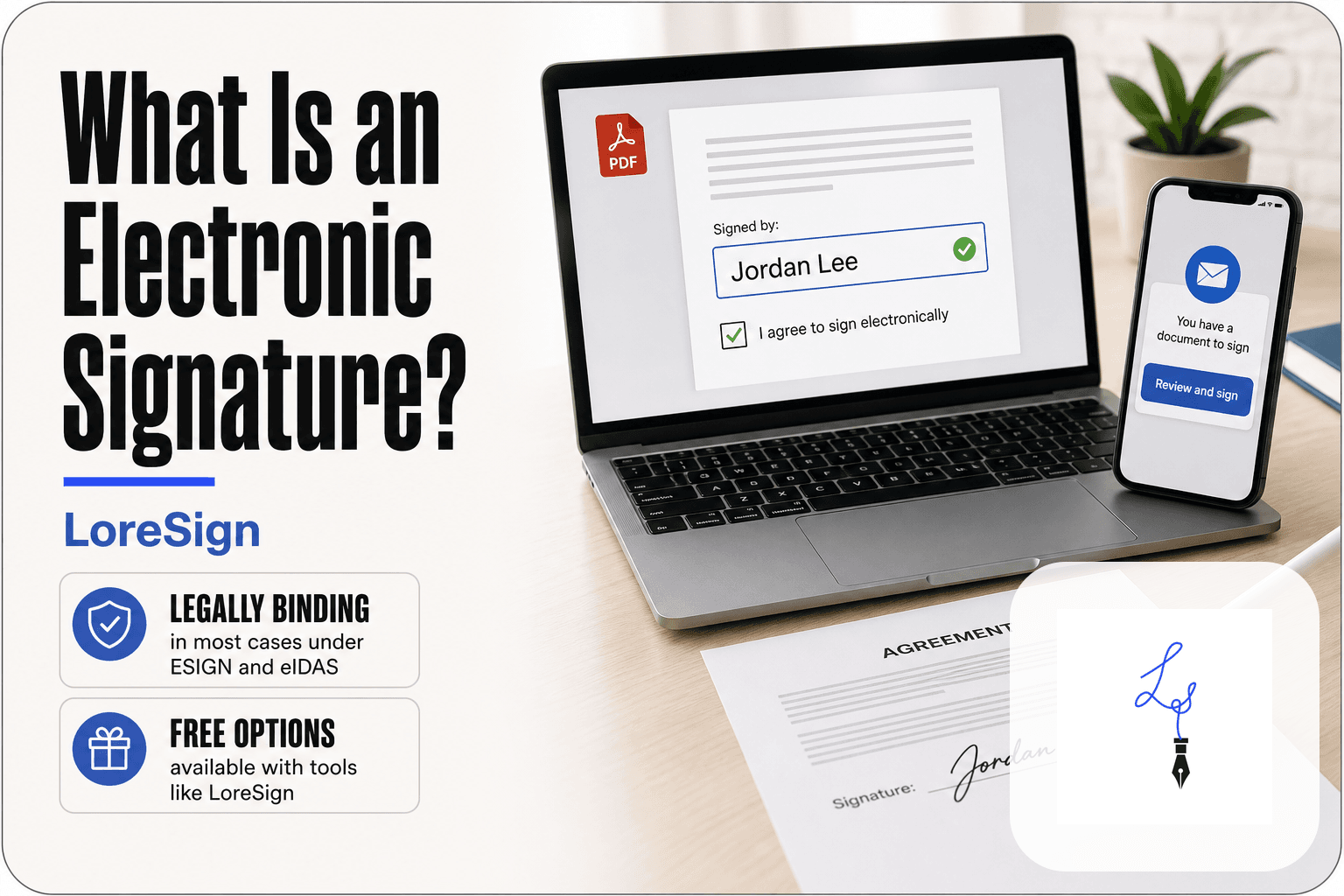
A custom e-signature is a legally binding electronic mark you add to a document or contract to show your intent to sign. It's not an email signature. It's a signature that holds up in court.
Email signature vs. e-signature: the key difference
An email signature is branding. It sits at the bottom of your messages with your name, title, and phone number. It proves nothing and signs nothing.
An e-signature is a legal act. When you type your name, draw it, or click "I agree" on a contract, you're signaling intent to be bound. The visual matters less than the action behind it.
Three types of custom e signatures
You have three options. Typed: you type your name and pick a font. Drawn: you sign with a mouse, finger, or stylus. Uploaded: you scan or photograph your handwritten signature and insert it as an image.
All three are legally valid. None is more binding than the others.
What makes an e-signature legally binding
Intent and consent. You must clearly agree to sign electronically, and the document must show you did. An audit trail that records who signed, when, and from what device helps. The visual style of your signature doesn't.
Under the US ESIGN Act and UETA, electronic signatures are legally binding for most business and personal contracts, but they do not replace notarization or apply to certain documents like wills or family law matters.
Email Signatures vs. E-Signatures: What’s the Difference?
| Factor | Email Signature | E-Signature |
|---|---|---|
| Purpose | Branding in email footer | Legally binding on documents |
| Legal Validity | No legal standing | Valid under ESIGN/UETA |
| Use Case | Marketing and contact info | Contracts, agreements, forms |
| Creation Tool | Email client or generator | Dedicated e-signature platform |
| Security | Not encrypted or tracked | Audit trail and encryption |
Are Custom E Signatures Legally Binding in the US?
Yes, for most business and personal transactions. Two federal and state laws make this clear.
ESIGN Act and UETA explained simply
The ESIGN Act (2000) says an electronic signature can't be denied legal effect just because it's electronic. UETA is the state-level version, adopted by 47 states. New York, Illinois, and Washington have their own equivalent laws.
In practice: if a contract is valid on paper, it's valid with an e-signature. The signature just needs to show intent to sign.
What documents cannot be signed electronically
The exceptions are narrow but real. Wills and codicils. Some family law documents like divorce decrees and adoption papers. Court filings in certain jurisdictions. Documents that require notarization, unless the notary uses an approved remote online notarization platform.
If you're unsure, check your state's UETA adoption and any document-specific rules.
What makes an e-signature enforceable in court
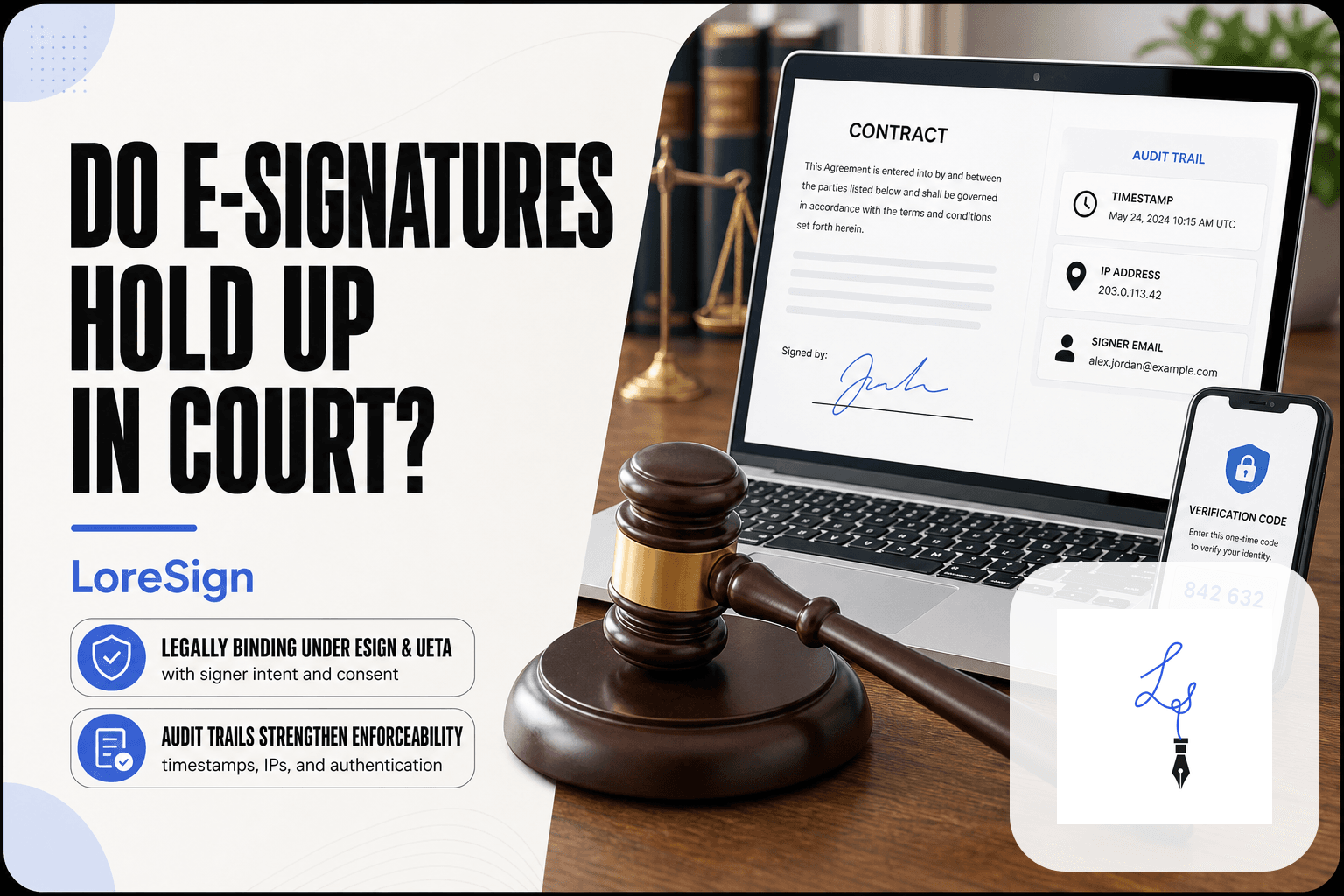
Three things. Intent: the signer clearly agreed to sign. Consent: the signer agreed to do business electronically. Attribution: you can show who signed and when.
An audit trail with timestamps, IP addresses, and signer email addresses covers attribution. A visual signature alone doesn't.
For a professional look, use a stylized version of your handwritten signature either drawn with a mouse or stylus or uploaded as a transparent PNG and save it in LoreSign for reuse across all your documents.
Custom E Signatures: A Step-by-Step Guide
Step 1: Create a free LoreSign account and log in.
Step 2: Upload your PDF document or start from a template.
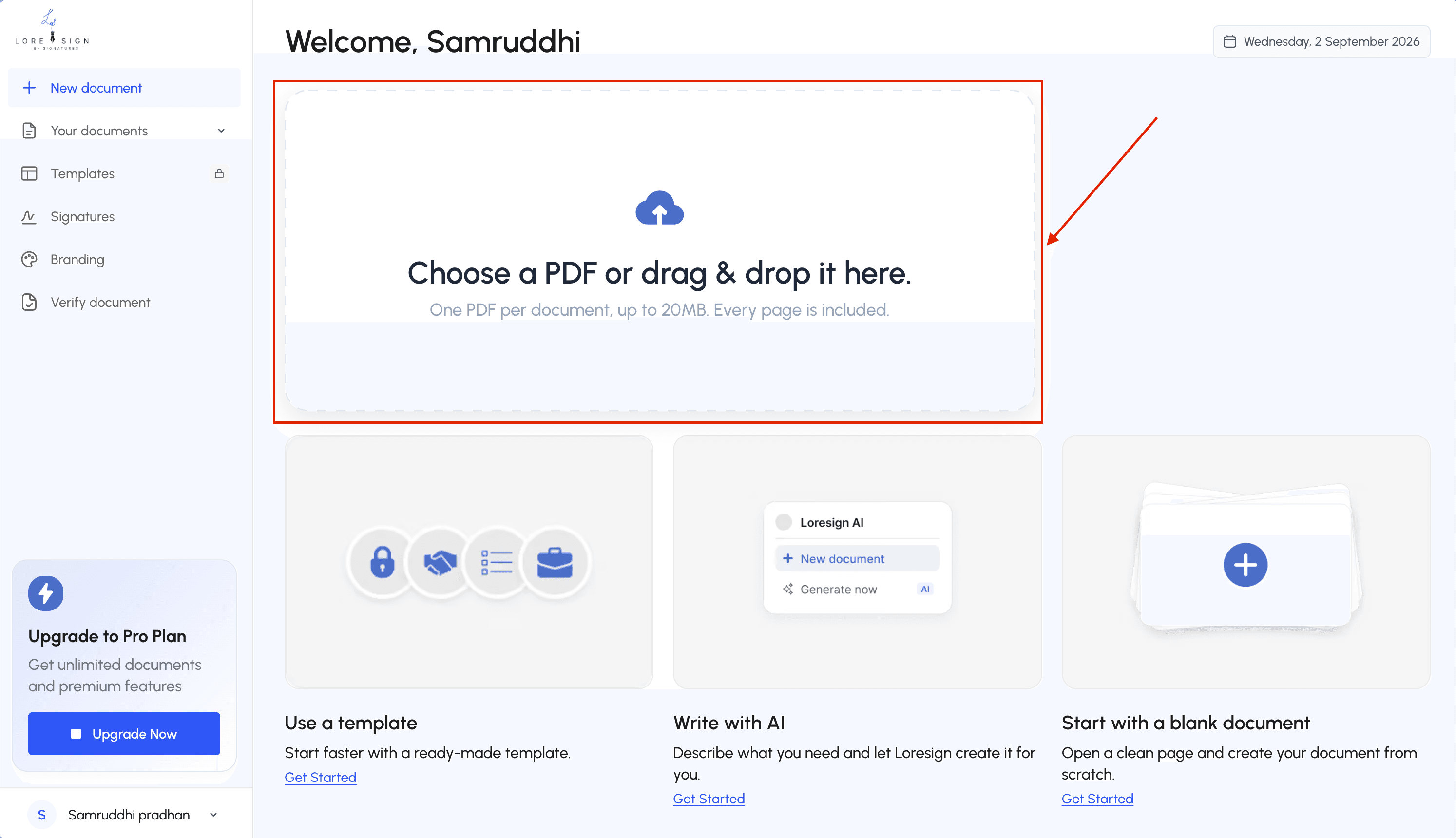
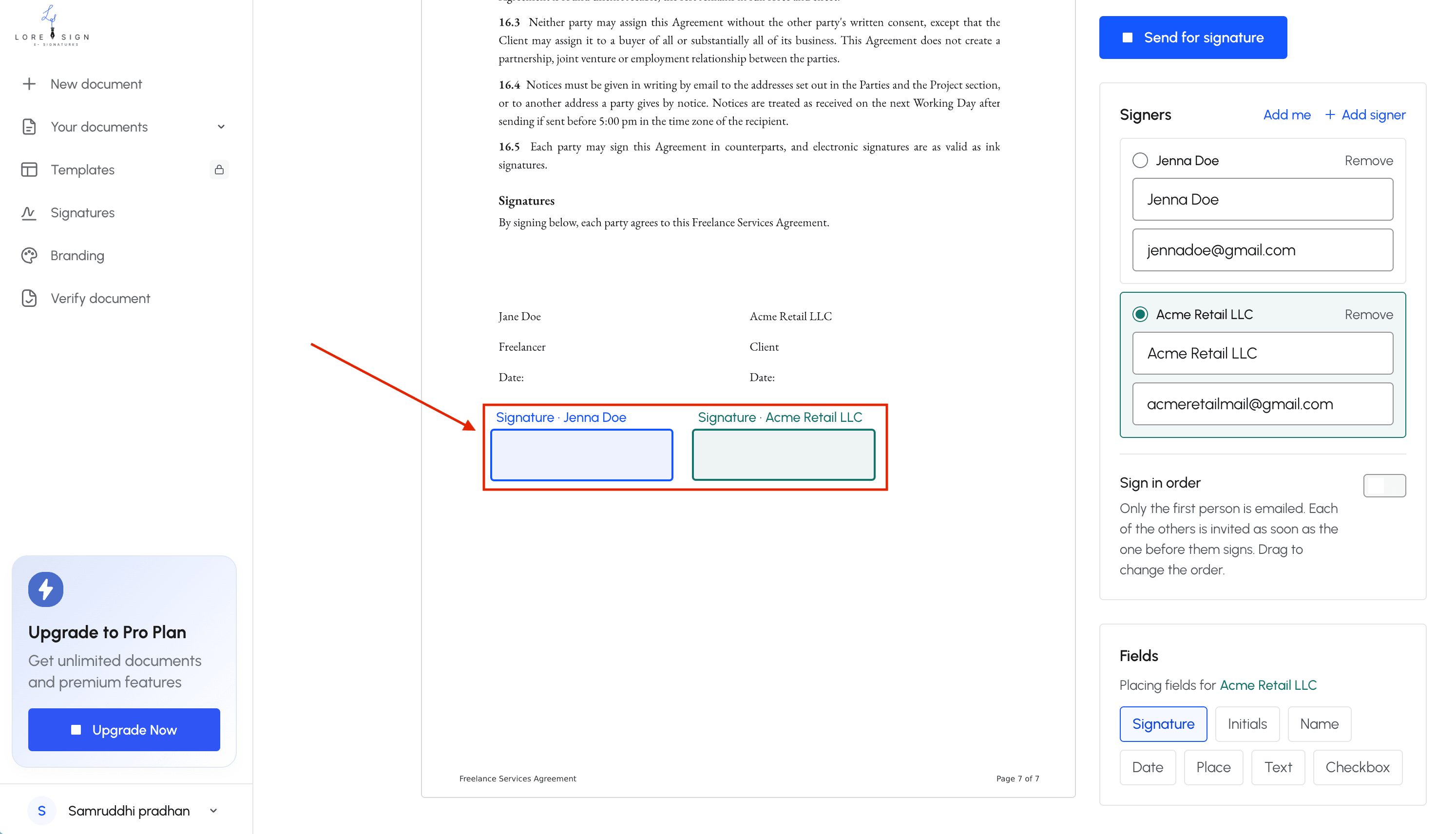
Step 3: Place signature fields and other required fields on the document.
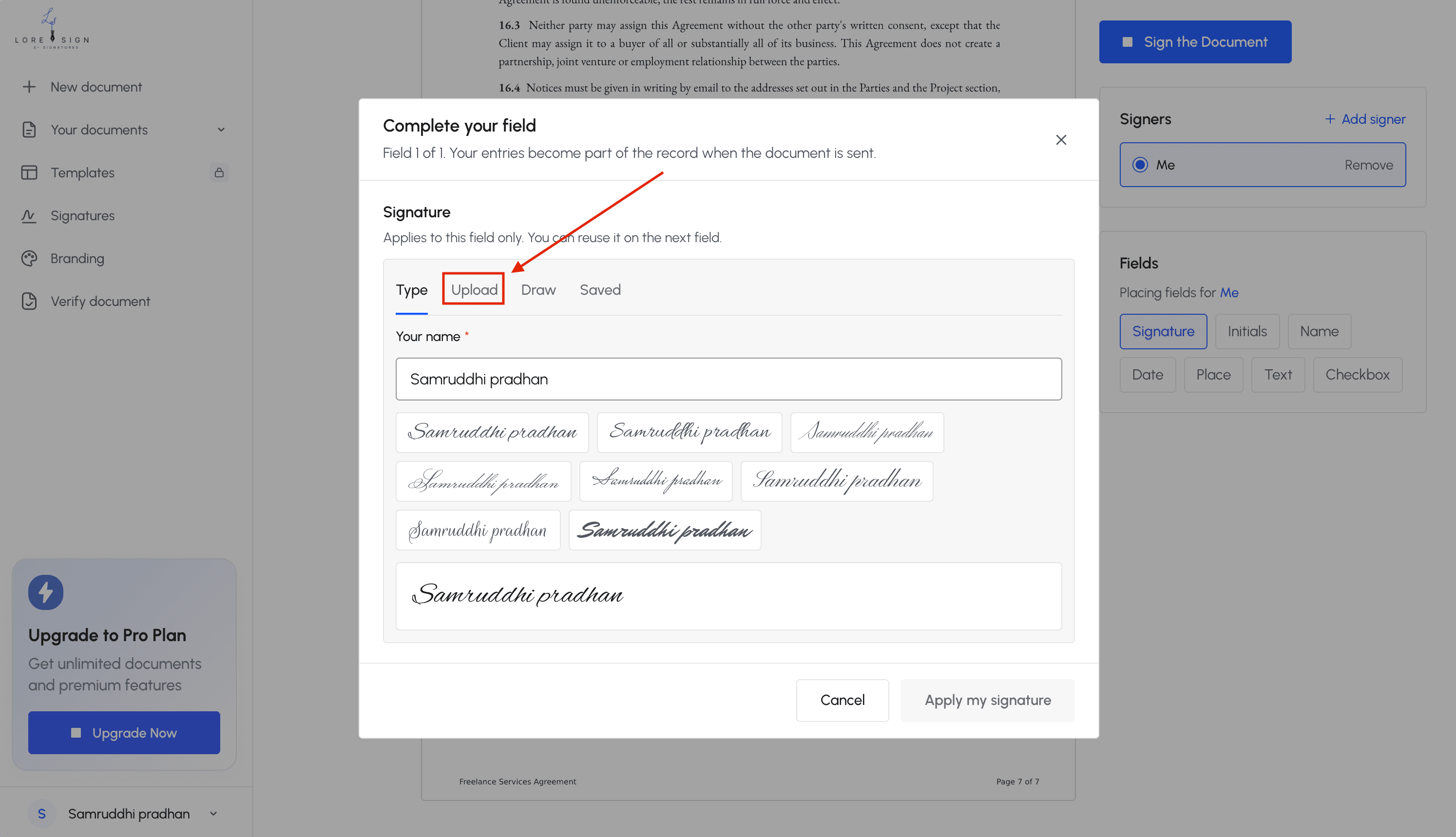
Step 4: Draw, type, or upload an image of your signature to create your custom e-signature.
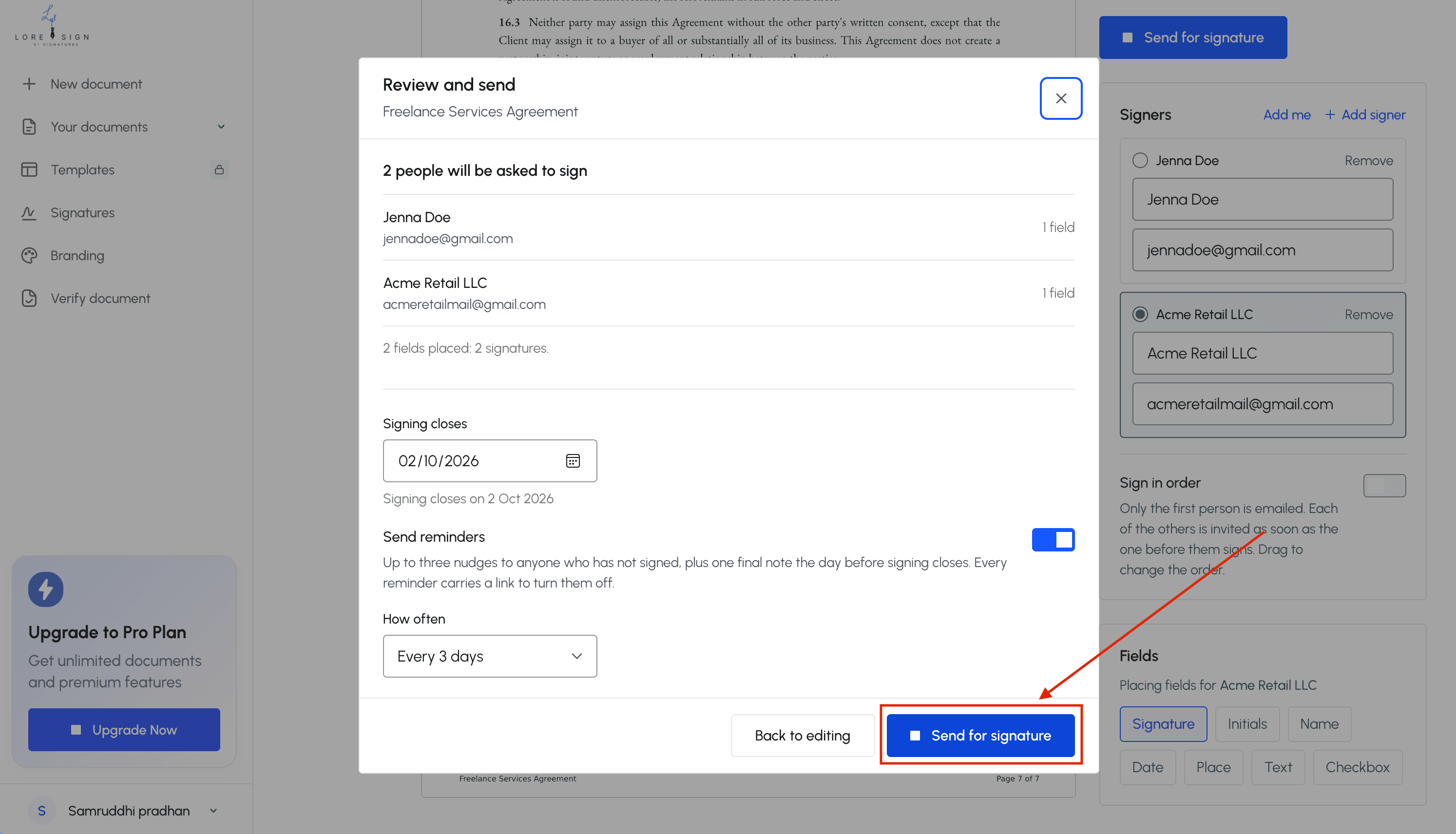
Step 5: Send the document via a secure link to all signers. Track signing progress and set automated reminders if needed. Receive the completed, signed PDF automatically once everyone signs.
How to Create a Custom E Signature
You have three ways to make one. All three produce a legally valid signature as long as the tool records intent, consent, and attribution behind the scenes.
Method 1: Draw your signature
Use your mouse, trackpad, or finger on a touchscreen. Most e-signature tools give you a blank canvas. Draw your name as you would on paper.
The honest catch: mouse-drawn signatures look shaky. If you want something closer to your real handwriting, use a stylus or your finger on a phone. LoreSign's draw tool works the same way, with a clear canvas and an undo button.
Method 2: Type and style your name
Type your full name, then pick a font. Most tools offer a handful of cursive and script options. This is the fastest method and the most consistent across documents.
It doesn't look like your handwriting. That's fine. Courts care about intent and attribution, not penmanship.
Method 3: Upload a handwritten signature image
Sign a blank piece of paper, photograph or scan it, and upload the image. Crop it tight. This gives you the closest match to your wet signature.
Keep in mind: a photo with shadows or a busy background looks unprofessional on contracts. Use good lighting and a clean white sheet.
Adding your logo or branding to a custom e signature
Some tools let you add a logo next to your signature. LoreSign includes brand kits on paid plans, so your logo appears automatically on every document you send. Free plans typically don't offer this.
A logo doesn't make the signature more legal. It's branding, not authentication.
Key Features to Look for in Custom E Signature Tools
Not every feature matters for every user. A solo freelancer sending two contracts a month doesn't need the same tool as a 40-person sales team.
Audit trails and signer authentication
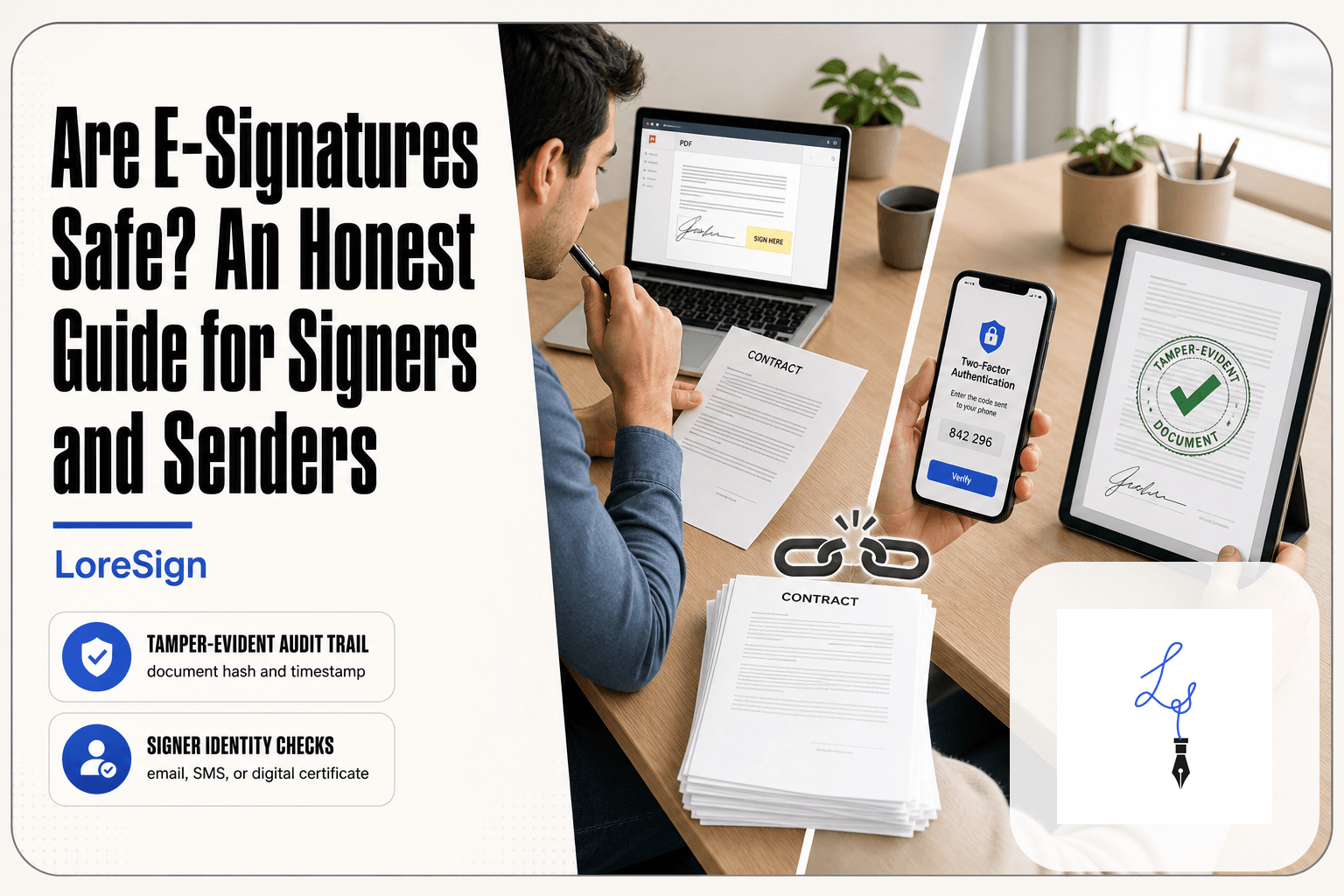
An audit trail records who signed, when, and from which IP address. It's the evidence you'll need if a signature is ever challenged. Authentication methods vary: email verification is standard, SMS codes add a second layer, and government ID checks exist for high-value transactions. For most contracts, email plus a recorded IP address is enough.
Templates for repeat documents
If you send the same agreement repeatedly, templates save real time. You build the document once, place the signing fields, and reuse it. LoreSign includes 3 templates on Starter and unlimited on Pro and Business. Solo users can skip this feature entirely.
Team and multi-signer workflows
Ordered routing sends the document to signers in sequence. This matters when a contract needs manager approval before the client signs. Team management adds shared templates, role permissions, and a central dashboard. Solo users don't need any of it.
Integrations with document storage
Most tools connect to Google Drive, Dropbox, or OneDrive. The signed PDF lands in your storage automatically. Check that your tool supports the storage you already use before paying for a plan.
Best Custom E Signature Tools for Documents and Contracts
These six tools cover most use cases, from solo freelancers to enterprise legal teams. I tested each one for document setup, signing flow, and audit trail quality.
LoreSign
LoreSign is built for document and contract signing without the bloat. You upload a PDF, place the signing fields, and send one secure link. The signer doesn't need an account. You get automatic reminders, ordered multi-signer routing, and a certificate of completion with an audit trail on every plan.
The main catch is the free tier. It includes one AI draft and three templates, but watermark-free PDFs require a paid plan. For solo users sending a handful of contracts monthly, Starter covers the essentials.
Key Features:
- AI drafting: generate a first draft of a contract from a description, then edit it
- Ordered multi-signer routing: send documents to signers in sequence
- Public verification page: anyone can verify a completed signature
- Automated reminders: chase unsigned documents without manual follow-up
- Brand kits: custom branding on Pro and Business plans
Pros:
- Audit trail and verification page included on every plan
- No signer account required
- Straightforward setup without a learning curve
Cons:
- Fewer third-party integrations than DocuSign or Adobe
- Free tier limits templates and AI drafts
Pricing:
- Free: 3 templates, 1 AI draft
- Starter: (verify at publish)
- Pro: 5 brand kits, 20 AI drafts/mo
- Business: unlimited templates, 150 AI drafts/mo
Best For: Solo professionals and small teams who need legally binding signatures without enterprise overhead.
DocuSign
DocuSign is the default choice for large organizations. It handles complex workflows, integrates with hundreds of tools, and meets compliance standards across industries. The signing experience is polished, and recipients rarely need instructions.
The honest answer is that you pay for that scale. Setup takes longer than simpler tools, and the per-user pricing adds up fast for small teams.
Key Features:
- Workflow automation: route documents based on conditional rules
- 400+ integrations: connects to Salesforce, Google, Microsoft, and more
- Advanced authentication: SMS, ID verification, and knowledge-based questions
- Template library: reusable documents with pre-placed fields
- Mobile apps: full signing and sending from iOS and Android
Pros:
- Industry-standard compliance and security
- Massive integration ecosystem
- Reliable for high-volume sending
Cons:
- Expensive for low-volume users
- Interface can feel heavy for simple documents
Pricing:
- Free: (verify at publish)
- Personal: (verify at publish)
- Standard: (verify at publish)
- Business Pro: (verify at publish)
Best For: Mid-size to enterprise teams with compliance requirements and high document volume.
HelloSign (Dropbox Sign)
HelloSign, now branded Dropbox Sign, keeps things simple. The interface is clean, the API is developer-friendly, and the Dropbox integration is native. It's a solid middle ground between bare-bones tools and enterprise platforms.
The catch is that Dropbox has shifted focus toward its core storage product. Some users report slower feature updates since the acquisition.
Adobe Acrobat Sign
Adobe Acrobat Sign plugs into the PDF tools most offices already run. If your team lives in Adobe, the integration is tight. You can send from Acrobat, track status, and store signed copies in Adobe Cloud.
The honest catch: the interface assumes you know Adobe's ecosystem. New users face a steeper climb than with simpler tools, and the pricing reflects the Adobe brand.
Key Features:
- Native PDF integration: send directly from Acrobat
- Adobe Cloud storage: signed documents sync automatically
- Custom branding: logos and colors on business plans
- Mobile support: sign and send from iOS and Android
Pros:
- Tight integration with Adobe products
- Strong PDF handling
- Trusted brand for legal and enterprise use
Cons:
- Steeper learning curve for non-Adobe users
- Higher cost for occasional senders
Pricing:
- Free: (verify at publish)
- Standard: (verify at publish)
- Pro: (verify at publish)
Best For: Teams already committed to the Adobe ecosystem.
PandaDoc
PandaDoc is a document automation platform with e-signature built in. It handles proposals, quotes, and contracts in one flow. The template library is strong, and the analytics show you when recipients open and view documents.
The catch: you're paying for the automation layer, not just signatures. If all you need is a signed PDF, PandaDoc is more tool than the job requires.
Key Features:
- Document analytics: see opens, views, and time spent per page
- Proposal and quote templates: build sales documents fast
- CRM integrations: connects to Salesforce, HubSpot, and Pipedrive
- Content library: reusable blocks for proposals and contracts
Pros:
- Strong for sales teams
- Good template and content library
- Useful document analytics
Cons:
- Overkill for simple signing needs
- Pricing scales with features you may not use
Pricing:
- Free: (verify at publish)
- Essentials: (verify at publish)
- Business: (verify at publish)
Best For: Sales teams that need proposals, quotes, and contracts in one tool.
signNow
signNow is a budget-friendly option that covers the basics well. You get templates, team management, and an audit trail without the enterprise price tag. The interface is straightforward, and setup takes minutes.
The tradeoff: fewer advanced features than DocuSign or Adobe, and the mobile experience is less polished than the desktop version.
Key Features:
- Templates: reusable documents with pre-placed fields
- Team management: shared templates and role permissions
- Audit trail: timestamps and IP logs on signed documents
- Mobile app: sign and send from iOS and Android
Pros:
- Lower cost than enterprise tools
- Simple, fast setup
- Solid basic feature set
Cons:
- Fewer integrations than DocuSign
- Mobile app less refined than desktop
Pricing:
- Free: (verify at publish)
- Business: (verify at publish)
- Enterprise: (verify at publish)
Best For: Small teams that need reliable e-signatures without enterprise pricing.
What Custom E Signatures Cannot Do
Custom e signatures solve a real problem, but they aren't a universal stamp. Three limits matter before you rely on one.
E-signatures vs. notarization
An e-signature is not a notarization. A notary verifies identity in person, watches the signature happen, and stamps the document. An e-signature records intent to sign, but nobody checks a government ID at the moment of signing. If a contract requires notarization, an e-signature alone won't satisfy it.
Documents that still require wet signatures
Some documents still need ink. Wills, most family law filings, and certain court documents fall outside ESIGN Act coverage. Check your state's rules before assuming an e-signature works.
Identity verification limitations
A visual signature, typed or drawn, doesn't prove who signed. It proves someone clicked or typed. Stronger tools add email verification, SMS codes, or ID checks, but those are separate features, not part of the signature itself.
Common Mistakes When Creating Custom E Signatures
Most mistakes come from confusing a pretty signature with a legal one.
Using an email signature for legal documents
An email signature is branding. It sits in your Gmail or Outlook footer and looks polished, but it carries no signing intent, no timestamp, no audit trail. If you paste that image onto a contract, you haven't signed anything. You've decorated a PDF. Courts look for evidence of intent and a record of the transaction, not a logo.
Can ChatGPT or AI create a valid e-signature?
No. ChatGPT can generate a signature image or suggest a stylized font, but an image alone isn't an e-signature. Legally, an e-signature requires a process that captures intent, ties the signature to the signer, and records when it happened. An AI-generated PNG does none of that. Use AI for drafting contract language, not for the signature itself.
Choosing free tools without compliance features
Free tools often skip the audit trail. You get a signed PDF, but no certificate of completion, no signer IP log, no tamper-evident seal. If the contract is ever disputed, you have nothing to show a judge. Before you pick a free tier, check whether it records who signed, when, and from where.
How to Choose the Right Custom E Signature Tool
Match the tool to the job, not the marketing page.
Solo users vs. teams
If you sign a few documents a month, you need drawing, typing, and an audit trail. That's it. Teams need multi-signer routing, templates, and shared access. LoreSign covers both without forcing you into a plan you won't use.
Compliance and audit requirements
If contracts could be disputed, get a certificate of completion and tamper-evident seal. Free tiers often skip both. Check before you commit.
Budget considerations
Paid plans start around $10 to $25 per month. Free tiers work for occasional signing, but you lose the audit trail. For custom e signatures on documents and contracts, LoreSign's free tier keeps the verification page, which most competitors reserve for paid plans.
Frequently Asked Questions
How can I create my own e-signature?
You can create your own e-signature by drawing it with a mouse or touchscreen, typing your name in a cursive font, or uploading an image of your handwritten signature. Tools like LoreSign let you create and save your signature once, then apply it to any document with a simple click.
How do I make my own custom signature?
To make a custom signature, use an e-signature platform that offers drawing, typing, or image upload options. For a more personal touch, draw your signature directly on the screen or upload a high-quality image of your handwritten signature—this ensures it looks authentic on every document.
Is an e-signature legal?
Yes, in the United States, e-signatures are legally binding under the ESIGN Act and UETA for most transactions. These laws ensure that contracts signed electronically hold the same weight as paper ones, provided both parties consent to use electronic signatures.
Can ChatGPT create signatures?
ChatGPT cannot create an actual signature image, but it can generate text-based signatures or suggest ideas for your signature design. For a functional e-signature, you need a dedicated tool like LoreSign that allows you to draw, type, or upload your signature and apply it to documents.
What is the difference between an email signature and an e-signature?
An email signature is a block of text or an image added to the end of your emails for branding and contact information—it has no legal validity. An e-signature is a legally binding mark placed on documents to show consent, and it is governed by laws like the ESIGN Act and UETA.
Can I add a logo to my e-signature?
Yes, many e-signature tools allow you to upload an image that includes your logo, but for legal documents, it's best to keep your signature clean and professional. You can add your logo separately in the document header or footer if needed.
Are free e-signature tools reliable?
Free e-signature tools can be reliable for basic needs, but they often lack advanced features like audit trails, multi-signer routing, and branding. For business-critical documents, consider a tool like LoreSign that offers a free plan with essential features and paid plans for more robust needs.
About LoreSign
LoreSign helps For people looking to get documents and contracts signed. get this right. Track every signer and receive the completed document automatically. Whether you are working through custom e signatures or something adjacent, we publish what we have actually tested, including where it falls short.