Software for E Signatures: The Practical Guide to Choosing the Right Tool
If you're shopping for software for e signatures as a U.S. small business owner or freelancer, you've probably noticed the market is loud, repetitive, and short on straight answers. Vendor pages promise everything. Most tools, though, do the same core thing: get a legally binding signature on a document. The real differences come down to pricing, ease of use, and whether the workflow fits how you actually send contracts. LoreSign is one option built for people who just need documents signed without enterprise complexity. The honest answer is that no single tool wins for everyone. This guide covers what e-signature software can and cannot do, breaks down free versus paid plans without the hype, and walks you through sending your first document by email so you can choose a tool and use it the same day.
| At a glance | Details |
|---|---|
| Legally binding | Yes, under ESIGN and UETA in the US |
| Free options exist | Yes, with monthly document limits |
| Paid tiers add | Templates, branding, reminders, audit trails |
| Best for small business | Tools with simple sending and clear pricing |
| What it can't do | Replace legal advice or notarization in some cases |
| Typical setup time | Minutes to send your first document |
In This Guide
- What Is Software for E Signatures?
- Free vs. Paid E-Signature Software: What You Actually Get
- Are E-Signatures Legally Binding in the U.S.?
- Software For E Signatures: A Step-by-Step Guide using LoreSign
- Electronic Signature vs. Digital Signature: What's the Difference?
- What E-Signature Software Cannot Do
- Free vs. Paid E-Signature Software: What You Actually Get
- Key Features to Look for in Software for E Signatures
- How to Send a Document for Electronic Signature via Email
- 8 Best Software for E Signatures Compared
- How to Choose the Right E-Signature Software for Your Needs
- Final Thoughts on Software for E Signatures
What Is Software for E Signatures?
Software for e signatures lets you collect legally binding signatures on documents without printing, scanning, or meeting in person. You upload a file, place signature fields, and send a link. The signer types or draws their name, and you get the completed document back.
What counts as an electronic signature
An electronic signature is any electronic mark that shows intent to sign. A typed name, a drawn signature, a checked box, or an uploaded image all count. What matters is that the signer clearly agreed to the terms. The software records that agreement with a timestamp and an audit trail.
What e-signature software actually does
The tool handles the workflow around signing. It sends the document, guides the signer through the fields, collects the signature, and returns a completed PDF. Most tools also track who has signed and who hasn't, send automatic reminders, and store a certificate of completion.
It does not verify who the signer is beyond the method you choose. It does not replace legal advice. It just makes the signing process faster and keeps a record of what happened.
E-signatures are legally binding in the US under the ESIGN Act and UETA, but some documents — like wills, certain court filings, and some real estate documents — may still require a wet signature or notarization. Always check the specific requirements for your document type.
Free vs. Paid E-Signature Software: What You Actually Get
| Factor | Free Tier | Paid Tier |
|---|---|---|
| Monthly document limit | Usually 1–5 documents | Higher or unlimited (varies by plan) |
| Templates | Not included | Included (e.g., 3 on Starter, unlimited on Pro) |
| Branding | Generic | Custom branding and brand kits |
| Reminders & automation | Manual only | Automated reminders and routing |
| Audit trail & certificate | Basic or none | Certificate of completion + audit trail |
Are E-Signatures Legally Binding in the U.S.?
Yes. E-signatures carry the same legal weight as wet ink signatures in the United States, with a few exceptions. Two laws make this work: the ESIGN Act at the federal level and UETA at the state level.
The ESIGN Act and UETA explained simply
The ESIGN Act passed in 2000. It says a signature can't be denied legal effect just because it's electronic. If a law requires a signature, an electronic one satisfies that requirement, as long as both parties agreed to sign electronically.
UETA is the state-level version. 47 states, Washington D.C., and the U.S. Virgin Islands have adopted it. The three that haven't (New York, Illinois, and Washington) have their own laws that do the same thing. In practice, you get the same result everywhere.
What makes an e-signature enforceable
Three things matter. First, intent: the signer must clearly mean to sign. Second, consent: both parties must agree to do business electronically. Third, attribution: you need a record that ties the signature to the person.
This is where the audit trail does the work. It records the signer's email address, IP address, timestamps, and the sequence of actions. If someone disputes a signature later, that record is your evidence.
When e-signatures may not be accepted
Some documents still need wet ink. Court orders, wills, trusts, adoption papers, and certain family law documents are excluded under ESIGN. Notices of utility shutoffs, evictions, and foreclosure are also on the list.
It depends on the jurisdiction and the document type. If you're unsure, check with a lawyer. The software won't tell you.
If you're a freelancer or small business owner, start with a free tier to test the workflow, then upgrade only when you hit document limits or need templates and branding. Look for tools that include a certificate of completion and audit trail even on lower tiers, as these can be important if a signature is ever disputed.
Software For E Signatures: A Step-by-Step Guide using LoreSign
** Step 1:** Go to LoreSign and create an account.
Step 2: Upload the PDF or document you need signed.
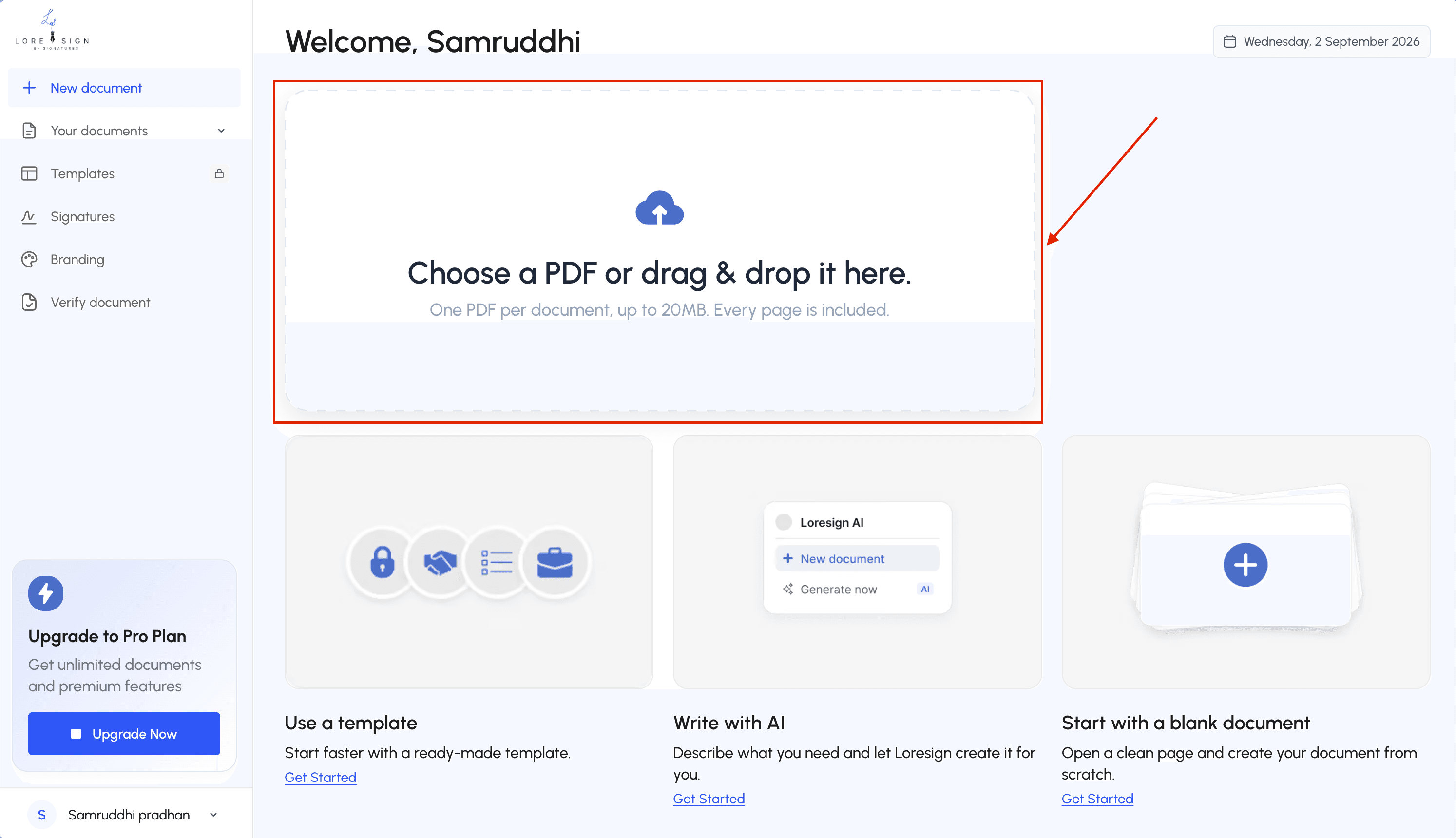
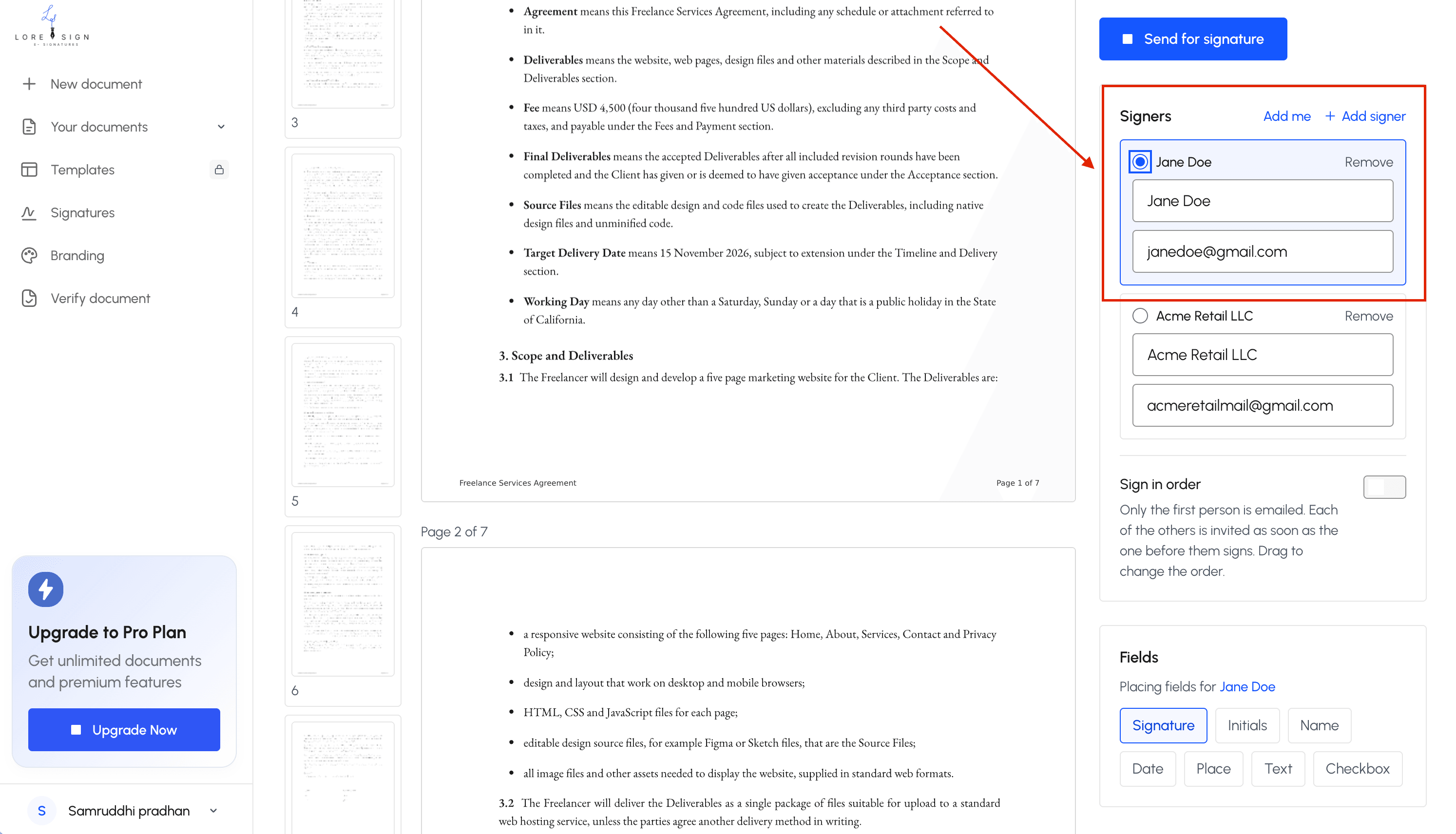
Step 3: Add the signer's name and email address, and set the signing order if multiple people are involved.
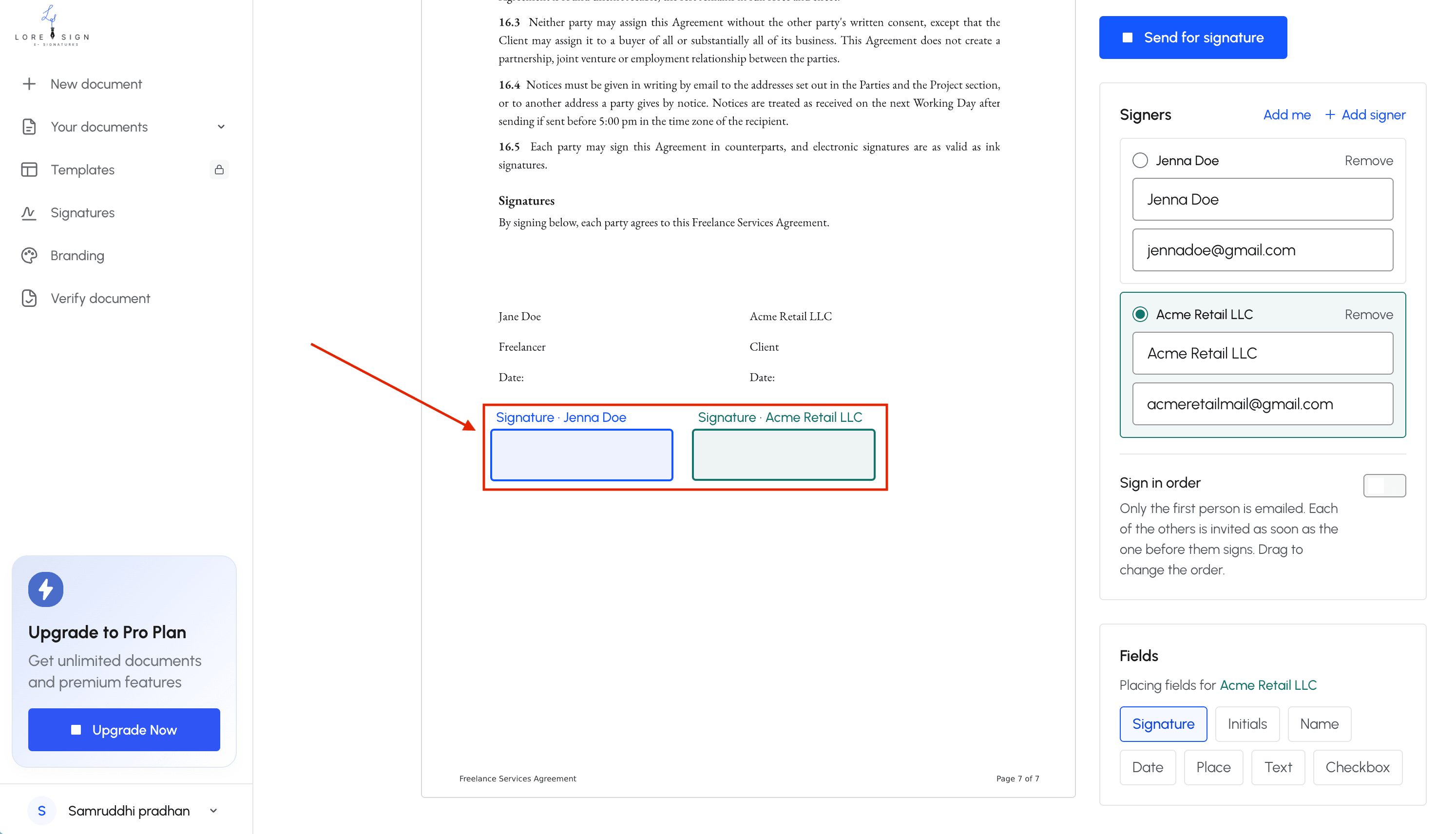
Step 4: Place the signing fields (signature, date, initials) where they belong.
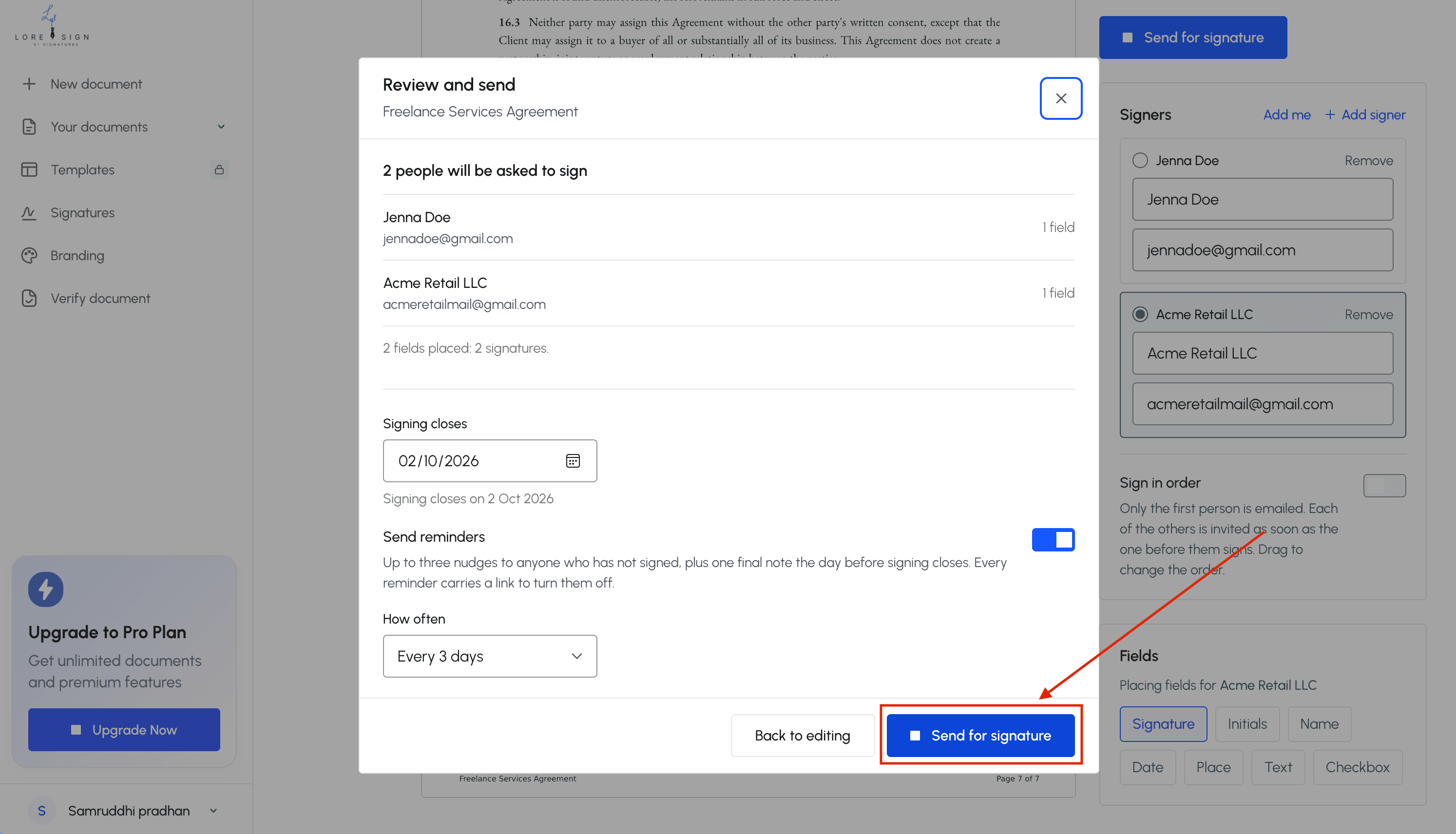
Step 5: Send the secure link the signer receives an email with instructions.
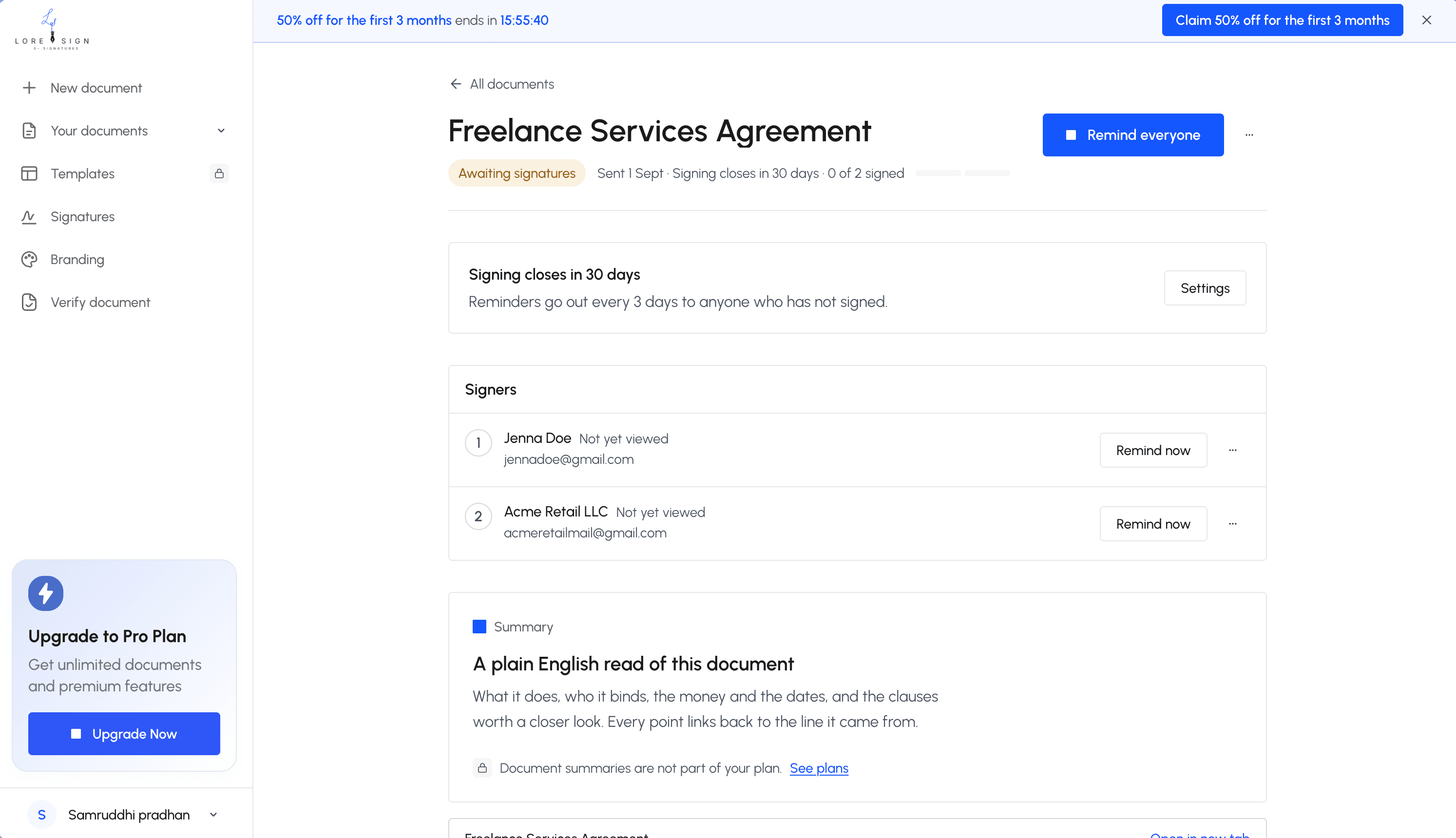
Step 6: Track progress and send reminders if needed.
Step 7: Receive the completed, signed PDF automatically once everyone has signed.
Electronic Signature vs. Digital Signature: What's the Difference?
Vendors throw both terms around like they mean the same thing. They don't. The distinction matters when you're reading a security claim or a compliance requirement.
Electronic signature defined
An electronic signature is a legal concept, not a technology. It's any electronic mark that shows intent to sign. A typed name at the bottom of an email counts. A scanned image of your handwritten signature pasted into a PDF counts. Clicking an "I agree" button counts. The law cares about intent and attribution, not the format.
Digital signature defined
A digital signature is a specific cryptographic technique. Behind the scenes, it uses a digital certificate to create a unique hash of the document, then encrypts that hash. If anyone changes the document after signing, the hash no longer matches, and the signature breaks. It's a tamper-evident seal.
Most e-signature software applies a digital signature under the hood without you noticing. You drag a signature field, the signer types their name, and the platform handles the cryptography. You get the legal weight of an electronic signature plus the tamper evidence of a digital signature.
Which one you actually need
For everyday contracts, agreements, and forms, an electronic signature is enough. The ESIGN Act and UETA don't require cryptography. What they require is intent, consent, and a record tying the signature to the person.
You need a digital signature specifically when a counterparty or regulator demands it. Some government agencies, healthcare organizations, and EU-based entities require qualified digital signatures that meet specific technical standards. If nobody's asking for that, don't pay extra for it.
What E-Signature Software Cannot Do
E-signature tools solve one problem well: getting a signature on a document without printing, scanning, or mailing. They don't solve everything. Here's what they won't do for you, no matter which vendor you pick.
Identity verification limits
Most e-signature software doesn't verify who is actually signing. It records that someone clicked a link sent to a specific email address and typed a name. That's it. If the signer shares the link, or if someone else has access to their inbox, the signature still gets recorded.
Some platforms offer stronger verification: SMS codes, government ID checks, or knowledge-based authentication. These cost extra and add friction. The default experience on nearly every tool is email-based, which proves access to an inbox, not identity.
Jurisdictional limits
The ESIGN Act and UETA cover most U.S. transactions, but not all of them. Courts in some states treat certain document types differently. If you're signing across borders, the rules get murkier. Some countries require specific technical standards, like qualified electronic signatures under eIDAS in the EU.
The honest answer is that no e-signature vendor can guarantee enforceability everywhere. They can provide an audit trail and a certificate of completion. Whether a specific court accepts that evidence depends on the jurisdiction, the document type, and the circumstances.
What requires a wet signature or notarization
Some documents still need ink on paper. Wills and trusts in many states require wet signatures and witnesses. Some real estate deeds and certain court filings need notarization. Adoption papers, some family law documents, and certain banking forms fall into this category too.
Remote online notarization exists and is growing, but it's a separate service from standard e-signature software. If a document requires a notary, check whether your state accepts remote notarization and whether your e-signature tool integrates with a notary platform. Most don't.
Free vs. Paid E-Signature Software: What You Actually Get
The free tier question comes up constantly, and the honest answer is that most free plans are enough for occasional signing. You can send a document, collect a signature, and download the signed PDF without paying anything on several platforms. What you give up is volume, branding, and workflow automation.
What free plans typically include
Free tiers almost always cover the core loop: upload a PDF, place signature fields, send a link, get the signed copy back. Most include a small monthly allowance, usually 3 to 5 documents. You get an audit trail and a completion certificate on most platforms, though some hide those behind paid plans.
What you won't get is flexibility. Free plans cap the number of signers per document, limit template use, and stamp the vendor's branding on every page. Some tools watermark the signed PDF. Others restrict you to one sender seat, which means no team access.
What paid plans add
Paid tiers unlock three things that matter in practice: volume, branding, and automation. You get more documents per month, your own logo instead of the vendor's, and features like automatic reminders for signers who haven't responded. Multi-signer routing, where documents go to people in a specific order, is typically paid too.
Integrations sit behind the paywall on most platforms. If you want your signed contracts to flow into Google Drive, Dropbox, or a CRM automatically, you'll need a paid plan. API access for embedding signing into your own app is enterprise territory.
When free is enough
If you sign fewer than five documents a month and don't care about branding, a free plan works. Freelancers sending the occasional contract, landlords handling a lease renewal, or anyone who just needs a signature without a recurring cost will be fine.
The moment you send documents regularly, or you want them to look like they came from your business, paying makes sense. The jump from free to a starter paid plan is usually small, and it removes the branding and volume limits that make free tiers feel cramped.
Key Features to Look for in Software for E Signatures
Most e-signature tools look identical on a feature list. The differences show up when you actually send a document. Here's what matters.
Core signing features
You need the basics done well: upload a PDF, drag signature fields onto it, send one link, and get the signed copy back automatically. Multi-signer routing matters if documents need signatures in a specific order. Templates save real time when you send the same contract repeatedly. Bulk send is only worth paying for if you send the same document to many people at once.
Security and compliance basics
An audit trail is non-negotiable. It records who signed, when, and from what IP address. A completion certificate gives you a PDF record of that trail. Check that the tool complies with the ESIGN Act and UETA, which most do. If you handle health data, you need HIPAA compliance, and that narrows your options fast.
Integrations that matter
The integration you'll actually use is cloud storage: Google Drive, Dropbox, or OneDrive. Signed documents should land there without manual downloads. CRM integrations matter if contracts are part of a sales process. Zapier covers the gaps for tools without native integrations.
Mobile experience
Signers open your link on a phone more often than not. Test the mobile signing flow before committing. If fields are hard to tap or the page loads slowly, signers abandon documents. The sender side matters less; you'll do most setup on a desktop.
How to Send a Document for Electronic Signature via Email
The process is the same across most tools, so once you've done it in one, you can do it anywhere. Here's the walkthrough.
Step 1: Upload your document
Start with a PDF. Most tools accept Word files and convert them, but PDFs hold formatting better. Drag the file into the upload box or select it from Google Drive, Dropbox, or OneDrive if the tool connects to those. Check the page count and orientation before you move on. A rotated page or a missing signature line is easier to fix now than after you've placed fields.
Step 2: Add signature fields
Drag a signature box onto the document where each person needs to sign. Add date fields, initials, and text boxes for things like printed names or job titles. Most tools let you assign each field to a specific signer, which matters when two people sign the same document. Don't skip the assignment step. If you leave fields unassigned, signers see every box and may sign the wrong one.
Step 3: Enter signer email addresses
Type the email address for each signer. If signatures need to happen in order, set the routing sequence: signer one gets the email first, and signer two only receives it after signer one finishes. Add a message to the email. A short note explaining what the document is and why you need the signature cuts down on confused replies. You can also set a signing deadline if the tool supports it.
Step 4: Send and track
Hit send. The tool emails each signer a secure link. They open it, tap or click the fields, and type or draw their signature. You get a notification when each person signs. Most dashboards show the status of every document: waiting, viewed, signed, or declined. If someone hasn't signed after a few days, send a reminder through the tool rather than a separate email. That keeps the audit trail clean.
Step 5: Download the signed copy
Once everyone has signed, the tool emails you the completed PDF automatically. It includes the signatures, the audit trail, and a completion certificate. Download it and save it to your cloud storage or local files. Keep the original unsigned version too. If a dispute ever comes up, you'll want both.
8 Best Software for E Signatures Compared
The honest answer: most of these tools do the same core job. The differences come down to pricing, how much contract workflow you need, and whether you want a tool that gets out of your way. Here's how eight options stack up.
DocuSign
The default choice in most corporate settings, and it shows. DocuSign has the deepest integrations, the most signing methods, and a price tag to match. For a solo user sending a handful of documents, it's overkill. For a legal team managing hundreds of contracts, it's the standard for a reason.
Key Features:
- Signing methods: typed, drawn, uploaded image, or click-to-sign
- Templates for reusable documents
- Bulk send for sending one document to many signers
- Advanced authentication: SMS, phone call, knowledge-based questions
- API access for custom workflows
Pros:
- Widely accepted and recognized by signers
- Strong compliance and audit trail features
- Extensive integrations with Salesforce, Google, Microsoft
Cons:
- Expensive for low-volume users
- Interface can feel heavy for simple signing tasks
- Many features locked behind higher tiers
Pricing:
- Free: Limited trial only
- Personal: $10/month (verify at publish)
- Standard: $25/user/month (verify at publish)
- Business Pro: $40/user/month (verify at publish)
Best For: Enterprises and teams that need deep integrations and advanced authentication.
PandaDoc
PandaDoc is a document workflow tool that happens to include e-signatures. If you need proposals, quotes, and contract management alongside signing, it fits. If you just need signatures, it's more than you need.
Key Features:
- Document builder with drag-and-drop fields
- Proposal and quote templates with pricing tables
- Content library for reusable blocks
- Payment collection integrated with signing
- Analytics on document opens and views
Pros:
- Strong document creation and proposal features
- Built-in payments for collecting money at signing
- Good template library
Cons:
- Higher learning curve than simpler tools
- Pricing jumps quickly as you add users
- E-signature is one feature among many, not the focus
Pricing:
- Free: Limited e-signature only
- Starter: $19/user/month (verify at publish)
- Business: $49/user/month (verify at publish)
Best For: Sales teams that need proposals, quotes, and signatures in one workflow.
Adobe Acrobat Sign
If you already pay for Adobe Acrobat, this is the obvious add-on. It integrates tightly with PDF workflows and Adobe's ecosystem. As a standalone e-signature tool, it's solid but not remarkable.
Key Features:
- PDF-native signing and field placement
- Integration with Adobe Acrobat and Creative Cloud
- Mobile signing through Adobe apps
- Templates and reusable forms
- Compliance with major regulations
Pros:
- Familiar interface for anyone who uses Acrobat
- Strong PDF handling and conversion
- Good mobile experience
Cons:
- Requires Adobe ecosystem for full value
- Pricing can be confusing across Adobe plans
- Less flexible than dedicated e-signature tools
Pricing:
- Free: Limited trial only
- Standard: $12.99/month (verify at publish)
- Business: Varies by Adobe plan (verify at publish)
Best For: Existing Adobe users who want e-signatures without leaving the ecosystem.
Dropbox Sign
Formerly HelloSign, Dropbox Sign is the straightforward option for people who already live in Dropbox. It does signatures well and nothing else, which is a feature, not a bug.
Key Features:
- Simple signing workflow with minimal setup
- Direct integration with Dropbox storage
- Templates for repeat documents
- Team management features
- API access for developers
Pros:
- Clean, uncluttered interface
- Tight Dropbox integration
- Easy for first-time senders
Cons:
- Limited document editing features
- Fewer integrations than DocuSign or PandaDoc
- Basic plan limits on templates
Pricing:
- Free: Limited trial only
- Essentials: $15/month (verify at publish)
- Standard: $25/user/month (verify at publish)
Best For: Dropbox users who want a simple, no-frills signing tool.
DocuSeal
DocuSeal is the open-source option. You can self-host it or use the cloud version. It's free for basic use, which makes it attractive for budget-conscious users, but you'll trade polish for price.
Key Features:
- Open-source codebase available on GitHub
- Self-hosting option for full control
- Free tier with core signing features
- API access for custom integrations
- Templates and reusable forms
Pros:
- Free tier covers basic signing needs
- Self-hosting gives you full data control
- No vendor lock-in
Cons:
- Self-hosting requires technical setup and maintenance
- Interface is less polished than commercial tools
- Limited support compared to paid platforms
Pricing:
- Free: Core signing features
- Cloud: Custom pricing (verify at publish)
- Self-hosted: Free, but you run the infrastructure
Best For: Technical users who want open-source software or full control over their data.
SignWell
SignWell is a lightweight, budget-friendly option that covers the basics without the bloat. It's a good fit for freelancers and small teams that don't need enterprise features.
Key Features:
- Simple drag-and-drop field placement
- Templates for repeat documents
- Audit trail and completion certificates
- Automatic reminders
- Team management on paid plans
Pros:
- Straightforward interface
- Free tier includes core signing
- Low-cost paid plans for small teams
Cons:
- Fewer integrations than larger platforms
- Limited advanced authentication options
- Not built for complex workflows
Pricing:
- Free: 3 documents/month
- Personal: $8/month (verify at publish)
- Business: $24/month (verify at publish)
Best For: Freelancers and small teams that want a simple, low-cost signing tool.
LoreSign
LoreSign is built for people who just need documents signed without the enterprise overhead. Upload a PDF, place the signing fields, send one secure link, and get the completed document back automatically. It tracks every signer and delivers the signed PDF once everyone's done.
Key Features:
- AI drafting: generate a first draft of a contract from a description, then edit
- Templates: 3 on Starter, unlimited on Pro and Business
- Brand kits: 5 on Pro, unlimited on Business
- Watermark-free PDFs on paid tiers
- Automated reminders for unsigned documents
- Certificate of completion and audit trail
- Public verification page on every plan
- Ordered multi-signer routing
Pros:
- Simple, focused workflow without enterprise complexity
- AI drafting saves time on contract creation
- Public verification page included on every plan
Cons:
- Fewer integrations than DocuSign or PandaDoc
- Not built for bulk API sends or deep CRM workflows
- AI drafting limits on lower tiers
Pricing:
- Free: 3 documents/month with templates
- Starter: Paid tier with more documents (verify at publish)
- Pro: 20 AI drafts/month, 5 brand kits (verify at publish)
- Business: 150 AI drafts/month, unlimited brand kits (verify at publish)
Best For: Small business owners and freelancers who want documents signed without enterprise setup.
Microsoft 365 eSignature
If your team already lives in Microsoft 365, this is the path of least resistance. It's built into the subscription you already pay for, though it's not as full-featured as dedicated tools.
Key Features:
- Native integration with Microsoft 365 apps
- Signing requests from Word, Outlook, and SharePoint
- Basic audit trail and tracking
- No additional cost for most Microsoft 365 business plans
- Limited to Microsoft ecosystem
Pros:
- No extra cost if you already pay for Microsoft 365
- Familiar interface for Microsoft users
- Tight integration with Word and Outlook
Cons:
- Limited features compared to dedicated e-signature tools
- No advanced authentication options
- Only works well inside the Microsoft ecosystem
Pricing:
- Included: With most Microsoft 365 business plans (verify at publish)
- Standalone: Not available
Best For: Teams already committed to Microsoft 365 that need basic signing without another subscription.
How to Choose the Right E-Signature Software for Your Needs
The comparison above gives you eight options. The decision comes down to three things: how often you send documents, how many people need to sign them, and what you're willing to pay. Match the tool to the volume, not the feature list.
For occasional signers
If you send one or two documents a month, don't overthink this. A free tier or a low-cost tool covers you. You need upload, field placement, email delivery, and a signed copy back. That's it.
DocuSeal's free tier handles this. SignWell's free plan does too. LoreSign's free tier covers three documents a month with templates included. The main catch: free tiers cap your monthly sends, so check the limit before you commit.
Skip DocuSign and PandaDoc here. You'd be paying for workflow features you'll never touch.
For small businesses
Once you're sending five to twenty documents a month, you need templates, reminders, and a clean audit trail. You also want predictable pricing that doesn't jump when you add a second user.
Dropbox Sign works if you already store files there. Adobe Acrobat Sign makes sense if you pay for Acrobat. LoreSign's paid tiers include unlimited templates and automated reminders without per-user pricing complexity.
The honest answer: pick the tool that matches where your documents already live. Switching storage just to sign is friction you don't need.
For teams and enterprises
At this level, integrations and admin controls matter more than the signing itself. You need user roles, bulk send, API access, and compliance reporting.
DocuSign remains the default for a reason. PandaDoc fits if proposals and payments are part of the workflow. Microsoft 365 eSignature works if your team already lives in that ecosystem.
Before you commit, test the admin panel. The tool that's easy for signers can still be a headache for the person managing seats and permissions.
Final Thoughts on Software for E Signatures
Most e-signature tools do the same core job: get a legally binding signature on a document. The differences show up in pricing, workflow fit, and how much you pay for features you'll never use.
If you send a handful of documents each month, a free tier or low-cost tool handles it. If you're sending twenty or more, templates, reminders, and an audit trail start to matter. Match the tool to your volume, not the vendor's feature page.
LoreSign is built for people who just need documents signed. Upload a PDF, place the signing fields, send one secure link, and get the completed document back automatically. No enterprise setup, no per-user pricing maze. If that's your workflow, it's worth a look. If you need deep CRM integrations or bulk API sends, the bigger tools earn their price.
Pick the software for e signatures that fits how you actually work. Then send one test document before you commit.
Frequently Asked Questions
What is the best software for electronic signatures?
The best software depends on your needs. For small businesses and freelancers, tools that offer a simple sending process, clear pricing, and essential features like templates and audit trails are often the best fit. Consider how many documents you send monthly and whether you need custom branding.
What is the best free software for electronic signatures?
Several e-signature tools offer free tiers, typically with limits on the number of documents per month. These are great for occasional use. Look for free options that still provide a certificate of completion and basic tracking, as these add credibility to your signed documents.
What apps can I use for an e-signature?
You can use dedicated e-signature platforms, as well as some productivity apps like Microsoft 365 (with certain plans) and Adobe Acrobat. Dedicated platforms often provide more robust features like templates, reminders, and audit trails tailored for business use.
Does Microsoft 365 have an eSignature?
Microsoft 365 does not include a built-in e-signature feature in all plans, but you can integrate with third-party e-signature services or use Adobe Acrobat Sign if it's part of your subscription. Check your specific Microsoft 365 plan for details.
How do I send an electronic signature via email?
Most e-signature software lets you upload a document, place signing fields, and enter the recipient's email. The recipient then receives a link to sign online. The completed document is returned to you automatically, often with an audit trail.
Are e-signatures legally binding?
Yes, in the United States, e-signatures are legally binding under the ESIGN Act and UETA for most documents. However, certain documents like wills and some court documents may require traditional signatures. Always verify requirements for your specific document.
What can't e-signature software do?
E-signature software cannot replace legal advice, and it may not be suitable for documents that require notarization or wet signatures. It also cannot guarantee that a signer fully understands the document — it only captures their intent to sign.
About LoreSign
LoreSign helps For people looking to get documents and contracts signed. get this right. Track every signer and receive the completed document automatically. Whether you are working through software for e signatures or something adjacent, we publish what we have actually tested, including where it falls short.