How to Sign a PDF Without Adobe
You need to sign a PDF, but you don't have Adobe Acrobat and you don't want to pay for it. That's a common spot to be in, and the good news is you're not stuck. There are several free ways to sign a PDF without Adobe, and the fastest one takes under a minute. You can do it right in your browser, with a desktop app you already own, or on your phone. Each method has real tradeoffs: some tools upload your document to a server, some produce a signature that isn't legally airtight, and most won't give you an audit trail. If you need a signature that holds up in court, LoreSign handles that with certificates and tracking, but it's not the only path. This guide covers five free methods, what each one can and can't do, and a security checklist so you don't hand a sensitive contract to a sketchy website.
| At a glance | Details |
|---|---|
| Fastest free method | Browser-based online signing tool |
| No-install option | Online PDF signers and mobile apps |
| Desktop option | LibreOffice Draw or built-in OS tools |
| Mobile option | Built-in markup tools on iOS and Android |
| Free tool limits | No audit trail, no identity verification |
| Legally binding option | Dedicated e-signature platforms with audit trails |
In This Guide
- Can You Sign a PDF Without Adobe?
- Free PDF Signing Methods: Online Tools vs Desktop Apps
- Electronic vs. Digital Signatures: What's the Difference?
- How To Sign A PDF Without Adobe: A Step-by-Step Guide with LoreSign
- Method 1: Sign a PDF Directly in Your Browser
- Method 2: Use Free Desktop Apps (Mac, Windows, Linux)
- Method 3: Free Online PDF Signing Tools
- Method 4: Sign a PDF on Your Phone (iOS and Android)
- What Free Tools Can't Do (And When You Need More)
- Security Checklist: How to Sign a PDF Without Adobe Safely
- Final Thoughts: Choosing the Right Way to Sign a PDF Without Adobe
Can You Sign a PDF Without Adobe?
Yes. You can sign a PDF without Adobe using free browser tools, built-in desktop apps, or online services. Most methods take under a minute and require no installation or subscription.
Yes — here's what you'll need
You need the PDF file and a way to add your signature: a mouse, trackpad, touchscreen, or a saved signature image. No Adobe account, no credit card.
The 5 categories of free PDF signing tools
Free options fall into five groups: browser draw tools, desktop apps like Preview or LibreOffice, online signing services, mobile markup tools, and dedicated e-signature platforms with free tiers. Each has different limits on security and legal weight.
A simple image-based signature added by a free tool is generally acceptable for informal agreements, but it does not carry the identity verification, tamper-evidence, or audit trail that dedicated e-signature platforms provide.
Free PDF Signing Methods: Online Tools vs Desktop Apps
| Factor | Online Browser Tools | Desktop Apps (LibreOffice, OS Tools) |
|---|---|---|
| Installation required | No — works in any browser | Yes — must download and install |
| Privacy risk | File uploaded to third-party server | File stays on your device |
| Works offline | No — needs internet connection | Yes — fully offline |
| Best for | Quick one-off signatures | Sensitive documents and repeat use |
| Audit trail / compliance | Rarely included in free tiers | Not included — manual process only |
Electronic vs. Digital Signatures: What's the Difference?
Most free methods produce an electronic signature, not a digital one. The distinction matters if you need legal weight or tamper evidence.
Electronic signature: what it is and when it's enough
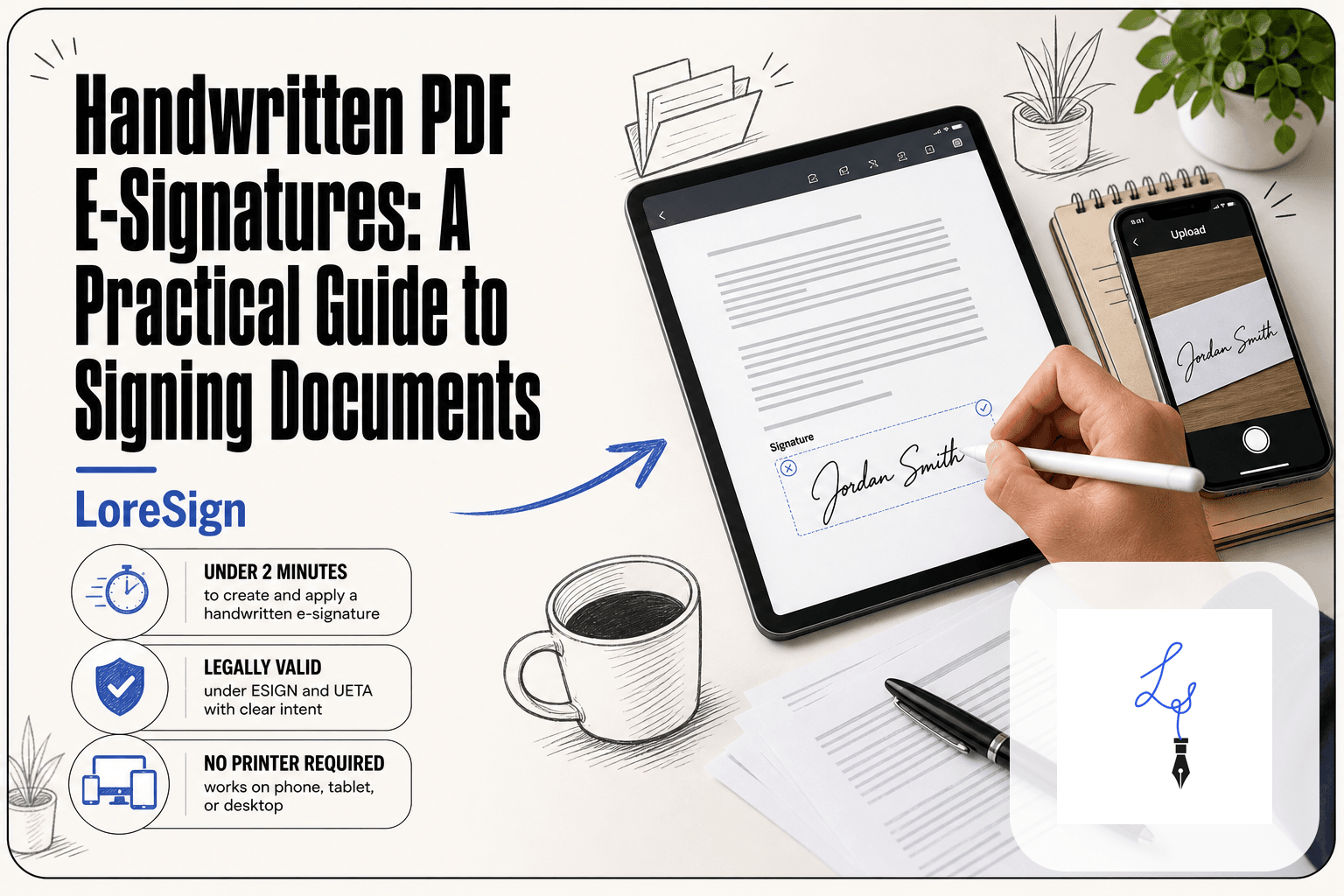
An electronic signature is any mark you add to a document: a typed name, a drawn squiggle, an uploaded image. It shows intent to sign. For most everyday documents, that's enough.
Digital signature: what it adds (and why free tools usually don't offer it)
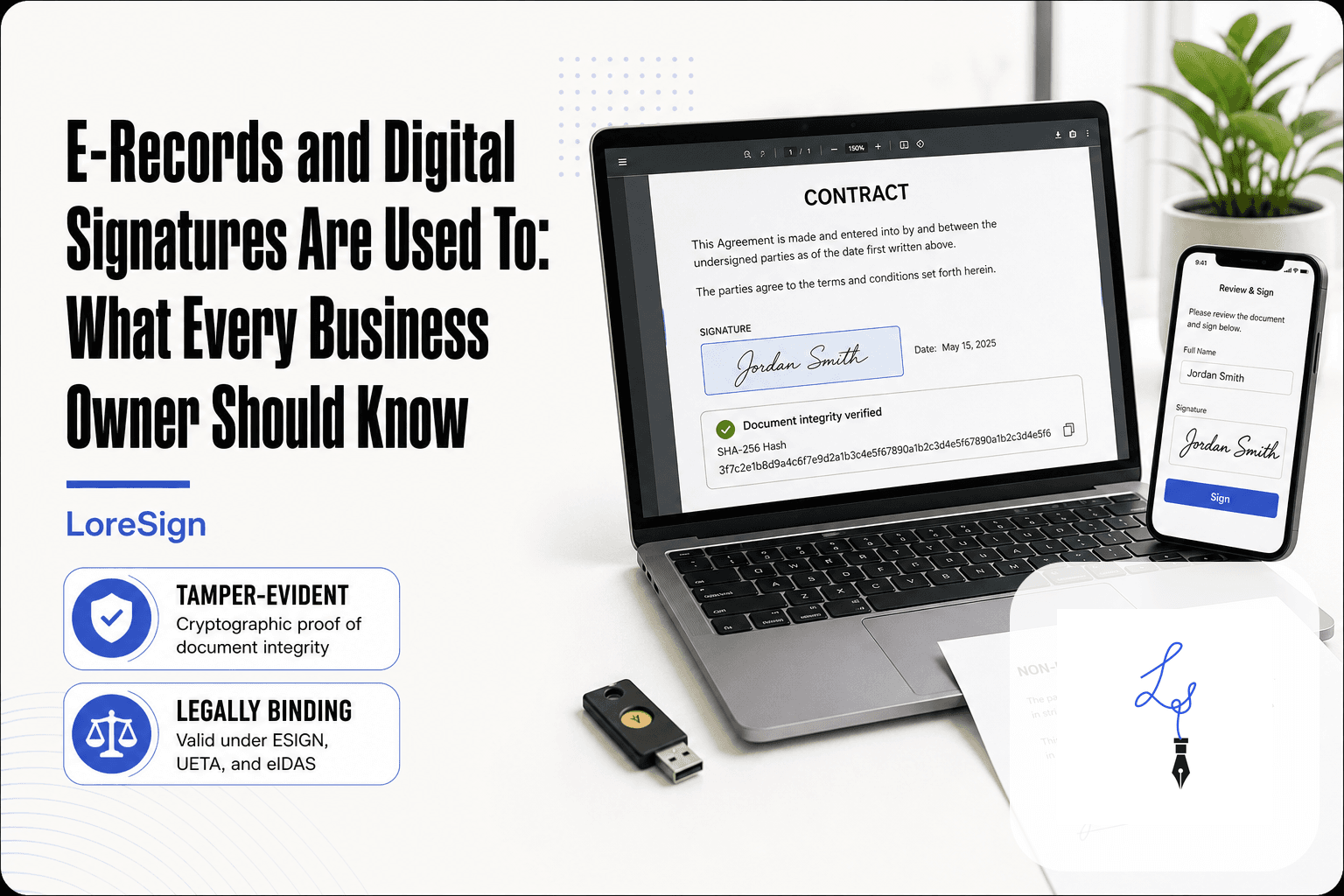
A digital signature uses cryptography to lock the document after signing. If anyone alters a single character, the signature breaks. That tamper evidence is what courts and auditors look for. Free tools rarely include it because the underlying certificate infrastructure costs money to run.
If you sign PDFs regularly, create a high-resolution transparent PNG of your signature once — then you can drop it into any tool in seconds instead of redrawing it each time.
How To Sign A PDF Without Adobe: A Step-by-Step Guide with Loresign
Step 1: Go to LoreSign and create an account.
Step 2: Upload the PDF or document you need signed.
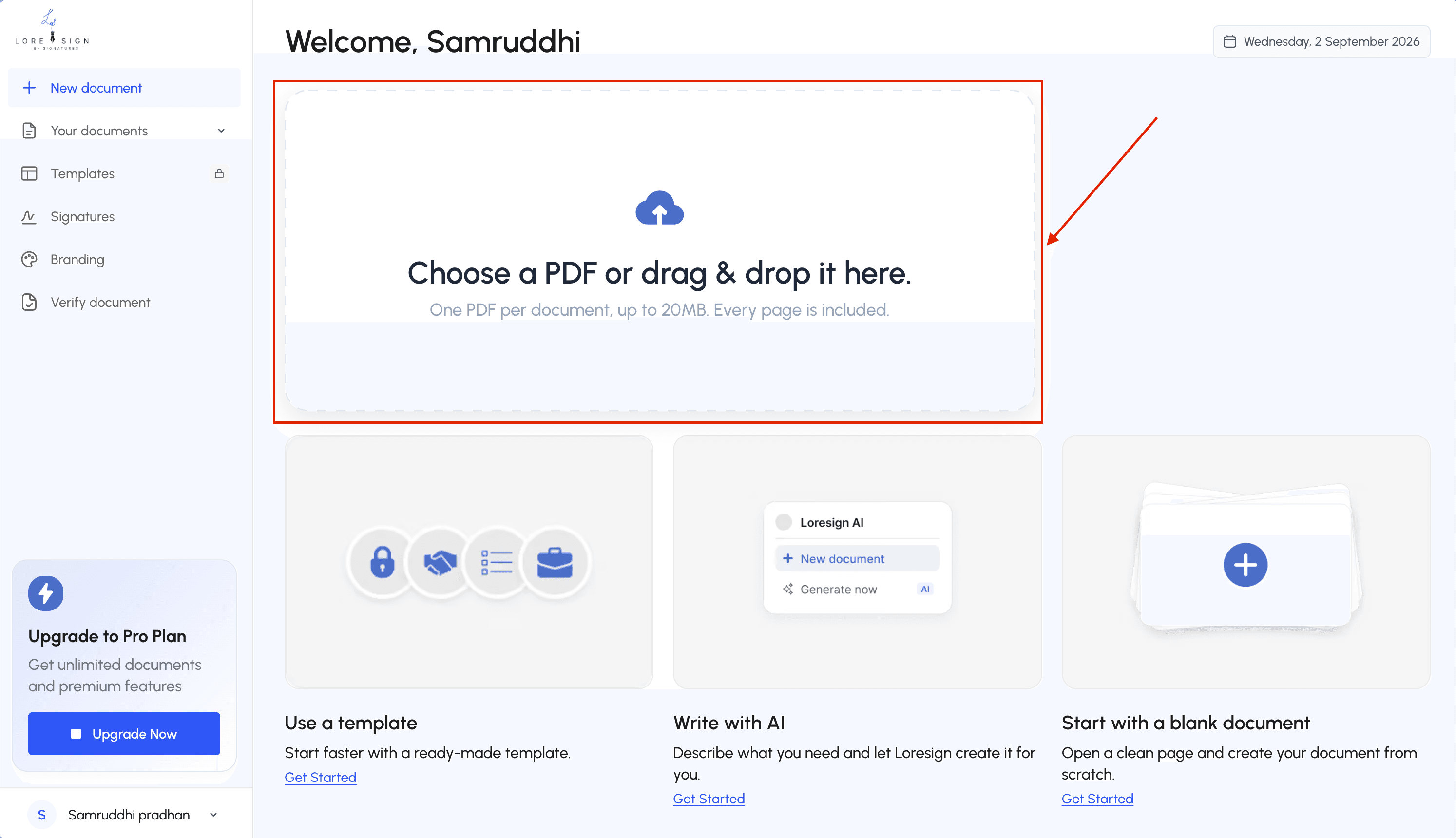
Step 3: Add the signer's name and email address, and set the signing order if multiple people are involved.
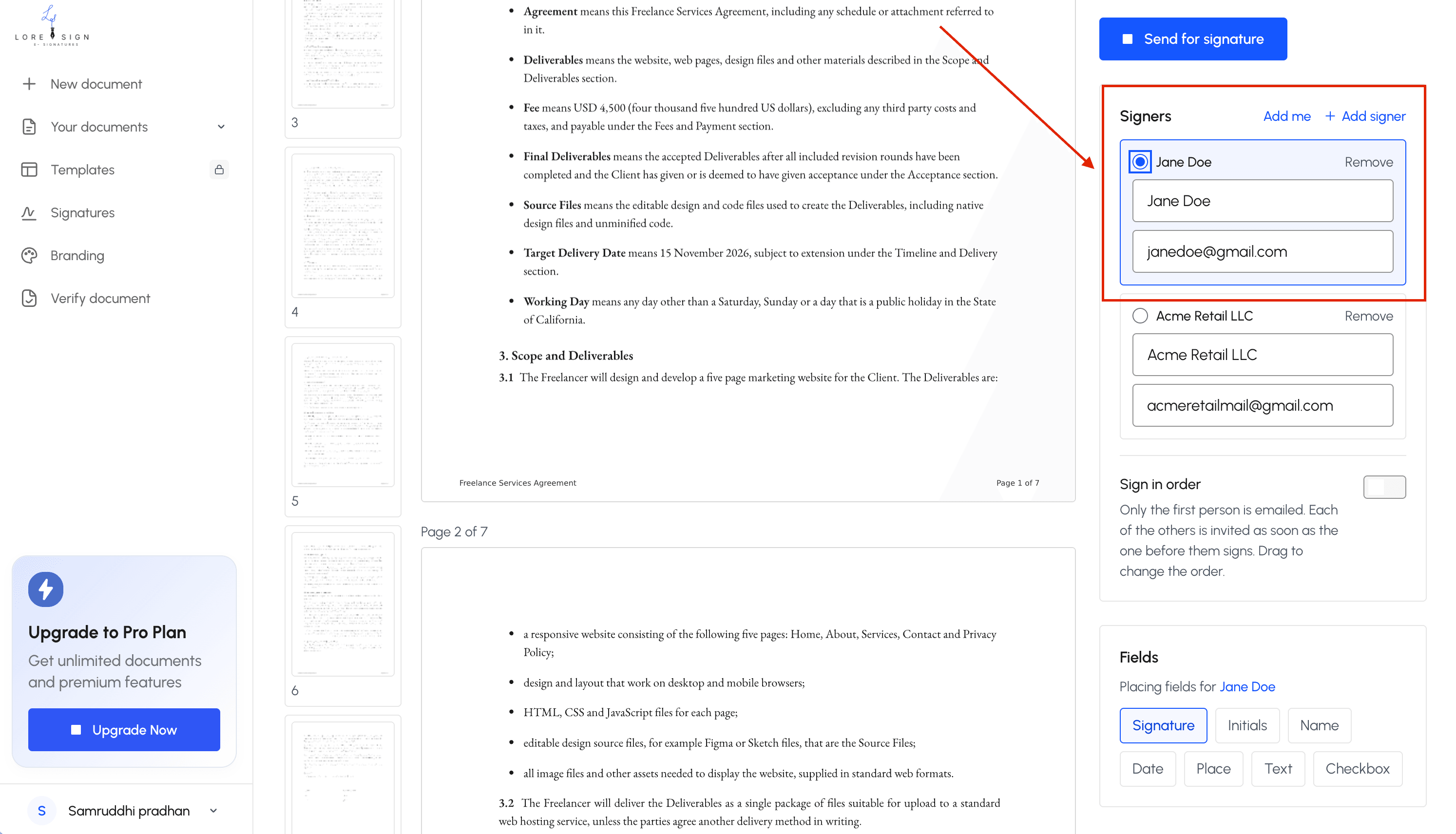
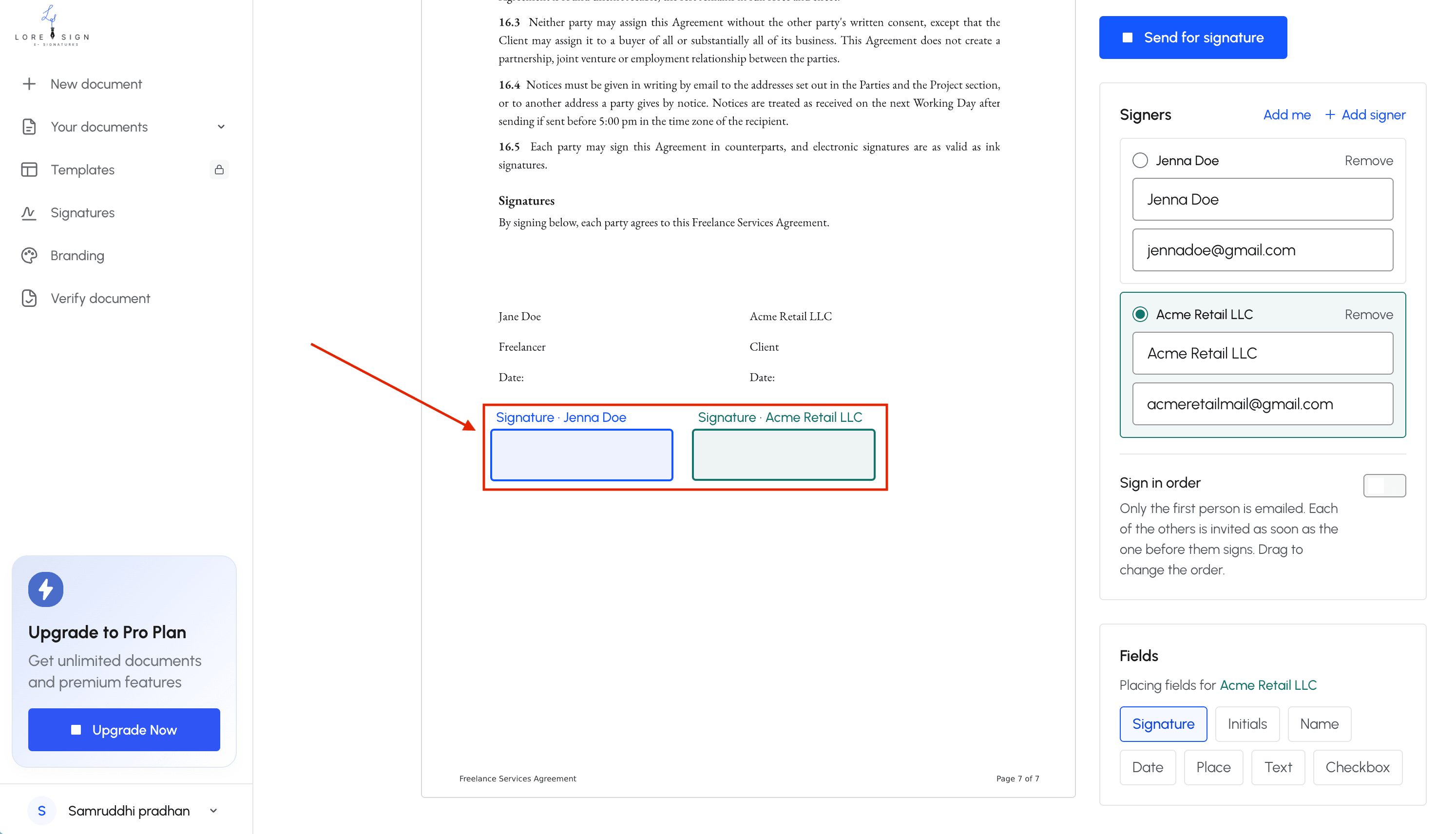
Step 4: Place the signing fields (signature, date, initials) where they belong.
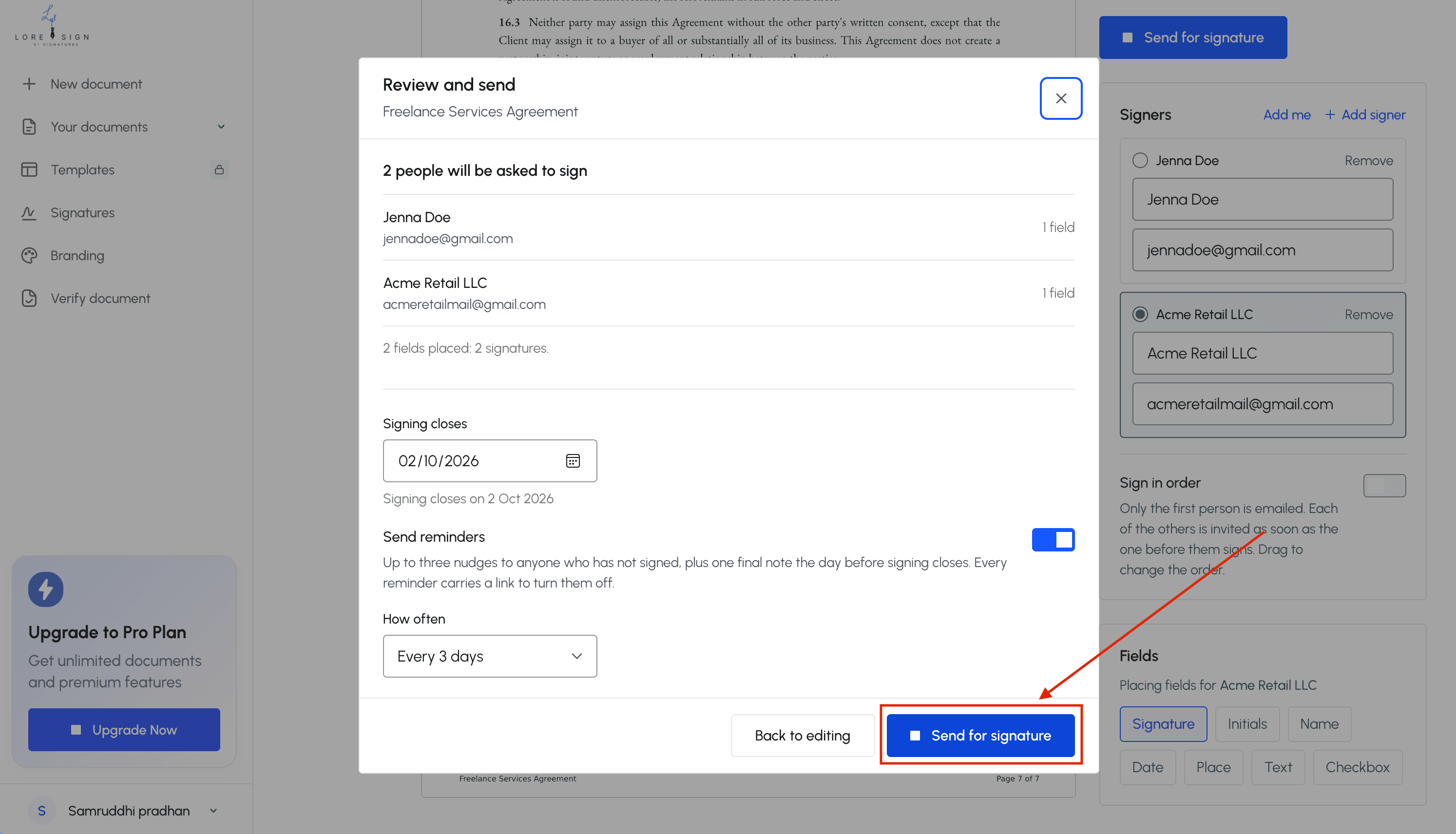
Step 5: Send the secure link the signer receives an email with instructions.
Step 6: Track progress and send reminders if needed.
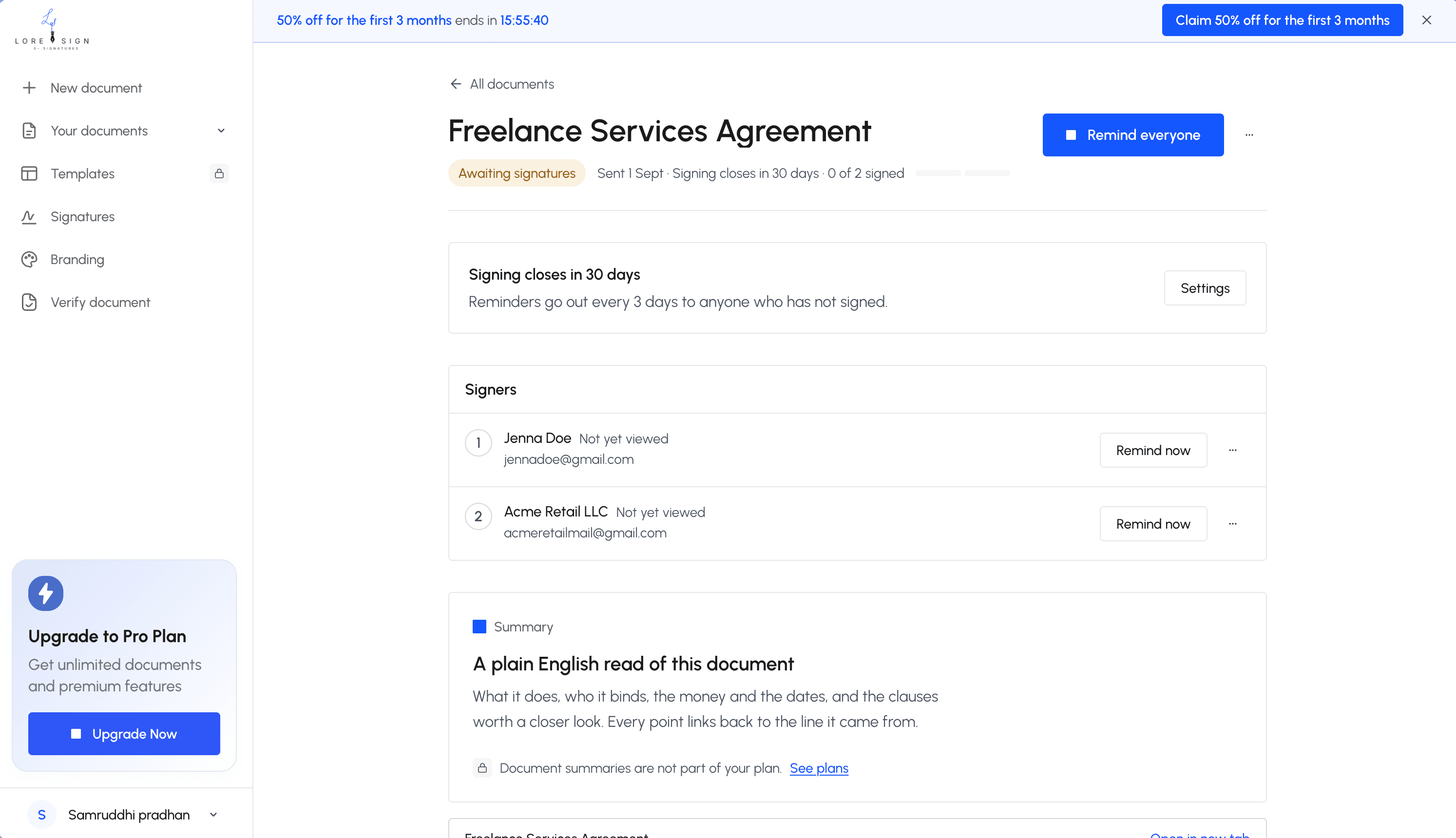
Step 7: Receive the completed, signed PDF automatically once everyone has signed.
Method 1: Sign a PDF Directly in Your Browser
This is the fastest option. No downloads, no accounts, no cost. You open the PDF, draw your signature, save the file. It takes under a minute.
Step-by-step: Chrome and Edge
Open the PDF in Chrome or Edge. Click the pen icon in the top-right corner. Choose "Draw" and use your mouse or trackpad to sign. Click "Save" to overwrite the file or "Save as" to keep the original.
Step-by-step: Firefox
Firefox's built-in viewer doesn't have a draw tool. You'll need to add a free extension like "PDF Editor" or use a different browser. Once installed, open the PDF, select the draw tool, sign, and download.
Limitations of browser draw tools
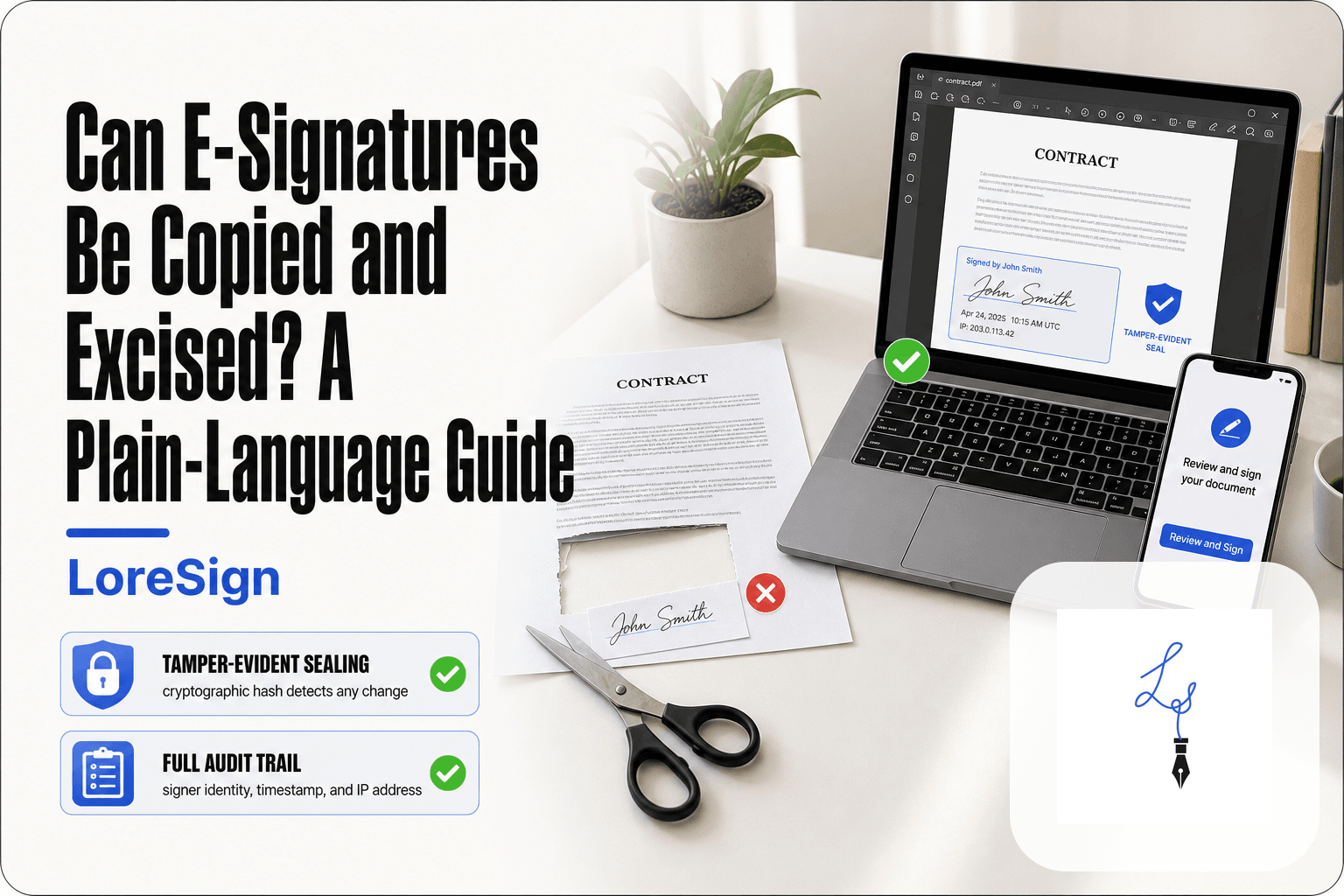
The signature is just an image layered on top of the PDF. No audit trail, no tamper evidence, no certificate. Anyone can remove it or copy it. For a quick personal document, that's fine. For a contract, it isn't.
Method 2: Use Free Desktop Apps (Mac, Windows, Linux)
If you sign PDFs regularly, a desktop app beats the browser. You get a real signature tool, not a draw layer.
MacOS Preview: built-in and free
Open the PDF in Preview. Click the Markup icon (the pen in a circle). Click the Signature button, then "Create Signature." Sign on your trackpad or hold a signed paper up to the camera. Click the signature to place it on the document. Save.
Windows: LibreOffice Draw and free PDF readers
Windows has no built-in PDF signing tool. Download LibreOffice (free, open source) and open the PDF in Draw. Insert a signature image or draw one with the freehand tool. Export back to PDF. Some free readers like PDF-XChange Editor also let you add a signature stamp.
Linux: LibreOffice Draw
Same tool, same steps. LibreOffice ships with most Linux distributions. Open the PDF in Draw, add your signature, export. No Adobe required.
The catch: these signatures are still just images. No audit trail, no tamper evidence. Fine for personal documents. Not for contracts.
Method 3: Free Online PDF Signing Tools
Online tools work when you're on a borrowed computer or can't install anything. You upload the PDF, add a signature, download the signed file. The tradeoff is control: your document leaves your machine.
PDF24: no registration, no limits
PDF24 is a German tool that runs entirely in the browser. No account, no email, no daily cap. Upload the PDF, click the signature tool, draw or upload your signature, place it, download. The file is deleted from their servers after a short window. Good for one-off personal documents.
PDFgear: local processing for privacy
PDFgear processes files locally on your device rather than uploading them to a remote server. That's a real privacy advantage if you're signing something sensitive. The interface is clunkier than PDF24's, and the signature tool is buried in a menu. But your document never leaves your computer.
What to watch for with online tools
Read the privacy policy before uploading anything with personal data. Some free tools retain files longer than they claim, and a few inject watermarks or upsell pages. If the document contains financial or medical information, use a desktop tool instead. Online signing is for convenience, not confidentiality.
Method 4: Sign a PDF on Your Phone (iOS and Android)
Your phone can sign a PDF without installing anything. Both platforms have built-in tools that work in under a minute.
iPhone and iPad: Markup in Files app
Open the PDF in the Files app. Tap the Markup icon (a pen in a circle), then the plus sign, then Signature. Draw with your finger or use a saved signature. Drag it into place and tap Done. The signed PDF saves automatically.
Android: Google Drive and free PDF apps
Android has no built-in signature tool. Open the PDF in Google Drive, tap the edit icon, and use the annotation tool to draw your signature. It's clunky but works. Free apps like PDFgear or Xodo give you a proper signature field.
Keep in mind: finger-drawn signatures look rough. For anything formal, type your name and use a handwriting-style font instead.
What Free Tools Can't Do (And When You Need More)
Free tools put a signature on a PDF. That's it. They don't prove who signed it, when, or whether the document changed afterward.
No audit trails or advanced authentication
A drawn signature is just pixels. Free tools don't record the signer's email, IP address, or a timestamp. If someone disputes the signature later, you have no evidence it was them.
No compliance guarantees (ESIGN, UETA, eIDAS)
ESIGN and UETA require proof of intent and consent. A free browser draw tool gives you neither. For regulated industries or cross-border contracts, that's a real problem.
When to upgrade to a dedicated e-signature platform
If you need an audit trail, signer authentication, or legal enforceability, use a dedicated platform. LoreSign tracks every signer, sends automated reminders, and delivers a certificate of completion with each signed PDF. The free methods work for personal documents. For anything binding, don't rely on pixels.
Security Checklist: How to Sign a PDF Without Adobe Safely
Uploading a signed contract to a random website is a risk you don't need to take. Here's what to check before you trust any tool with your document.
Local processing vs. cloud upload
Local processing means the file never leaves your device. Desktop apps like Preview and LibreOffice work this way. Cloud tools upload your PDF to their servers. For anything sensitive, prefer local.
Encryption and data retention
Check whether the tool uses HTTPS during transfer. Then check their retention policy: do they delete your file after signing, or keep it? If the policy isn't published, assume they keep it.
Red flags to avoid
Skip any tool that asks for unnecessary permissions, shows ads for unrelated products, or lacks a privacy policy. A free PDF signer that won't tell you what happens to your file isn't worth the risk.
Final Thoughts: Choosing the Right Way to Sign a PDF Without Adobe
For a quick personal signature, use your browser or phone markup. For a business contract, use a desktop app so the file stays local. For anything legally binding with an audit trail, free tools fall short. That's where a dedicated e-signature platform like LoreSign earns its place: upload any PDF, place the signing fields, and send one secure link. Track every signer and receive the completed document automatically. The right way to sign a PDF without Adobe depends on what the signature has to stand up to.
Frequently Asked Questions
Can you sign a PDF if you don't have Adobe?
Yes. You can sign a PDF using free browser-based tools, desktop apps like LibreOffice Draw, or the built-in markup features on iOS and Android. Adobe is not required to add a signature to a PDF.
How do I sign directly on a PDF?
Open the PDF in a tool that supports annotation or form filling, then use its signature or draw feature to add your signature directly onto the page. On mobile, the built-in markup tool lets you draw a signature with your finger or stylus.
How can I digitally sign a PDF document for free?
Free tools let you add a visual signature, but a true digital signature with a certificate requires a dedicated e-signature service. Many platforms offer limited free signing, while paid tiers add audit trails and identity verification.
How can I electronically sign a PDF file?
Electronic signing covers any method of adding a signature electronically — typed, drawn, or uploaded. Use an online signer, a desktop app, or a mobile markup tool depending on your privacy and speed needs.
Is it safe to upload a PDF to a free online signing tool?
It depends on the tool. Check whether it processes files locally or on a server, whether it uses encryption, and how long it retains your file. For sensitive documents, prefer offline desktop tools or a reputable e-signature platform.
What can't free PDF signing tools do?
Free tools typically lack audit trails, identity verification, tamper-evident seals, and compliance certifications. If you need a legally robust signature for contracts, a dedicated e-signature platform is the safer choice.
About LoreSign
LoreSign helps individuals and businesses create, send, sign, and track documents in one place. You can upload a PDF or create an agreement, add the required signing fields, send it to recipients, and automatically receive the completed document once everyone has signed.