Handwritten PDF E-Signatures: A Practical Guide to Signing Documents
Printing a PDF, signing it with a pen, scanning it back, and emailing it off is a routine that should have died years ago. If you need a handwritten PDF e-signature, you can create one in under two minutes from your phone, tablet, or desktop, no printer required. LoreSign makes this free and simple: upload the PDF, draw or upload your signature, place it, and send the signed document. But before you start, you should know what you're actually creating. A handwritten e-signature is a visual representation of your signature, not the same thing as a certificate-based digital signature. It won't carry the same cryptographic proof, and its legal weight depends on context. This guide covers the three methods to create a handwritten e-signature, a step-by-step walkthrough for applying it to a PDF, Adobe Acrobat instructions, what ESIGN and UETA say about legality, mobile steps for iPhone and Android, and honest troubleshooting for the problems that actually come up.
| At a glance | Details |
|---|---|
| What it is | A drawn or scanned signature image placed on a PDF |
| Legal basis (US) | ESIGN Act and UETA, with intent to sign |
| Time to create | Under two minutes with the right tool |
| Works on mobile | Yes, on iOS and Android PDF and signing apps |
| Best for | Everyday contracts, forms, and approvals |
| Not the same as | Certificate-based digital signatures with cryptographic verification |
In This Guide
- What Is a Handwritten PDF E-Signature?
- Handwritten vs Typed vs Certificate-Based Signatures
- How to Create a Handwritten PDF E-Signature: 3 Methods
- Handwritten Pdf E Signatures: A Step-by-Step Guide
- How to Get a Handwritten Signature on a PDF (Step by Step)with LoreSign
- How to Create a Handwritten Signature in Adobe Acrobat
- Are Handwritten PDF E-Signatures Legally Binding?
- Handwritten vs. Typed vs. Digital Signatures: What's the Difference?
- Creating Handwritten E-Signatures on Mobile (iPhone & Android)
- Troubleshooting Common Handwritten E-Signature Problems
- Free vs. Paid Handwritten E-Signature Tools: An Honest Assessment
- Common Mistakes When Creating Handwritten PDF E-Signatures
What Is a Handwritten PDF E-Signature?
A handwritten PDF e-signature is a visual image of your signature — drawn, typed in a handwriting-style font, or uploaded from a photo — placed on a PDF to indicate your intent to sign. It's the electronic equivalent of signing a paper document with a pen.
The honest answer is that most "e-signatures" you'll create are visual signatures. You draw them, you type them, or you scan them. They look like your handwriting. That's the whole point.
Visual signature vs. digital signature: the key difference
Here's the distinction that matters. A visual signature is just an image. It has no cryptographic security behind it. Anyone can copy it from one document and paste it onto another.
A certificate-based digital signature is different. It uses encryption to bind your identity to the document. If someone alters the document after you sign, the signature breaks. That's real security.
The main catch is that most tools labeled "e-signature" don't offer certificate-based digital signatures. They offer visual signatures with an audit trail attached. The audit trail records when you signed, from what IP address, and what email you used. That's useful evidence, but it's not the same as cryptographic verification.
What a handwritten e-signature can and cannot do
A handwritten e-signature can show intent to agree. Under the ESIGN Act and UETA, that's often enough to make a contract legally binding. It can also save you from printing, signing, scanning, and emailing.
What it cannot do is prove the document hasn't been tampered with. It cannot prove you're the person who signed it, beyond the email address and IP address logged at signing time. And it cannot replace a notarized signature where the law requires one.
In practice, for most contracts, agreements, and forms, a visual handwritten e-signature is sufficient. For high-stakes documents where tampering is a real risk, you need a certificate-based digital signature instead.
A handwritten e-signature is a visual representation of your signature and is legally valid under ESIGN and UETA when you clearly intend to sign. It is not the same as a certificate-based digital signature, which uses cryptography to detect tampering and verify identity.
Handwritten vs Typed vs Certificate-Based Signatures
| Factor | Handwritten E-Signature | Certificate-Based Digital Signature |
|---|---|---|
| How it is created | Drawn with finger, stylus, or mouse, or uploaded as an image | Generated with a cryptographic key tied to a verified identity |
| Legal standing (US) | Valid under ESIGN and UETA when intent to sign is clear | Valid and additionally supported by cryptographic proof |
| Security level | Visual only; relies on audit trail for proof | Tamper-evident; document changes invalidate the signature |
| Typical use | Contracts, consent forms, internal approvals | Regulated filings, high-value agreements, government forms |
| Verification | Certificate of completion and audit trail | Digital certificate and public key verification |
How to Create a Handwritten PDF E-Signature: 3 Methods
You've got three ways to make a handwritten e-signature. Each takes under two minutes once you know the steps. The method you pick depends on what device you're on and how authentic you want the result to look.
Method 1: Draw your signature with a mouse or touchscreen
Drawing works best on a touchscreen. Your finger or a stylus gives you far more control than a mouse. On a desktop, a mouse-drawn signature will look shaky. That's fine for quick internal documents. It's not fine for a contract going to a client.
Start by opening any e-signature tool that has a draw option. Most free tools include one. Select the draw tool, then sign your name in the box using your finger, stylus, or mouse. If you mess up, clear it and start over. You get unlimited attempts before you save.
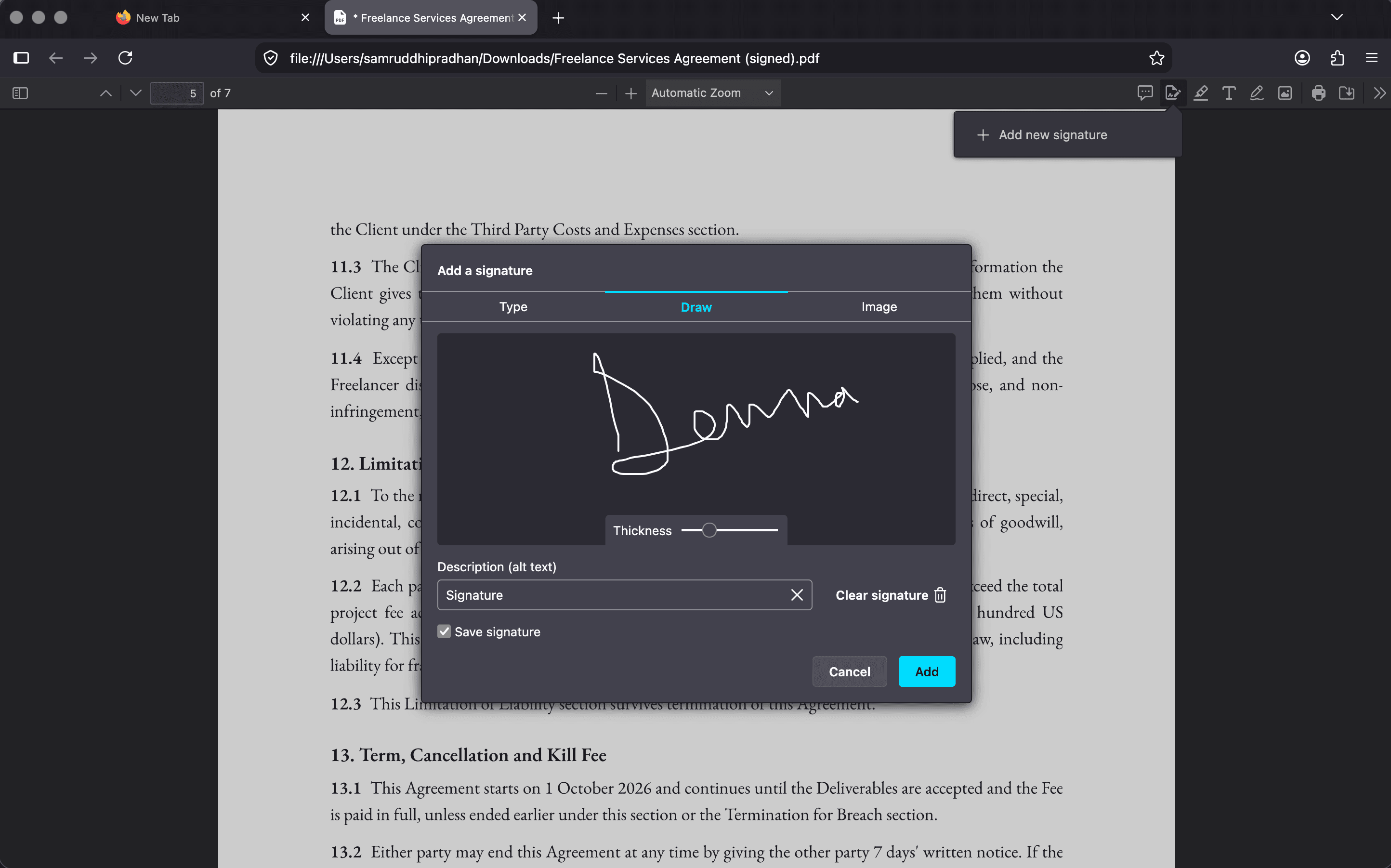
The good news is that a drawn signature is stored as a vector or high-resolution image, so it scales cleanly when you place it on a PDF. The main catch is consistency. Your drawn signature will look slightly different every time you create it. If you sign documents regularly, save the first good one and reuse it.
Method 2: Type your name and convert to handwriting style
Typing is the fastest method and the most consistent. You type your full name, pick a handwriting-style font, and the tool renders it as a cursive or script signature.
Here's what happens behind the scenes. The tool maps your typed characters to a font designed to look like handwriting. Some fonts connect letters like real cursive. Others just slant the characters. The result looks like a signature, but it's not your signature. Anyone who knows your actual handwriting will spot the difference immediately.
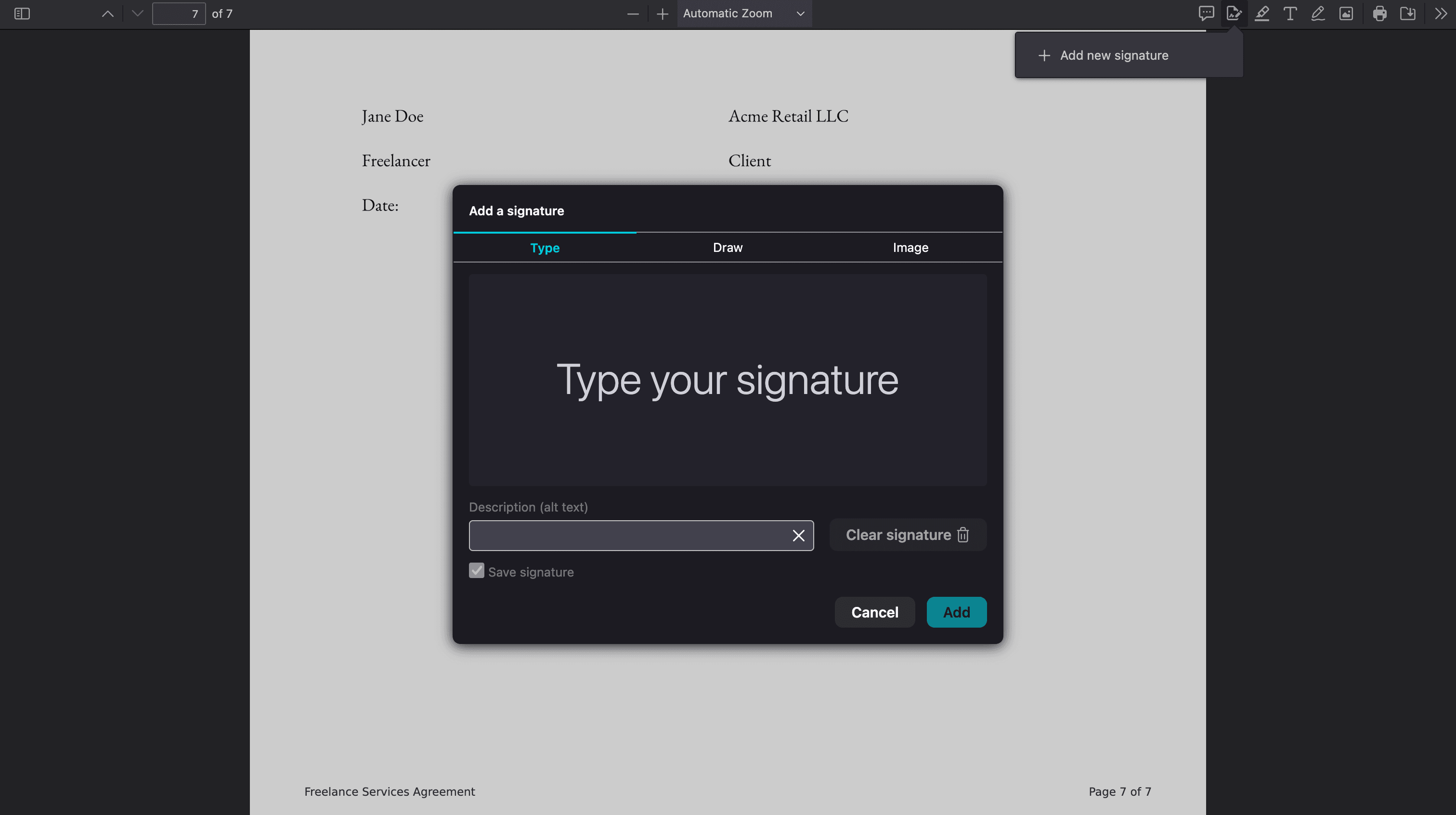
This method is best for internal documents, forms, and situations where the signature just needs to be present. It's not ideal for contracts where the other party might compare it against a known signature.
Method 3: Upload a photo of your handwritten signature
This is the most authentic option. You sign your name on a piece of paper with a pen, take a photo with your phone, and upload it to the e-signature tool.
Make sure you sign on plain white paper with a dark pen. Black ink on white paper gives the best contrast. Hold your phone directly above the paper, not at an angle. Good lighting matters more than a good camera.
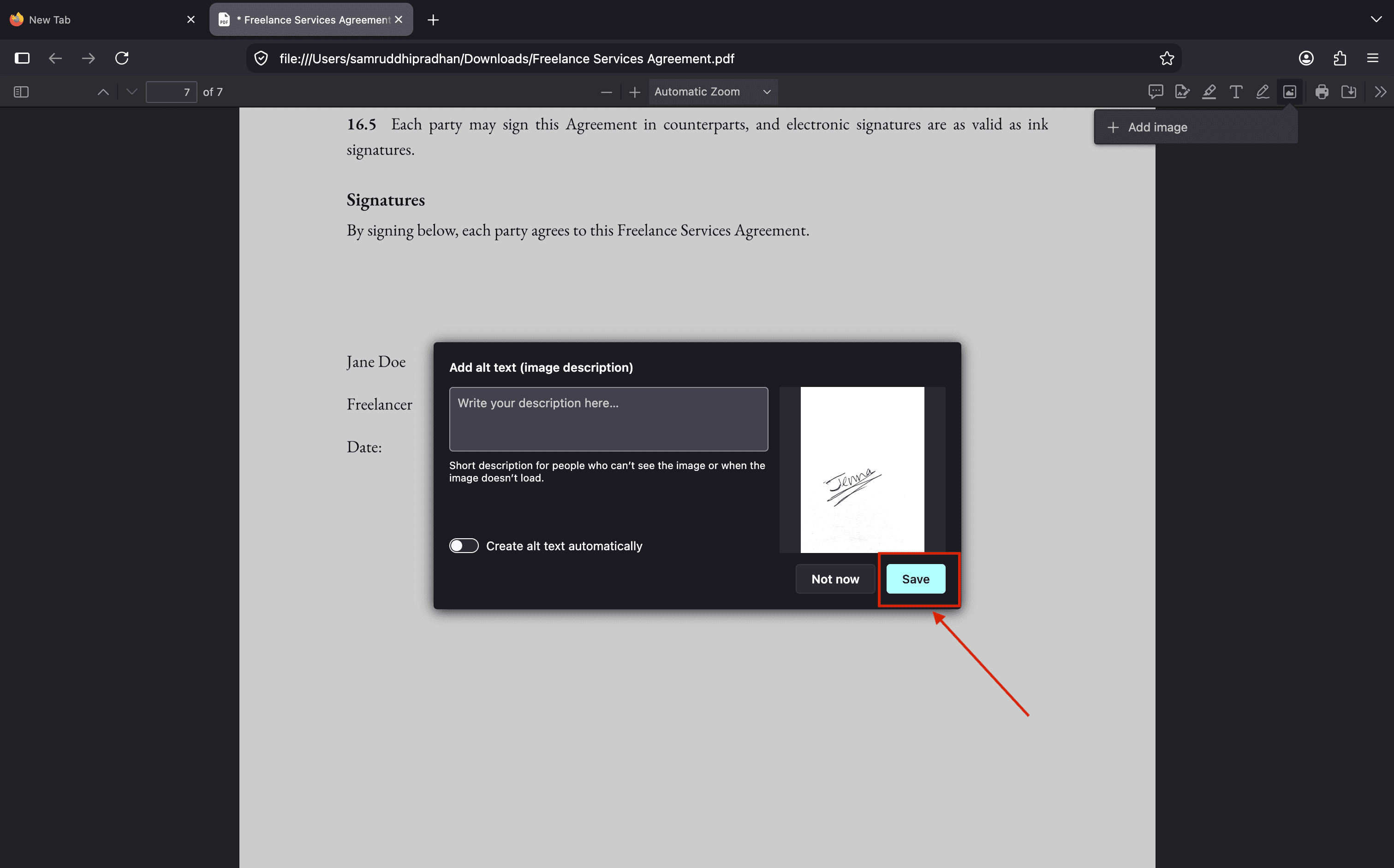
Most tools let you crop the image and remove the white background so only the signature remains. That's the step that makes it look clean on a PDF. Without background removal, you'll get a white rectangle around your signature that covers the document text underneath.
Keep in mind that a photo of your signature is just an image. It's no more secure than a drawn or typed signature. But it looks the most like you actually signed the document, which matters when the other party expects a real signature.
If you sign on mobile, draw your signature in landscape mode for more space and a smoother line, and avoid transparent PNG backgrounds that can make your signature hard to see on dark PDFs.
How to Get a Handwritten Signature on a PDF (Step by Step) with LoreSign
The walkthrough below uses LoreSign, a free online tool. You can follow the same steps in most e-signature tools. The clicks will differ slightly, but the sequence won't.
Step 1: Upload your PDF
Go to the LoreSign website and click the upload button. Select your PDF from your computer, phone, or cloud storage. The file opens in the editor within a few seconds.
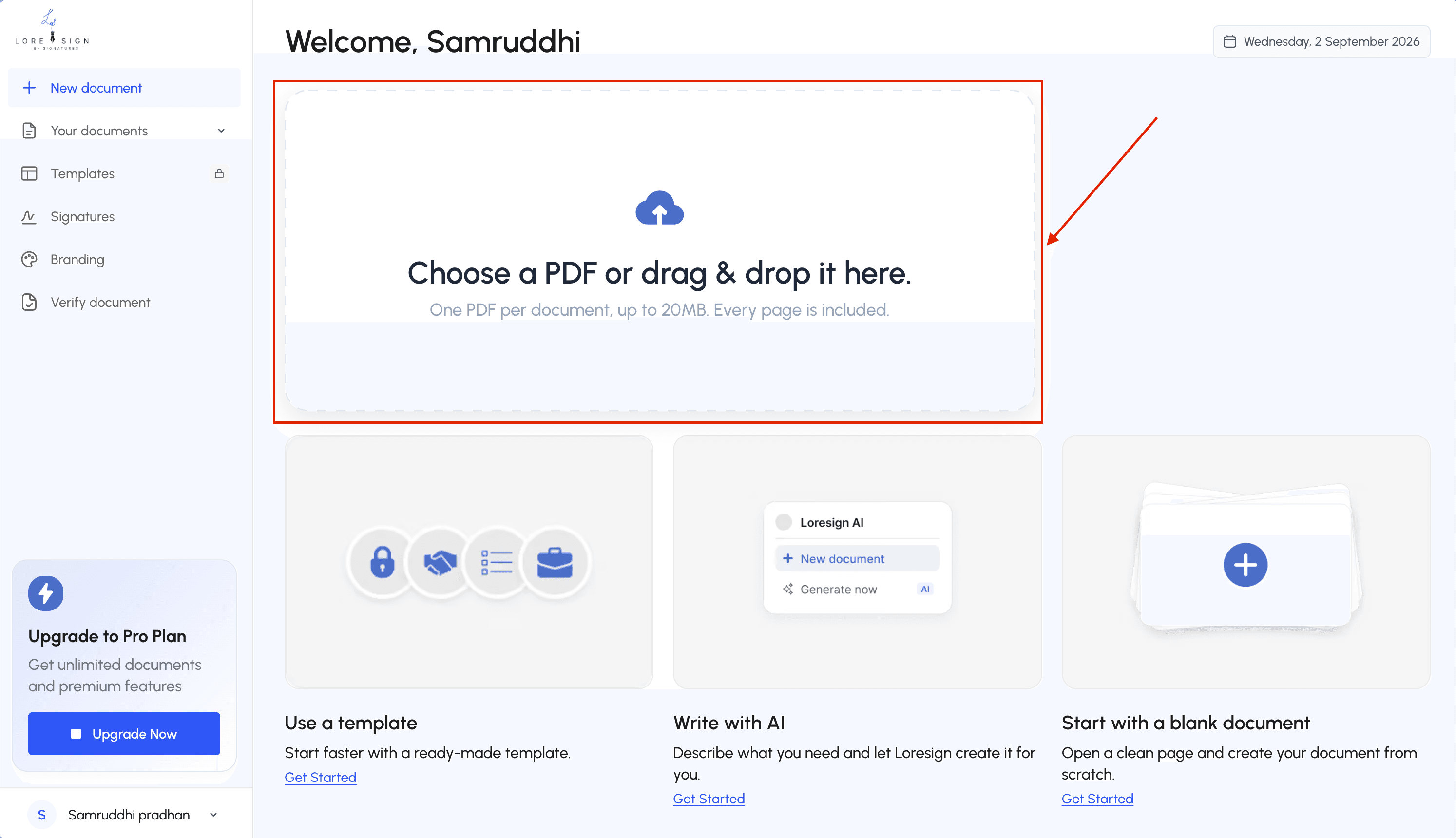
You don't need an account to upload a document. You will need one to save and send it. If you're just testing, upload a copy of a non-sensitive file first.
Step 2: Create or upload your handwritten signature
Click the signature field button, then choose how you want to create the signature. You have three options: draw it with your mouse or finger, type your name and pick a handwriting font, or upload a photo of your actual signature.
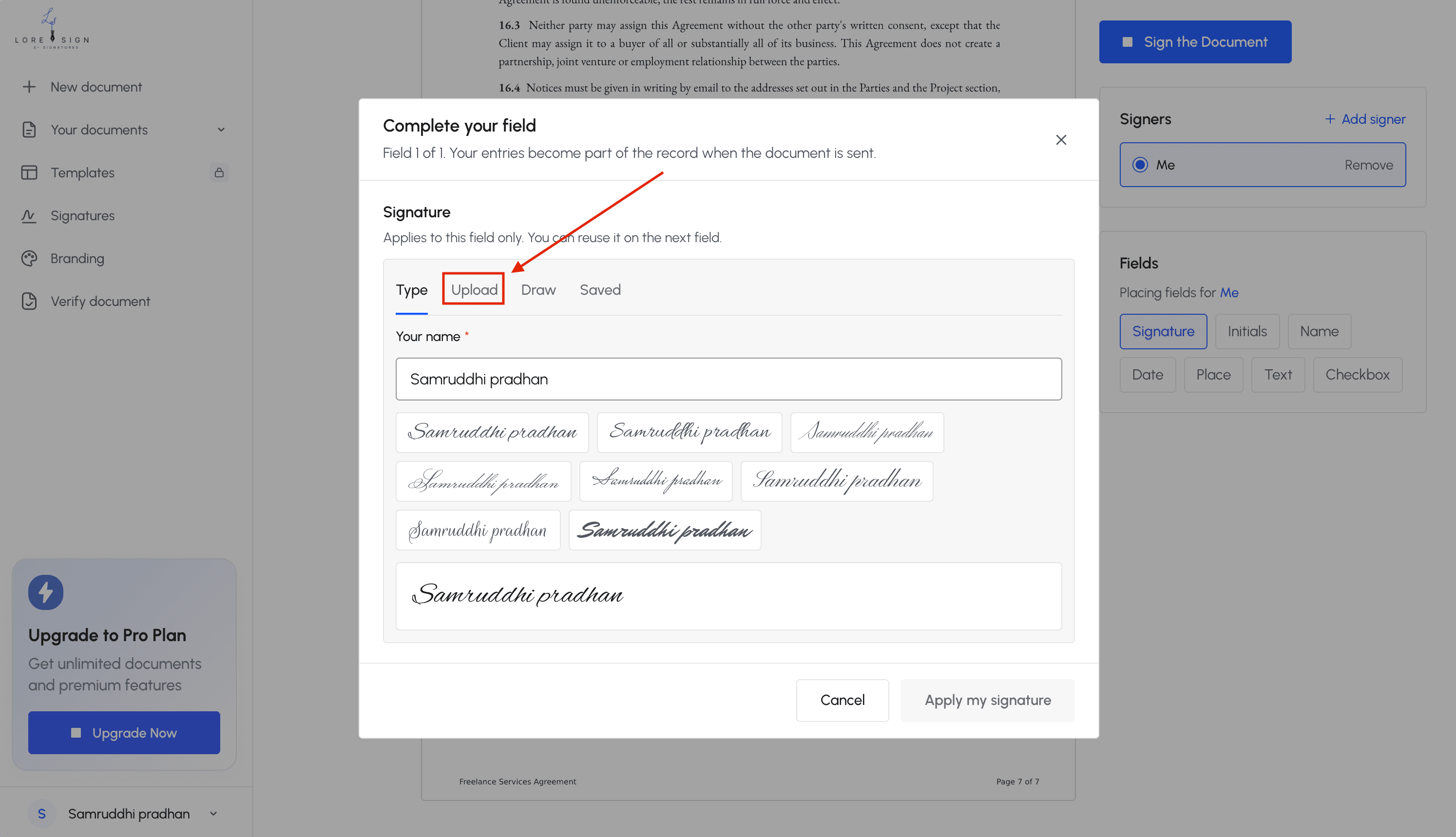
If you upload a photo, make sure it's on plain white paper with dark ink. The tool will strip the white background so only the signature remains. If the background doesn't remove cleanly, you'll see a faint box around your signature on the PDF.
Step 3: Place the signature on the document
Drag the signature to the spot where you'd normally sign. Click it once to select it, then drag the corner handles to resize. Most signatures look right at roughly 2 to 3 inches wide on a standard letter-size page.
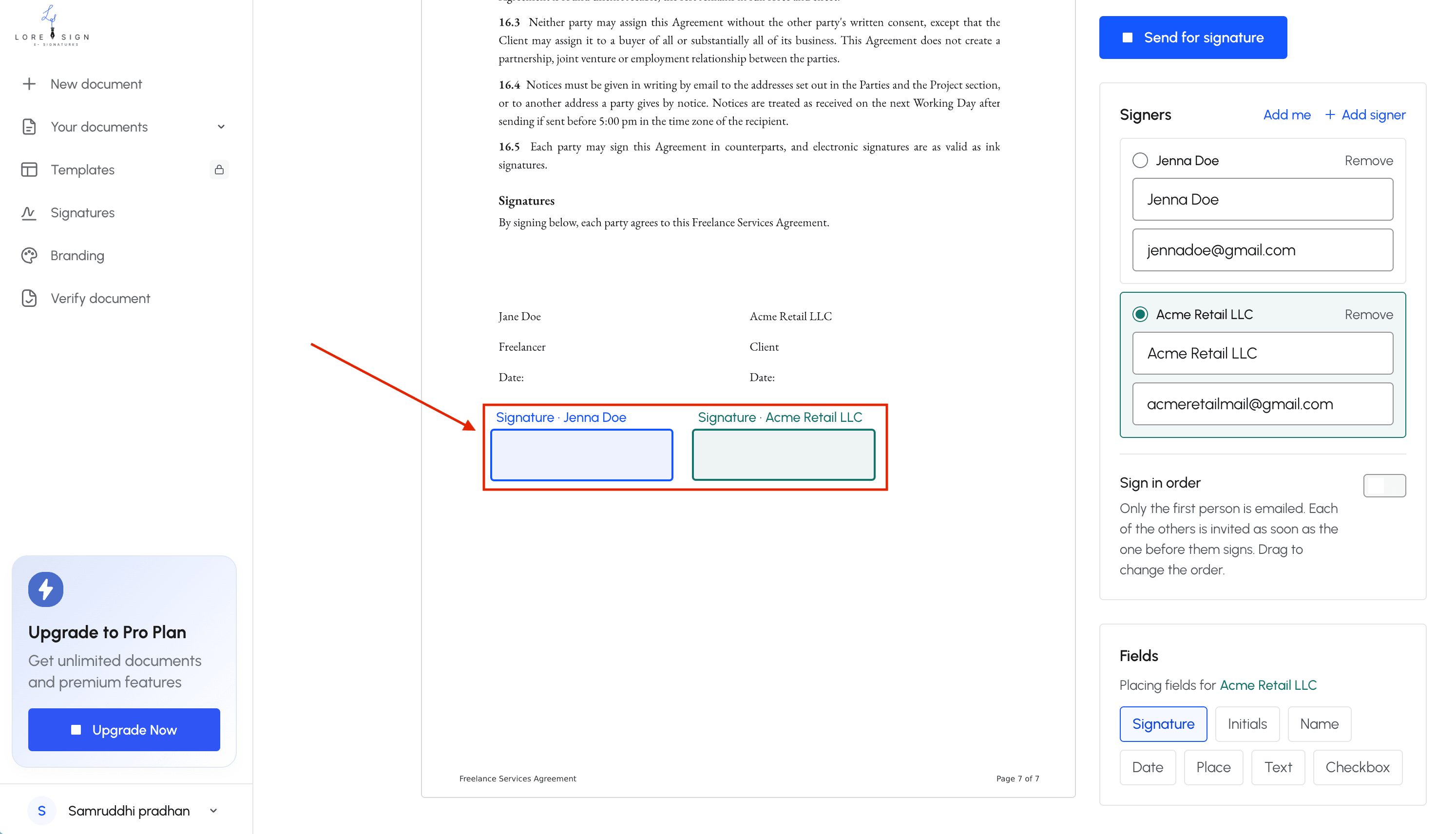
Check the placement before you move on. Zoom in if you need to. A signature that overlaps body text looks sloppy, and you can't always fix it after the document is sent.
Step 4: Download or send the signed PDF
Once the signature is placed, click the finish or send button. LoreSign gives you two options: download the signed PDF to your device, or send a secure link to the other party.
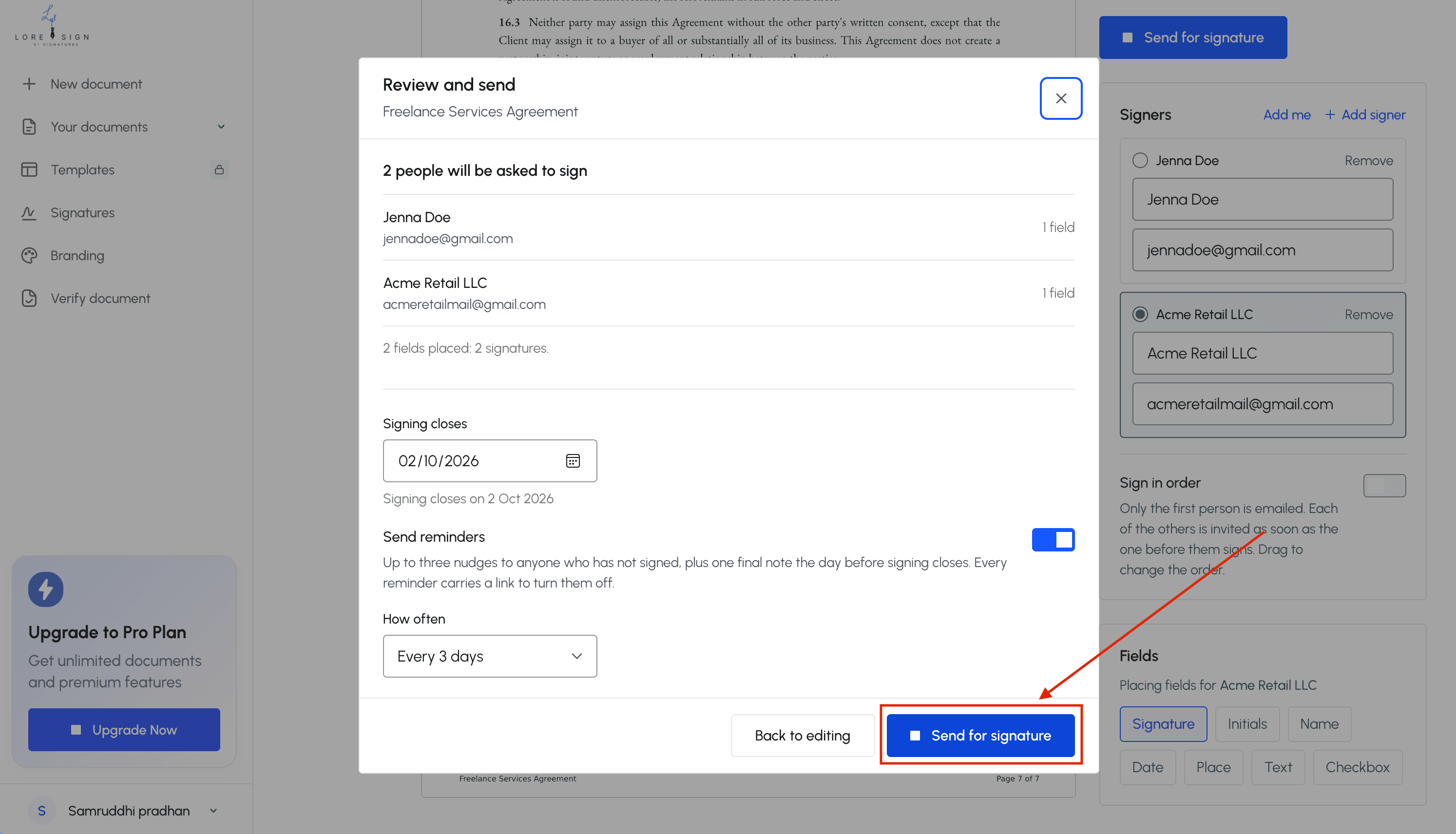
If you send the link, the recipient signs their portion and the completed document is delivered to you automatically. You'll also get a certificate of completion and an audit trail showing who signed and when.
The whole process takes under two minutes once you've done it once. The first time will take longer because you're creating the signature itself. Save that signature in the tool so you don't have to recreate it for every document.
How to Create a Handwritten Signature in Adobe Acrobat
Adobe Acrobat has two paths for this: the Fill & Sign tool for quick signatures, and the full Request E-signatures workflow for documents that need multiple signers. Most people only need Fill & Sign.
Using the Fill & Sign tool
Open your PDF in Acrobat. Click the Fill & Sign button in the right-hand pane, or go to Tools > Fill & Sign. The toolbar that appears has a Sign icon. Click it, then choose Add Signature.
You get three options: Type, Draw, and Image. Type converts your name into a cursive-style font. Draw lets you sketch with a mouse, stylus, or touchscreen. Image lets you upload a photo or scan of your actual signature.
Draw is the closest to a true handwritten signature. Select it, sign in the box using your mouse or finger, then click Apply. Acrobat saves the signature so you can reuse it on future documents without redrawing.
Once the signature is created, click the document where you want it to appear. Drag to reposition, and use the corner handles to resize. Click the signature once to select it if you need to move it again.
Drawing vs. uploading a signature image in Acrobat
Drawing directly in Acrobat is faster, but the result depends on your input device. A mouse produces jagged lines. A stylus or touchscreen gives you much more control. If you're on a laptop with only a trackpad, the result will look shaky.
Uploading a photo of your signature gives you the most authentic result. Sign on plain white paper with dark ink, photograph or scan it, then upload it through the Image option. Acrobat does not automatically remove the white background the way some dedicated e-signature tools do. If your photo has a white background, it will appear as a white rectangle on the PDF unless you remove the background first in an image editor.
The main catch: Acrobat's Fill & Sign signatures are visual only. They don't carry the certificate-based security of Acrobat's digital ID signatures, and they don't generate the same audit trail you'd get from a dedicated e-signature workflow. For a quick personal signature on a form, that's fine. For a contract that needs legal weight and signer verification, use Acrobat's Request E-signatures tool or a dedicated e-signature platform instead.
Are Handwritten PDF E-Signatures Legally Binding?
The short answer: yes, in most cases. A handwritten e-signature, whether drawn on a screen or uploaded as an image, carries the same legal weight as a wet-ink signature under US federal law, as long as the document type doesn't require something more.
What ESIGN and UETA say about electronic signatures
The ESIGN Act (2000) and the Uniform Electronic Transactions Act (UETA, adopted by 47 states plus DC and Puerto Rico) establish the core rule: a signature can't be denied legal effect just because it's electronic. That applies to a typed name, a drawn signature, a scanned image of your handwriting, or a click on an "I agree" button.
The law doesn't care what the signature looks like. It cares about two things: intent to sign, and consent to do business electronically. If you drew your signature on a PDF and applied it to the document, you've shown intent. If the other party agreed to electronic signatures, consent is covered.
The honest answer is that a handwritten e-signature is not automatically stronger than a typed one. Both are electronic signatures under ESIGN and UETA. What gives either one legal weight is the context: the audit trail, the signer's identity verification, and the document's own terms.
When a handwritten e-signature may not be enough
Some documents are excluded from ESIGN and UETA. Court orders, wills, trusts, adoption papers, divorce decrees, and certain family law documents generally require wet signatures or notarization. Some states add their own exclusions, so check your state's UETA version if you're unsure.
Notarization is the other sticking point. A handwritten e-signature can't replace a notary's stamp and seal. If a document requires notarization, you'll need either a wet signature in front of a notary or a remote online notarization platform that meets your state's requirements.
The main catch: a handwritten e-signature is visual only. It doesn't prove who signed it the way a certificate-based digital signature does. If a contract is disputed, the other party can claim they didn't sign it. That's where an audit trail matters. A tool that records the signer's email, IP address, and timestamp for each signature gives you evidence a bare image file doesn't.
Handwritten vs. Typed vs. Digital Signatures: What's the Difference?
The three types get confused constantly, mostly because they all end with the word "signature." They're not interchangeable. A handwritten e-signature is a picture of your handwriting. A typed e-signature is your name in a font. A digital signature is a cryptographic certificate attached to the document. The legal weight and the security behind each one are different.
Security and verification differences
A handwritten e-signature is the weakest of the three on security. It's a visual mark. Anyone who gets a copy of your signature image can paste it onto another document. There's no built-in way to prove you were the one who applied it, unless the signing tool records an audit trail with your email, IP address, and timestamp.
A typed e-signature is functionally the same. Typing your name into a signature field is an electronic signature under ESIGN and UETA, but it's also just characters on a page. The security comes from the platform, not the signature itself.
A digital signature is a different animal. It uses a certificate issued by a trusted authority to encrypt a hash of the document. If anyone changes the document after signing, the signature breaks. That's tamper evidence a handwritten or typed signature can't provide.
Here's the honest tradeoff: handwritten and typed e-signatures are easy to create and work on any device. Digital signatures require certificate setup and cost money. Most contracts don't need them.
When to use each type
Use a handwritten e-signature when you want the document to look personally signed: offer letters, freelance contracts, permission slips, internal approvals. It reads as more intentional than a typed name, even though the legal effect is the same.
Use a typed e-signature when speed matters more than appearance. Click-to-sign agreements, terms of service, and high-volume forms are fine with a typed name. The audit trail does the legal work.
Use a digital signature when the document is high-value or likely to be disputed: real estate transactions, government filings, regulated industries. The certificate proves who signed and that nothing changed afterward.
The main catch: most e-signature tools, including LoreSign, offer handwritten and typed signatures but not certificate-based digital signatures. If you need a true digital signature, you'll need a tool that supports certificate issuance, and that's a different product category.
Creating Handwritten E-Signatures on Mobile (iPhone & Android)
Mobile is where most people actually sign documents now. The top-ranking guides skip this entirely, which is odd given how many contracts get signed from a phone at a coffee shop or in a parking lot. The process is straightforward on both platforms, but the steps differ enough that you need the right walkthrough for your device.
iPhone and iPad: using touchscreen to draw your signature
Open the PDF in your signing tool. Most tools, including LoreSign, let you tap the signature field and choose "Draw" or "Create signature." Use your finger or an Apple Pencil to draw your signature directly on the screen. The touchscreen is pressure-sensitive enough that a finger works fine for most signatures, though a stylus gives you cleaner lines.
The main catch: drawing with your finger produces a thicker, less controlled line than a pen on paper. If your signature looks shaky, zoom in on the signature box before you draw. That gives you more room to move and produces a cleaner result. You can also sign on paper, photograph it, and upload the image instead. On iPhone, take the photo in bright, even light and crop it tight to the signature before uploading.
Android: drawing and uploading signature photos
Android works the same way for drawing. Tap the signature field, select "Draw," and use your finger or a stylus. The variation comes with photo uploads. Android phones have widely different camera quality, so a photo of your signature can look blurry or washed out if you're not careful.
Here's what works: sign with a dark pen on plain white paper. Hold the phone directly above the paper, not at an angle. Fill the frame with the signature. Most signing tools will let you adjust contrast after upload, which helps remove gray shadows from the paper. If your tool doesn't offer that, use your phone's built-in photo editor to increase contrast before you upload.
Keep in mind that a photo of your signature includes whatever background you photographed. If the paper isn't pure white, you'll get a tinted box around your signature on the PDF. That's the most common mobile mistake, and it's easy to fix by adjusting brightness and contrast before you apply the signature.
Troubleshooting Common Handwritten E-Signature Problems
Most signature problems come down to three things: background, quality, and size. Fix those and the signature looks clean on any document.
Fixing a signature with a white or transparent background
A white box around your signature looks unprofessional and can cover document text. The fix depends on how you created the signature. If you photographed it, the white background is the paper. Increase contrast and brightness before uploading, or use a tool that strips the background automatically. If you drew it in a signing tool, check whether the tool saved the signature with a transparent background. Some tools default to white. Recreate the signature and look for a "transparent background" option before saving.
Improving low-quality or blurry signature images
Blurry signatures usually come from a low-resolution photo or drawing on a small screen. Sign on plain white paper with a dark pen, hold the camera directly above, and fill the frame. If the image is already blurry, don't use it. Recreate it. Zooming in on a blurry image doesn't add detail, it just makes the blur bigger.
Resizing and positioning issues
If your signature comes out too large or too small, most tools let you drag the corners to resize. Keep the aspect ratio locked so the signature doesn't stretch. Position it over the signature line, not floating above or below it. If the signature overlaps text, resize it smaller rather than moving the text.
Free vs. Paid Handwritten E-Signature Tools: An Honest Assessment
Free tools cover the basics. Paid tools cover the edge cases. That's the whole comparison in one line, and it holds up under testing.
What free tools can and cannot do
Free e-signature tools let you upload a PDF, draw or upload a handwritten signature, place it on the document, and download the signed file. That's the core workflow, and it works. LoreSign does this on its free tier without watermarks, which is not universal. Some free generators stamp a watermark or a "signed with [tool]" footer on the output. That's fine for internal documents. It's not fine for a contract you're sending to a client.
What free tools typically can't do: send documents to multiple signers in a specific order, track who has signed and who hasn't, send automatic reminders, or give you a certificate of completion with an audit trail. Storage limits also apply. A free tier might cap you at a handful of documents per month, or keep your signed files for a limited window before deleting them.
When a paid tool is worth it
It depends on how many documents you sign and who else needs to sign them. If you're signing one or two PDFs a month and you're the only signer, a free tool is enough. You don't need reminders because you're not waiting on anyone.
A paid tool earns its cost when you send documents to other people regularly. Ordered multi-signer routing, automated reminders for unsigned documents, and automatic delivery of the completed PDF once everyone's signed save real hours when you're chasing signatures across a team or a client list. The audit trail matters too. If a signature is ever disputed, a certificate of completion with timestamps and signer information is the evidence you'll want.
The honest answer: most individual users never need a paid plan. Small businesses and anyone sending contracts for signature more than a few times a month probably do.
Common Mistakes When Creating Handwritten PDF E-Signatures
Most mistakes come down to one thing: treating a handwritten e-signature as something it isn't. Here are the three errors I see most often, and how to avoid each one.
Assuming a handwritten e-signature is always legally binding
A handwritten e-signature is a visual mark. It isn't a certificate-based digital signature, and it carries no cryptographic proof on its own. ESIGN and UETA make electronic signatures legally valid in most US transactions, but validity depends on context: consent, intent, and whether the document type allows electronic signing. Courts, wills, and some family law documents often require a wet signature or notarization. Before you sign, check the document's requirements. Don't assume your drawn signature carries the same weight everywhere.
Using a low-quality signature image
A blurry scan or a photo with a white background looks unprofessional and can cause placement problems. If you're uploading a photo of your signature, use a clean, high-contrast image with a transparent background. A signature that's too large or too small on the page also signals carelessness. Resize it to match the surrounding text. The signature should look like you signed the document, not like you pasted a sticker on it.
Ignoring document-specific requirements
Some documents need more than a visual signature. Real estate transfers, notarized affidavits, and certain government forms require wet ink or a notary. Others need a certificate-based digital signature for compliance reasons. Check what the recipient expects before you send. If you're unsure, ask. A handwritten PDF e-signature works for most contracts and agreements, but it isn't a universal solution.
Frequently Asked Questions
How to get a handwritten signature on a PDF?
Upload the PDF to a signing tool, draw your signature with a finger, stylus, or mouse, and place it on the signature line. Most tools let you save the signature for reuse on future documents.
How do I create a handwritten electronic signature?
You can draw it directly in a signing app or on a touchscreen, or write it on paper, photograph it, and upload the image. Drawing directly usually produces a cleaner result because you can adjust stroke thickness and size.
Can you do an e-signature on a PDF?
Yes. E-signatures on PDFs are valid in the US under the ESIGN Act and UETA when the signer intends to sign and the record is retained. Many tools also provide an audit trail and certificate of completion as proof.
How do I create a handwritten signature in Adobe Acrobat?
In Acrobat, open the PDF, select Fill & Sign, choose the signature tool, and draw your signature with a mouse or touchscreen. You can save it for reuse. Acrobat also supports uploading a picture of your signature.
Is a handwritten e-signature legally binding?
In the US, yes, provided it meets ESIGN and UETA requirements: the signer must intend to sign, consent to electronic records, and the record must be retainable. Some documents, like wills and certain court filings, may be excluded.
What is the difference between a handwritten e-signature and a digital signature?
A handwritten e-signature is a visual mark, while a digital signature uses cryptography to verify identity and detect tampering. Digital signatures offer stronger security but are not always necessary for everyday documents.
Can I create a handwritten signature for free?
Yes, many free tools let you draw or upload a signature and place it on a PDF. Free versions often limit the number of documents per month or add watermarks, so check the limits before relying on them for important contracts.