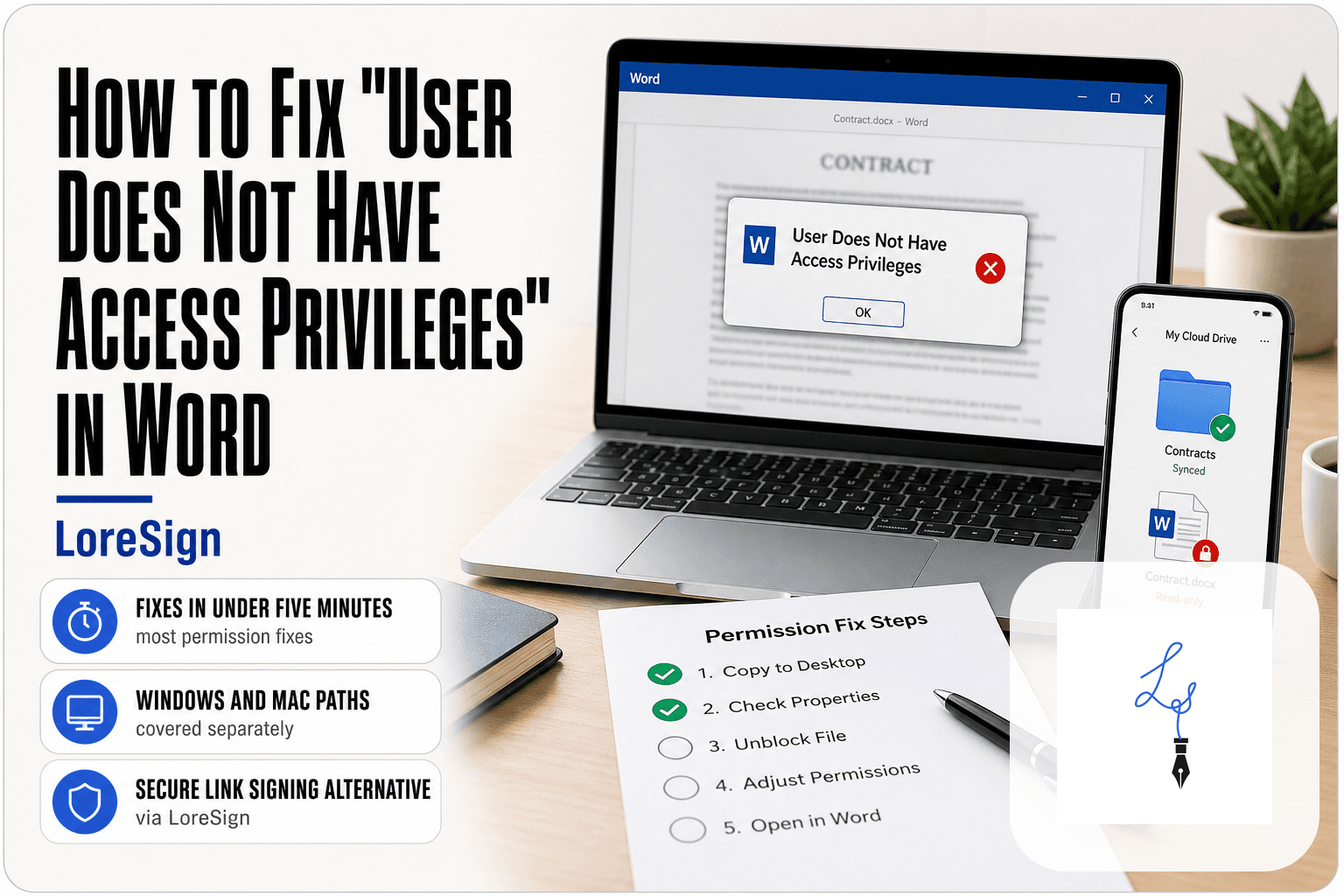
How to Fix "User Does Not Have Access Privileges" in Word
How to Fix "User Does Not Have Access Privileges" in Word depends on what is actually blocking the document. The message can appear because of local file permissions, Word document restrictions, cloud-sharing settings, an online-only file, or macOS privacy controls.
That distinction matters because changing Windows permissions will not remove a restriction applied through Microsoft Information Rights Management, and downloading a cloud file will not give you editing rights that the document owner never granted.
Start with the simple checks below before changing system permissions.
At a glance
| Check | What to do |
|---|---|
| File is in OneDrive or another cloud folder | Make sure it has downloaded locally and that you are signed into the correct account |
| Windows file permission problem | Check Properties → Security |
| Mac file permission problem | Check Get Info → Sharing & Permissions |
| Word document is read-only | Check Word's viewing or document-protection settings |
| Shared file gives you view-only access | Ask the owner for the appropriate access |
| File may be damaged | Try Word's Open and Repair |
| Protected or rights-managed document | Use the account authorized by the document owner |
Note: A file being read-only is not the same as being unable to open it. Microsoft describes read-only files as files that can normally still be viewed or printed but cannot be modified. Microsoft Support
Why Word Says "User Does Not Have Access Privileges"
An access error does not have one universal cause.
The important question is which layer is denying access.
There are four common categories worth checking.
| Type of problem | Example | Where you fix it |
|---|---|---|
| Operating-system permission | Your Windows or Mac account cannot read the file | Windows Properties or Finder Get Info |
| Word-level restriction | Document is read-only or rights-managed | Word/document owner |
| Cloud access or availability | Wrong account, view-only sharing, file not downloaded | OneDrive, Google Drive, SharePoint, etc. |
| File problem | Document is damaged | Word Open and Repair |
This is why immediately giving yourself "Full Control" is not always the right solution.
Microsoft, for example, documents both traditional file-access controls and separate Word access controls such as Information Rights Management. IRM permissions are stored with the document and can restrict who may read or change it. Microsoft Support
Quick Checks Before You Change Any Settings
Try these first.
- Close Word and reopen it.
- Save or download the document to a local folder.
- Make sure you are signed into the correct Microsoft or cloud account.
- Check whether the file opens in Word for the web or the cloud service's preview.
- Check whether you can open another Word document normally.
- If it is a shared document, confirm whether you were given viewing or editing rights.
- Keep the original file and troubleshoot a copy where possible.
These checks help identify whether the problem belongs to Word, the local file, the cloud service, or the document's access policy.
Tip: If the file came from OneDrive, Google Drive, SharePoint, or another cloud service, first confirm that the file is actually available locally before changing operating-system permissions.
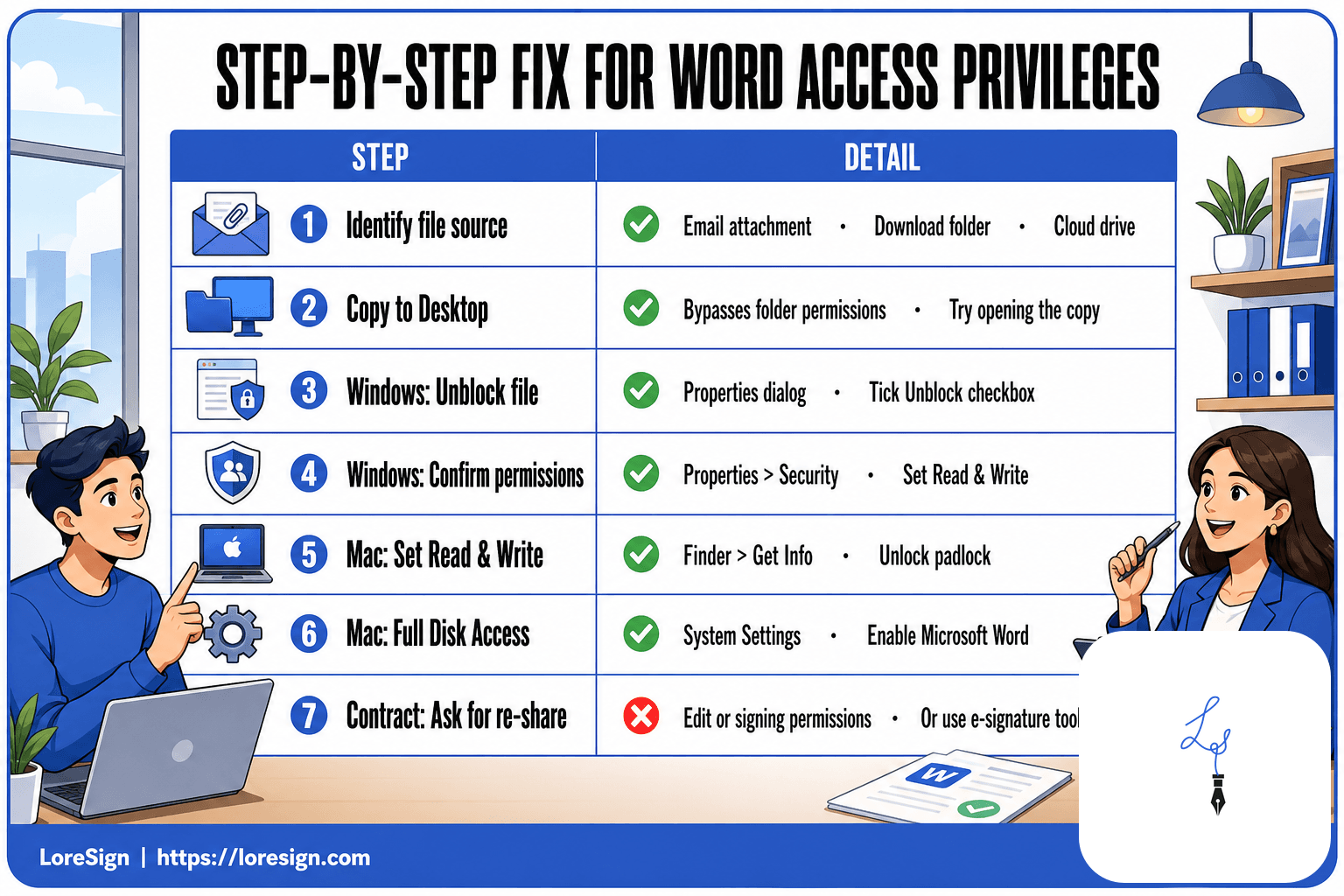
How to Fix "User Does Not Have Access Privileges": Step-by-Step
Work through the fixes in this order.
1. Identify where the document is stored
Determine whether the document is:
- attached to an email,
- stored locally,
- in OneDrive or SharePoint,
- in Google Drive,
- on an external drive,
- or stored on a company/network location.
This tells you which permissions are relevant.
2. Create or download a local copy
If the file is stored in a synced folder, download or copy it to a location such as your Desktop or Documents folder.
This can help when the issue comes from cloud availability, the sync client, or permissions inherited from the original local folder.
However, copying a file does not remove Word IRM protection or give you access that the owner has not granted. Microsoft states that IRM restrictions can remain attached to the document itself. Microsoft Support
3. Check whether Word can read the file
Open Word first and choose:
File → Open → Browse
Then select the document.
If Word opens the file but labels it read-only, you are dealing with an editing restriction rather than a complete file-access problem.
Microsoft notes that a read-only document can normally still be viewed while editing is restricted. Microsoft Support
4. Check your operating-system permissions
If Windows or macOS itself cannot give Word access to the file, check the file permissions.
The process differs by operating system.
5. Check the document's sharing or protection settings
If the file came from someone else, determine whether it is:
- shared as view-only,
- protected through Word,
- protected with organizational rights management,
- or tied to a different Microsoft account.
You cannot legitimately override permissions that the owner or organization has deliberately applied.
6. Test for file corruption last
If your permissions appear correct but Word still cannot open the document, try Open and Repair.
Microsoft recommends this for documents that may be damaged. Microsoft Support
Fix the Error on Windows: Check File Permission Settings
Microsoft documents a specific OneDrive access error where checking the Windows Security permissions and enabling Full Control can resolve the issue. Microsoft Support
Step 1: Open the file properties
Right-click the document and choose Properties.
Step 2: Open the Security tab
Choose Security.
Review the accounts and groups that currently have access.
Step 3: Check your account's permissions
Select your Windows account and inspect the allowed permissions.
For Microsoft's documented OneDrive "you do not have access permissions to the item" problem, its troubleshooting guidance recommends checking Full control → Allow. Microsoft Support
Do this only for a file you are legitimately authorized to access.
Step 4: Apply the change and reopen the file
Choose Apply, close the properties window, and reopen Word.
If this does not solve the problem, do not start changing permissions on unrelated Windows folders.
Windows Permissions vs Word Restrictions
These are easy to confuse.
| What you see | Likely issue | Appropriate next step |
|---|---|---|
| Windows account cannot read the file | File-system permission | Check Properties → Security |
| Word opens the document read-only | Editing restriction | Check Word's viewing/protection state |
| Word says your account is not authorized | IRM/account access | Use an authorized account or contact owner |
| OneDrive file cannot be opened offline | File availability | Download/make available locally |
| Only one document fails | Document-specific problem | Check protection or corruption |
Microsoft allows document owners to grant Read, Change, or Full Control using Information Rights Management. Those are separate from normal Windows NTFS permissions. Microsoft Support
Fix the Error on Mac
On macOS, first check the file itself rather than immediately granting Word Full Disk Access.
Step 1: Check Sharing & Permissions
In Finder:
Select the document → File → Get Info → Sharing & Permissions
Apple documents the following permission levels:
- Read & Write — open and modify the file
- Read only — open but not modify
- No Access — cannot access the item
If you are authorized to modify the file's permissions, set your account appropriately. Apple Support
If the setting cannot be changed, Apple recommends contacting the administrator or owner rather than trying to bypass the restriction. Apple Support
Step 2: Check macOS Files & Folders privacy access
macOS can separately control whether an application can access locations such as Desktop, Documents, and Downloads.
Go to:
System Settings → Privacy & Security → Files & Folders
Check whether Microsoft Word has the access it needs. Apple documents Files & Folders as the control for app access to specific file locations. Apple Support
Step 3: Do not enable Full Disk Access by default
Full Disk Access is much broader.
Apple says it allows an application to access all files on the computer, including data from other applications and certain administrative information. It should therefore not be the routine first fix for a single Word file. Apple Support
Use it only where there is a specific, justified reason to give Word that level of access.
Move or Copy the File to Another Location
Sometimes the problem is tied to the file's current local folder.
For example, a locally copied file can inherit permissions from its destination folder instead of continuing to use the source folder's local permissions.
Try:
- Make a copy of the file.
- Put the copy in your Documents or Desktop folder.
- Open Word.
- Choose File → Open.
- Open the copied file.
This is worth testing for local filesystem or sync-related problems.
It will not remove:
- Word passwords,
- IRM protection,
- organization policies,
- owner-controlled sharing restrictions.
Fix Access Errors in OneDrive
A OneDrive file can be either stored locally or available only through the cloud.
With Files On-Demand, Microsoft says an online-only file appears in File Explorer but is not downloaded until you open it. Once opened while connected to the internet, it normally downloads and becomes locally available. Microsoft Support
Check the file status icon
A blue cloud means the file is online-only.
If you need a persistent local copy:
Right-click → Always keep on this device
Microsoft documents this as the way to keep the file downloaded for offline access. Microsoft Support
Check the account
Make sure OneDrive is signed into the account that has permission to access the document.
Check the sharing permission
A cloud-sharing permission and a Windows file permission are not the same thing.
If the document owner granted you only limited access, changing a local copy does not automatically change what you are authorized to do with the original shared document.
Fix Access Errors in Google Drive
Google Drive for desktop can use streaming or mirroring.
With streaming, Google says files primarily remain in the cloud and are made locally available when required. Mirrored files are stored both locally and in the cloud. Google Help
If a streamed Word document is giving you trouble:
- Confirm Drive for desktop is running.
- Confirm you are signed into the correct Google account.
- Try making the file available offline.
- Open the local version in Word.
Google documents Offline Access → Available offline for non-Google files stored through Drive for desktop. Google Help
Do not assume Drive has "stripped" the Windows or Word permissions. Cloud availability, cloud sharing and Word document protection are separate issues.
What If the Word Document Is Read-Only?
Read-only does not necessarily mean you lack permission to open the document.
Microsoft describes read-only mode as a state where a document can be viewed or printed but cannot normally be modified. Microsoft Support
Word can also be configured to:
- always open a document read-only,
- restrict editing,
- or offer only the modes the document owner permits.
Microsoft documents these controls separately from normal file-system access. Microsoft Support
If you need to modify a document that someone else deliberately protected, ask the owner to provide the appropriate access.
What If the Document Is Rights-Managed?
This is one of the cases where copying the file somewhere else will not solve the underlying problem.
Microsoft Information Rights Management can restrict access on a:
- per-user,
- per-file,
- or group basis.
It can also determine whether someone can read, edit, copy or print the document. Microsoft Support
If Word tells you that your account does not have permission to open an IRM-protected document:
- check which Microsoft account you are signed into,
- sign in with the authorized account,
- or request access from the document owner or organization.
Do not try to bypass the protection by changing local file ownership.
What to Do When the Document Is a Contract You Need to Sign
A contract creates an extra concern: you should be able to review the document before signing it.
If the document will not open
Ask the sender to provide a version you are authorized to access.
If it opens but cannot be edited
That does not automatically mean there is a problem.
Electronic-signature workflows often do not require the recipient to directly edit a Word document. The sender may instead provide a browser-based signing workflow.
If the sender controls the document
Ask them to:
- correct the sharing permission,
- provide an accessible PDF,
- or send it through an electronic-signature platform.
Tip: If the purpose of the document is simply to collect signatures, sending a signing link through an e-signature platform can avoid many of the local Word, operating-system and cloud-folder issues that come with emailing editable document files.
With LoreSign, the sender can upload the document, place the required fields, send the signing link and track the signing process without requiring the signer to edit the original Word file.
When Antivirus Software Is Involved
Antivirus software can sometimes affect how Office files open.
Microsoft specifically notes that some antivirus products may open potentially unsafe files as read-only. Microsoft Support
That is different from saying every Word access error is caused by antivirus software.
If you suspect your security software:
- Check its alerts or blocked-item history.
- Confirm whether the Word document is being treated as suspicious.
- Follow the security vendor's documented troubleshooting process.
Avoid routinely disabling your entire antivirus system or excluding winword.exe from scanning just to troubleshoot one document.
When the File Is Actually Corrupted
Permissions and corruption are different issues.
If the permissions appear correct but the document still cannot be opened, Word includes an Open and Repair option.
Use Open and Repair
Microsoft's documented process is:
- Open Word.
- Choose File → Open → Browse.
- Select the document.
- Click the arrow beside Open.
- Choose Open and Repair.
Microsoft says this may recover a damaged Office document that cannot be opened normally. Microsoft Support
Restore an earlier copy
Depending on where the file was stored, you may also have access to:
- OneDrive version history,
- SharePoint version history,
- Windows backup/version history,
- or Time Machine on Mac.
Try built-in recovery options before paying for third-party repair software.
Diagnostic Flow: Where Is the Permission Problem?
[DIAGRAM NEEDED]
Diagram structure:
Can Word open the file?
→ No
→ Is the file actually downloaded?
→ No → Download/make available offline
→ Yes → Check OS permissions
→ Permissions correct → Check account/IRM
→ Still fails → Test Open and Repair
→ Yes, but read-only
→ Check Word protection/viewing mode
→ Check cloud sharing rights
→ Request editing access if required
This diagram would add useful variation because it simplifies the multiple permission layers instead of merely illustrating the text.
Common Mistakes to Avoid
Changing permissions on system folders
Do not modify permissions for folders such as Windows or Program Files simply because one Word document will not open.
Troubleshoot the affected document or its folder.
Assuming read-only means inaccessible
A read-only document can generally still be opened. The limitation relates primarily to modifying it. Microsoft Support
Assuming downloading removes document protection
It does not.
Rights-managed Word documents can retain their restrictions because IRM permissions are associated with the document. Microsoft Support
Giving Word Full Disk Access immediately
On Mac, first inspect Files & Folders and the individual file's Sharing & Permissions settings. Full Disk Access grants substantially broader access. Apple Support
Deleting the original before troubleshooting
Keep the untouched original until you confirm the repaired or copied version works.
Frequently Asked Questions
How can I fix the "User Does Not Have Access Privileges" error in Word on Mac?
Start with Finder → Get Info → Sharing & Permissions and confirm your user account is allowed to read the document. Then check System Settings → Privacy & Security → Files & Folders to make sure Word can access the relevant folder. Apple documents these as separate permission controls. Apple Support
Why is Microsoft Word telling me I do not have access privileges?
The restriction may come from operating-system permissions, the account used to access the document, cloud sharing, Word rights management, or another document-specific setting. The exact fix depends on which layer is denying access.
How do I change a Word file's permissions on Windows?
Right-click the file and choose Properties → Security to inspect Windows file-system permissions. Microsoft specifically recommends checking Full Control for its documented OneDrive "you do not have access permissions to the item" error. Microsoft Support
Does read-only mean I do not have permission to open the document?
No. Microsoft describes read-only as a state in which a document can generally be viewed or printed but not modified. Microsoft Support
Can OneDrive or Google Drive cause Word access problems?
Cloud file availability can contribute to access problems. OneDrive Files On-Demand and Google Drive streaming can keep files primarily in the cloud until they are needed locally. Checking that the file has downloaded and that you are signed into the correct account is a useful troubleshooting step. Microsoft Support
Can I remove someone else's Word restrictions by copying the document?
Not necessarily. Copying can help with some local file-system problems, but Microsoft IRM restrictions can remain attached to a Word document and are enforced according to the permissions assigned by the owner or organization. Microsoft Support
What should I do if the document is a contract I need to sign?
If you cannot legitimately access the contract, ask the sender to provide the correct access or send the document through a signing workflow. Do not attempt to bypass a protection mechanism. If direct editing is not required, an e-signature platform can let you review and sign the document through a browser instead.
How to Fix "User Does Not Have Access Privileges" Without Guessing
How to Fix "User Does Not Have Access Privileges" comes down to identifying which permission layer is blocking the file.
Start with file availability and account access. Then check Windows or Mac permissions. If the document opens but cannot be edited, investigate Word protection or cloud-sharing permissions instead. If permissions look correct and the document still fails, try Word's Open and Repair tool.
For contracts, the simplest solution may be to have the sender provide proper access or send the document through an electronic-signature workflow instead of troubleshooting an editable Word attachment.
About LoreSign
LoreSign helps businesses, freelancers and teams prepare documents, collect signatures and track the signing process from one place.
Instead of asking recipients to edit an attached Word document, a sender can prepare the document, add signing fields and send a browser-based signing link. This can reduce the file-access and compatibility problems that come with exchanging editable documents directly.