How to Customize an Electronic Signature With Templates in LoreSign
Most e-signature guides for business owners show you how to build a template, then go quiet on the part you actually care about: making your signature look the way you want. You're left guessing whether you can draw it, type it, or upload a photo, and what happens when you try. This guide walks through exactly how to customize an electronic signature with templates in LoreSign, using the template editor and audit trail as the context for every step. The good news is you have three real options: typed, drawn, or uploaded. The main catch is that some things aren't possible, and pretending otherwise wastes your time. Here's what you'll get: a step-by-step walkthrough of each signature style, how to place and size it inside a template, what you cannot do, and answers to the questions most guides skip.
| At a glance | Details |
|---|---|
| Signature methods | Draw, type, or upload an image |
| Template reuse | Save signature for future documents |
| Customization limits | No font or color changes |
| Best practice | Use transparent PNG for uploads |
| Plan availability | Templates on Starter and above |
In This Guide
- What Is an Electronic Signature Template in LoreSign?
- Electronic Signature Customization: LoreSign vs. Generic Tools
- How to Access the LoreSign Template Editor
- How to Customize an Electronic Signature With Templates in LoreSign
- Adding and Arranging Signature Fields in Your Template
- Configuring Template Settings for Multiple Signers
- What You Cannot Do When Customizing Electronic Signature Templates
- Legal Validity of Customized Electronic Signatures
- Common Mistakes When Customizing Electronic Signature Templates
- Final Thoughts on Customizing Electronic Signatures in LoreSign
What Is an Electronic Signature Template in LoreSign?
A template in LoreSign is a reusable document layout with signature fields, date fields, and text inputs already placed. You build it once, save it, and send it out as many times as you need. Each send uses the same field positions, so you don't drag and drop the same boxes every time.
Template vs. document: the key difference
A document is a one-off. You upload a PDF, place fields, send it, and it's done. A template keeps that field layout stored so you can reuse it. Change the recipient, change the date, keep the structure. That's the whole difference.
Why templates matter for repeatable signing workflows
If you send the same NDA, offer letter, or contract more than twice a month, a template saves you the field placement work every time. You open the template, add the signer, and send. The signature fields are already where they belong.
LoreSign does not allow you to change the font, color, or style of a typed signature. You can only choose between drawing, typing, or uploading an image.
Electronic Signature Customization: LoreSign vs. Generic Tools
| Factor | LoreSign | Generic Tools |
|---|---|---|
| Signature creation | Draw, type, or upload in template | Often limited to one method |
| Template reuse | Save signature for future documents | May require re-creation each time |
| Visual customization | Limited to method, no font/color | Varies, often no appearance options |
| Branding | Custom branding on Pro and above | Usually not available |
| Delivery | Automatic signed PDF delivery | Manual download often required |
How to Access the LoreSign Template Editor
You'll find the template editor from your LoreSign dashboard. Log in, then look for the Templates tab in the left-hand navigation. That's the starting point for everything in this guide.
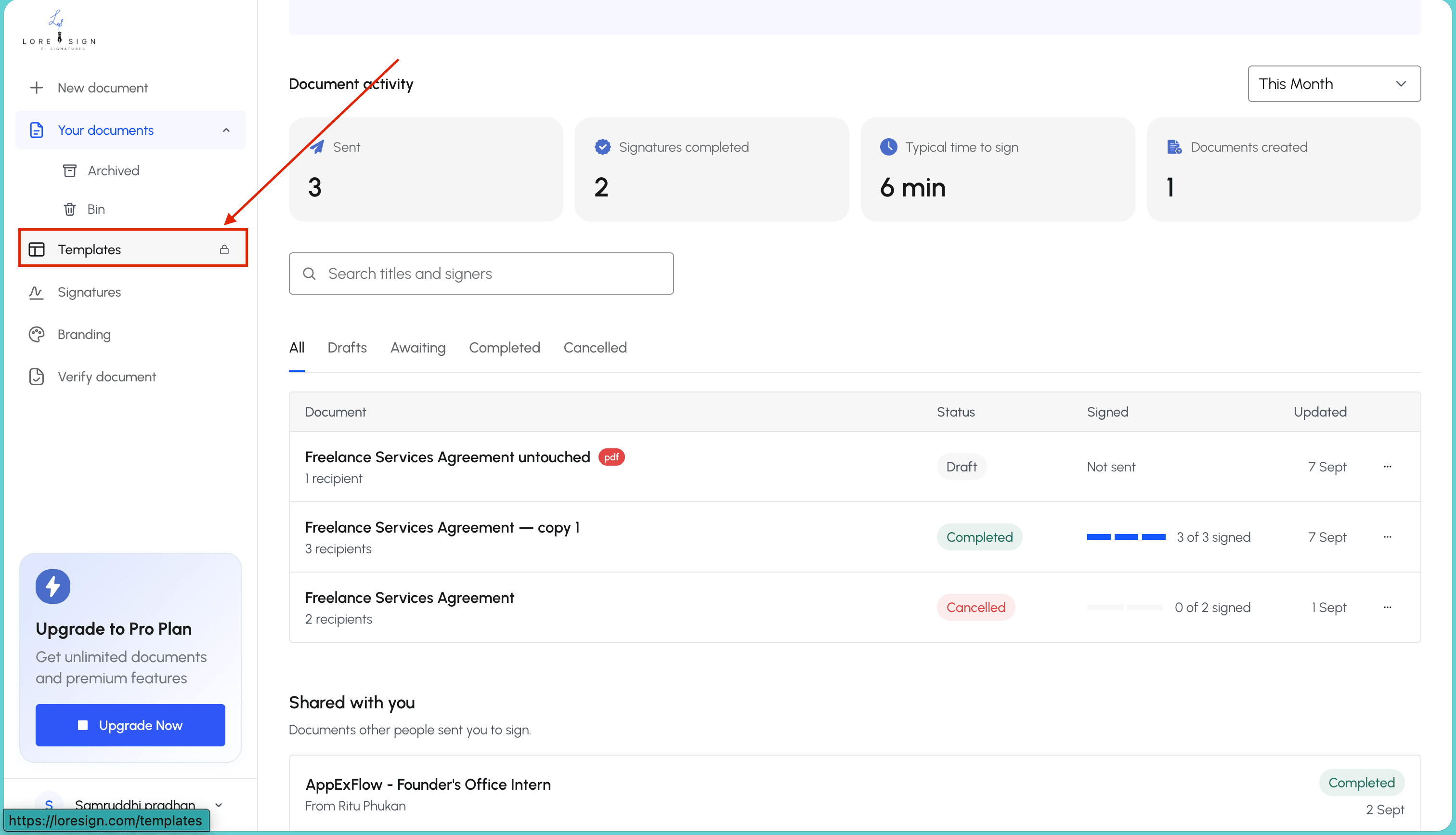
Navigating to templates from the LoreSign dashboard
From the dashboard, click Templates. You'll see a list of every template you've already built, plus a button to create a new one. If you don't see the Templates tab, check that you're on a paid plan. Starter includes 3 templates, Pro and Business include unlimited.
Creating a new template vs. editing an existing one
To edit an existing template, click its name in the list. The editor opens with all your saved fields intact. To start fresh, click New Template and upload a PDF. The editor works the same either way. The only difference is whether your fields are already placed or you're placing them from scratch.
For a professional look, upload a transparent PNG of your handwritten signature. This avoids a white background box and blends seamlessly into your PDF.
How to Customize an Electronic Signature With Templates in LoreSign
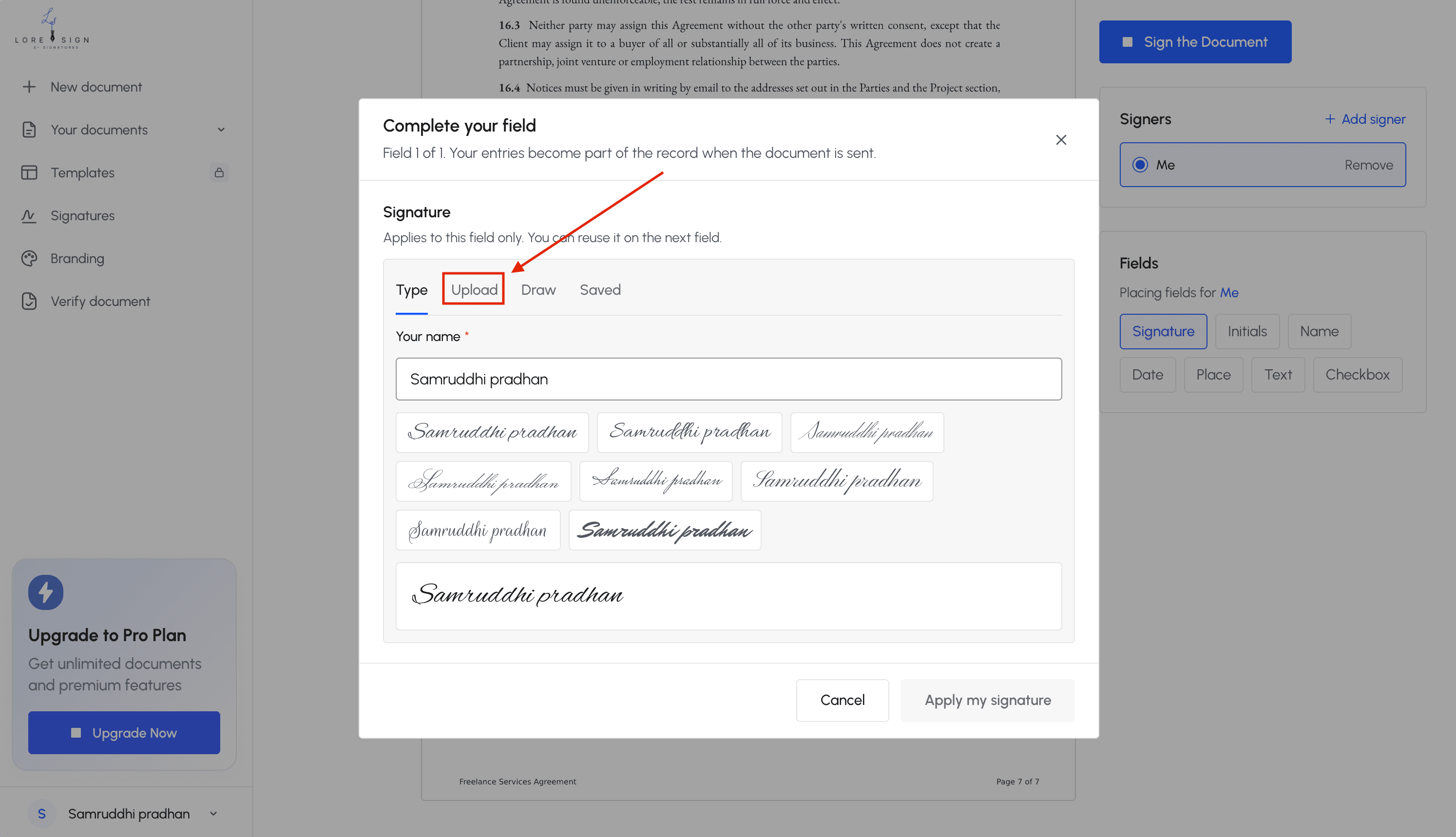
You can customize an electronic signature in LoreSign three ways: type it, draw it with a mouse or finger, or upload an image of your handwritten signature.
Each option works inside any template, and you can adjust size and placement before sending.
Choosing a signature style: typed, drawn, or uploaded
When you place a signature field in your template, the signer picks their style at signing time. Typed signatures use a script-style font applied to the signer's name. Drawn signatures let the signer sketch directly on screen with a mouse, trackpad, or touchscreen. Uploaded signatures accept an image file of a handwritten signature.
The signer chooses, not you. You can't lock a template to force one style.
Adjusting signature placement in the template
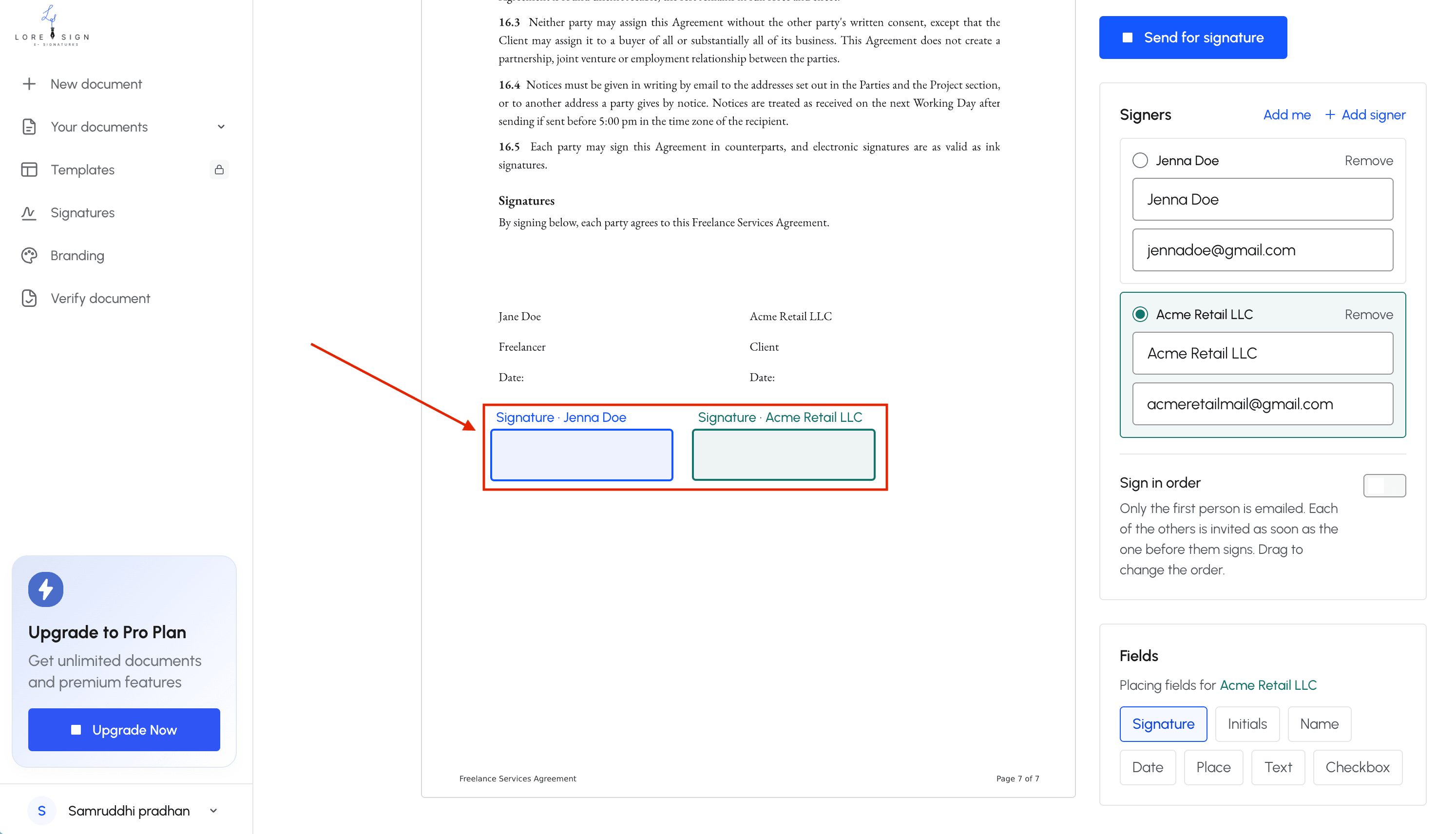
You control where the signature appears, not how big it renders. Drag the signature field to the right spot on the page. The signer's chosen style fills that box. The box tends to run wider than a typed one.
Previewing your customized signature before sending
Before you send, open the preview from the template editor. You'll see the field placement and size as signers will. You won't see the actual signature, since that's created at signing time. Test with your own email first if you want to see how each style looks in practice.
Adding and Arranging Signature Fields in Your Template
Field placement is where the template earns its keep. You're not just dropping a signature box on a page. You're building the route every signer will follow.
Placing signature, date, and text fields
Open the template editor and drag fields from the sidebar onto the document. Signature fields are the core. Date fields stamp the signing date automatically. Text fields let signers type in names, addresses, or other details you need captured.
Place fields exactly where the signature should land. On a contract, that's the signature block at the bottom. On an offer letter, it's the acceptance line. Drag to reposition, drag the corners to resize. The field box defines the clickable area and the space the signature will occupy.
Don't crowd fields. Leave breathing room between a text field and a signature field, or signers will tap the wrong one.
Setting field order for multiple signers
When a template has more than one signer, field order matters. LoreSign supports ordered multi-signer routing. You assign each field to a specific signer, then set the sequence.
Signer one gets the document first, completes their fields, and the document moves to signer two. This keeps an approval chain intact: manager signs, then employee signs, then HR signs. No one can jump ahead.
Check the order before you save. A misassigned field sends the document to the wrong person and stalls the whole workflow.
Configuring Template Settings for Multiple Signers
You've placed the fields. Now you decide who signs, and in what order. This is where a template stops being a form and starts being a workflow.
Adding multiple signers and setting signing order
Add each signer by name and email in the template settings. LoreSign supports ordered multi-signer routing, so you set the sequence: signer one, then signer two, then signer three. The document moves automatically after each signer completes their fields.
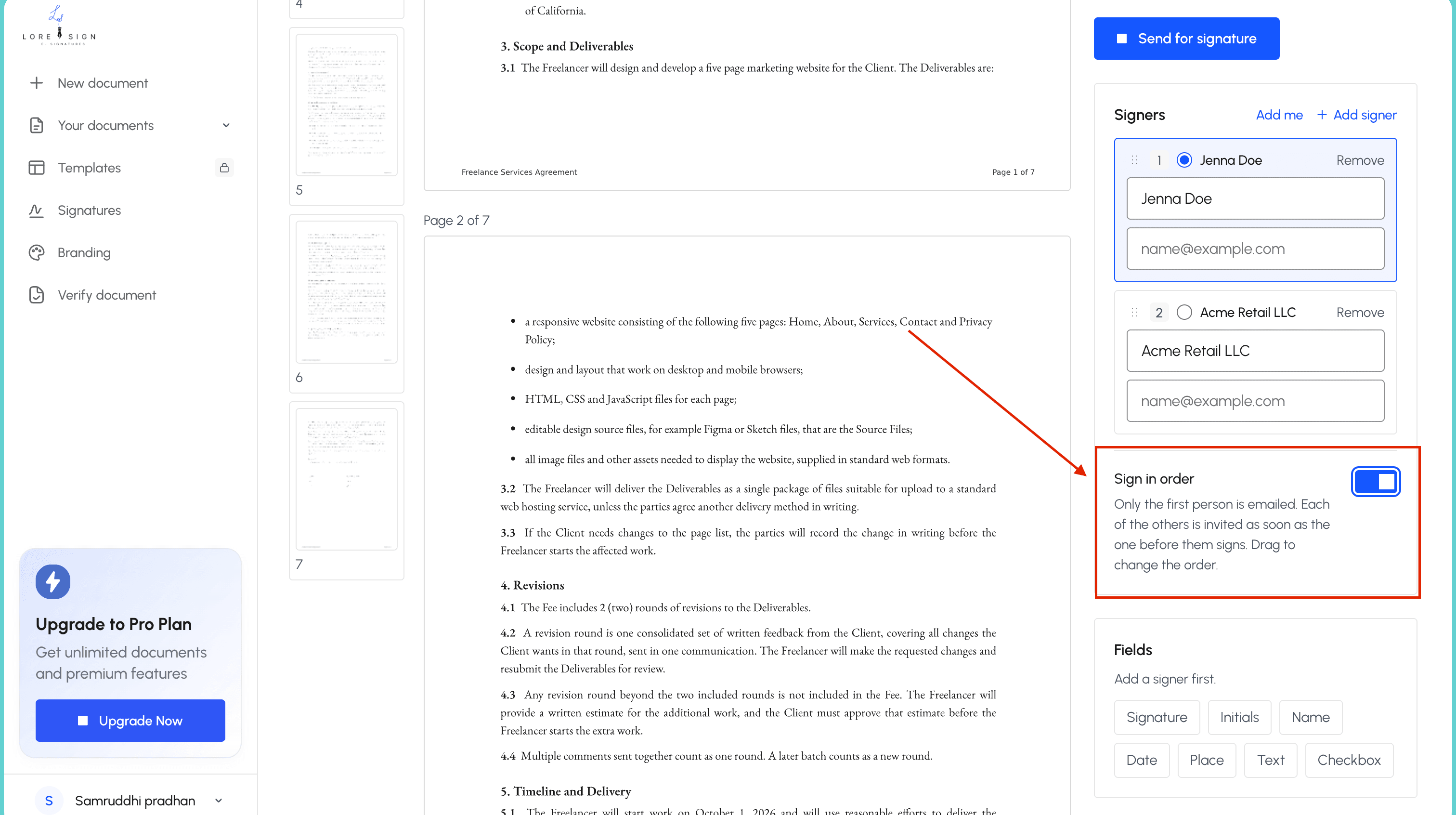
Set the order deliberately. For an NDA, the employee signs first, then the company rep. For a contract, the client signs, then your team countersigns. The order you set is the order the document follows. No one can jump ahead.
What each signer can customize on their own signature
Each signer customizes their own signature when the document reaches them. They choose typed, drawn, or uploaded. Your template doesn't lock that in.
What you control is placement and sequence. What they control is appearance. That split keeps your workflow intact while giving every signer a signature that looks like theirs.
What You Cannot Do When Customizing Electronic Signature Templates
You can't edit a template after it's been sent. Once the signing link is out, the fields, the order, and the routing are locked. You'd have to void and resend.
Signature customization limits to know before you start
Signers can't resize their signature once placed. The field size you set in the template is the size it stays. They also can't change signature style mid-document: if they start typed, they finish typed. Uploaded signatures must be an image file, not a PDF.
Template-level restrictions that affect your workflow
You can't apply one signer's customized signature to another signer. Each person sets their own. And you can't save a signature style as a template default that auto-applies to every signer. The customization is per signer, per document.
Legal Validity of Customized Electronic Signatures
Customizing how your signature looks doesn't change what it legally is. A typed name, a drawn squiggle, or an uploaded photo all carry the same weight under the ESIGN Act and UETA. What matters is the intent to sign and the audit trail behind it.
Does signature appearance affect legal enforceability?
No. Courts don't care whether your signature is cursive, typed, or a doodle. They care that you meant to sign and that the record shows it. LoreSign captures that intent with a certificate of completion and a public verification page on every document.
How LoreSign's audit trail supports compliance
The audit trail records who signed, when they signed, and the IP address they signed from. That's the evidence that holds up, not the font you picked.
Common Mistakes When Customizing Electronic Signature Templates
Most rework comes from two errors: making the signature look worse than the default, and sending a template you never tested.
Over-customizing the signature appearance
A signature that's too large crowds the date field. A drawn signature with shaky lines looks unprofessional at 200% zoom. Keep the signature at roughly the size of a handwritten one. If you upload a photo, crop it tight. White space around the image makes the signature float awkwardly in the field.
Forgetting to test the template before sending
Send yourself a test copy first. Check that the signature lands where you placed it, the fields don't overlap, and the signing order routes correctly. A template that looks right in the editor can break in the signer's view. Five minutes of testing saves you a re-send and a confused client.
Final Thoughts on Customizing Electronic Signatures in LoreSign
Customizing an electronic signature with templates in LoreSign comes down to three choices: typed, drawn, or uploaded. Pick one, place it, test it. The template editor handles the rest.
The audit trail records every signature regardless of how you styled it. That's the part that matters when a document gets challenged. The appearance is yours to control. The record is automatic.
Start with a template, customize the signature once, and reuse it for every document that needs the same setup.
Frequently Asked Questions
How to modify a digital signature?
In LoreSign, you can modify your digital signature by editing the signature field within a template. Choose to redraw, retype, or upload a new image. Save the updated signature to your profile for future use.
How to use templates in LoreSign?
To use templates in LoreSign, create a new template from the dashboard, upload your PDF, and place signature fields. Save it as a template, then reuse it for multiple documents by sending a secure link to recipients.
How to customize a signature?
Customize your signature by selecting the signature field in a LoreSign template. You can draw it manually, type your name, or upload an image. Adjust size and position to fit your document.
How can I edit my e-signature?
Edit your e-signature by opening the template containing the signature field. Click the field and choose a new method—draw, type, or upload. Save changes to update the signature across the document.
Can I change the font or color of my typed signature in LoreSign?
No, LoreSign does not offer font or color customization for typed signatures. Your typed signature appears in a standard script font. For a personalized look, upload an image of your handwritten signature instead.
What file formats are supported for uploading a signature image?
LoreSign supports common image formats like PNG and JPEG for signature uploads. For best results, use a PNG with a transparent background to avoid a white box around your signature.
Can I save my customized signature for future documents?
Yes, after customizing your signature, you can save it to your LoreSign profile. This allows you to quickly insert the same signature into future templates and documents without recreating it.
About LoreSign
LoreSign helps For people looking to get documents and contracts signed. get this right. Track every signer and receive the completed document automatically. Whether you are working through How to Customize a Electronic Signature With Templates - using LoreSign or something adjacent, we publish what we have actually tested, including where it falls short.