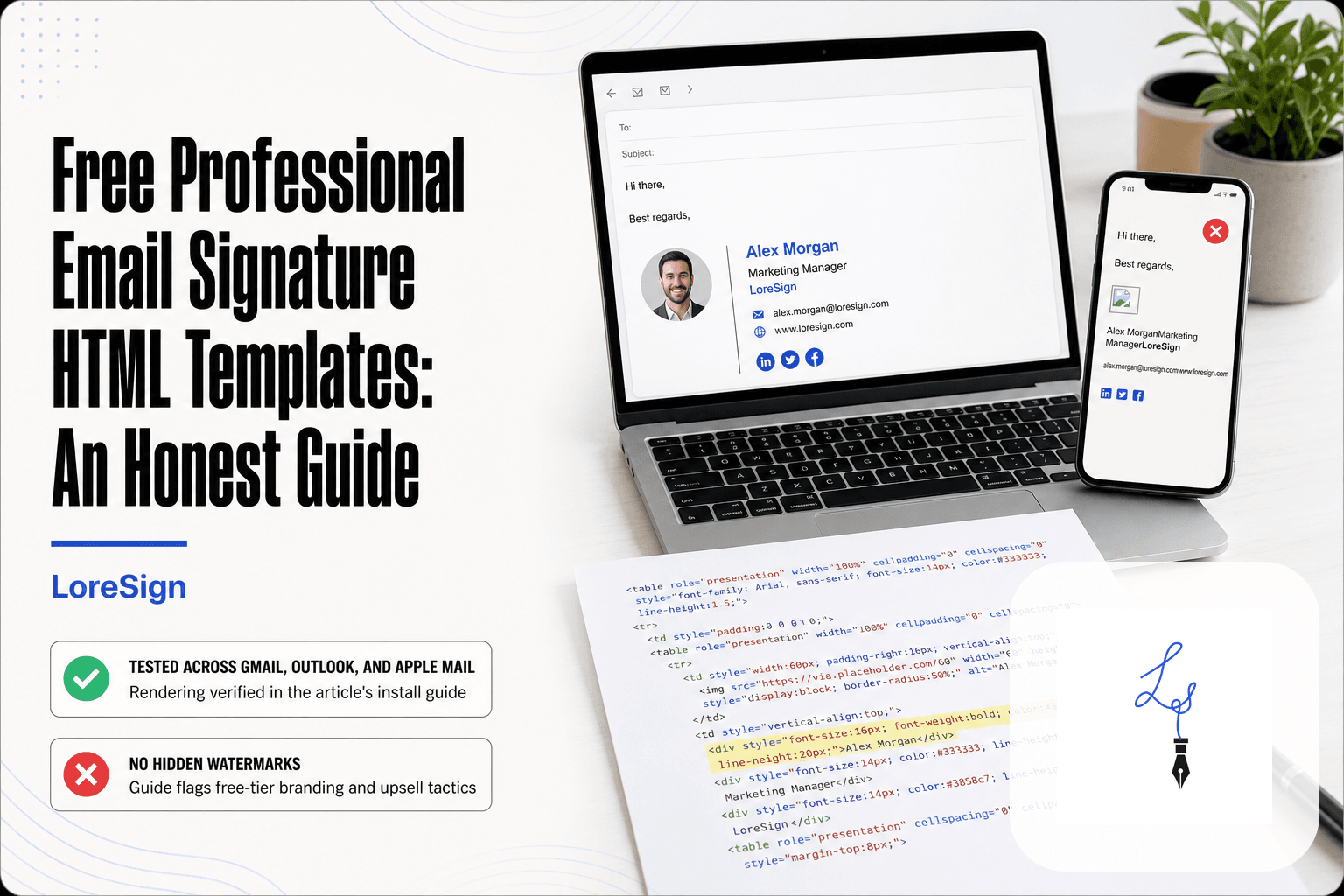
Free Professional Email Signature HTML Templates: An Honest Guide
Free professional email signature HTML templates are everywhere, but if you're sending contracts, proposals, or invoices, you don't just want a pretty footer. You want the person on the other end to open your email, read it, and trust you enough to sign. A clean, professional signature does that quiet work. The problem is most "free" generators won't tell you what they actually do with your data, why their templates break in Outlook, or where the watermark shows up later. I tested the main options so you don't have to. The good news is you can get a solid HTML signature without paying. The main catch is that free tools stop at the signature itself. They can't handle the document signing side of the workflow. That's where LoreSign comes in later. This guide covers how to choose a free generator, what to watch out for, and how to install a signature that actually renders across Gmail, Outlook, and Apple Mail.
| At a glance | Details |
|---|---|
| What it is | HTML code that renders a styled signature in email clients |
| Best for | Solo professionals and small teams sending contracts |
| Typical cost | Free tiers exist; paid tiers add branding removal |
| Key limit | Free tools rarely sign documents or remove branding |
| Compatibility | Outlook, Gmail, Apple Mail render HTML differently |
| Trust link | A clean signature builds credibility before a signing request |
What Is an Email Signature and Why It Matters for Document Signing
An email signature is the block of text, contact details, and sometimes images that automatically appears at the bottom of every email you send. It matters for document signing because it signals who you are before a recipient opens your contract.
What is an email signature?
It's your name, title, company, phone number, and website, formatted once and attached to every outgoing message. Most email clients let you paste HTML code to control layout, fonts, and colors.
Why trust matters when asking someone to sign a document
A recipient who doesn't recognize the sender won't open a contract, let alone sign it. A clean signature with a real name and verifiable company details answers the first question: who is this person?
The connection between email signatures and e-signature workflows
Your signature introduces the request. The e-signature completes it. One builds credibility, the other captures consent.
Free email signature tools are not e-signature tools. A signature block identifies you in an email; an e-signature platform like LoreSign captures a legally binding signature on a document, with an audit trail and certificate of completion.
Free Email Signature Generator vs Hand-Coded HTML Template
| Factor | Free Generator | Hand-Coded HTML |
|---|---|---|
| Setup time | Minutes via a form | Longer; requires HTML editing |
| Branding | Often adds a tool watermark on free plans | None; fully yours |
| Data handling | Your details pass through the tool's servers | Stays on your machine |
| Client compatibility | Tool handles most rendering quirks | You must test each client |
| Ongoing edits | Edit in the tool's dashboard | Edit the file and re-paste |
What Free Email Signature Generators Can and Cannot Do
Free generators do one thing well: they turn your details into a basic HTML signature block. That's it. They don't sign documents, they don't manage contracts, and they don't always tell you what happens to the data you type in.
What free generators actually deliver
You get a form. You fill in your name, title, company, phone, and website. The tool generates HTML code with inline styles and a table-based layout. You copy the code, paste it into Gmail or Outlook, and you're done. Some tools include a small template gallery with 5 to 20 designs. Others let you add a photo or social icons.
The output is a static signature. No tracking, no dynamic fields, no team management.
Hidden costs: branding, data collection, and upsell tactics
Most free generators add a small "Created with [Tool Name]" link to your signature. Removing it requires a paid plan. Some tools collect your email address and send follow-up marketing. Others limit exports: you can create the signature but not download the HTML until you register.
The upsell pressure starts immediately. Free plans typically cap customization, block watermark removal, and restrict template access. You'll see upgrade prompts at every step.
What free tools won't tell you about email client compatibility
Gmail strips embedded stylesheets. Outlook uses Microsoft Word's rendering engine, which ignores many modern CSS properties. Apple Mail handles most HTML but blocks remote images by default.
A signature that looks perfect in the generator's preview can break in Outlook. Test before you send.
If you regularly send contracts, put a short line in your signature linking to your document signing flow, and use a tool like LoreSign to upload the PDF, place the signing fields, and send one secure link so every signer is tracked and the completed document returns automatically.
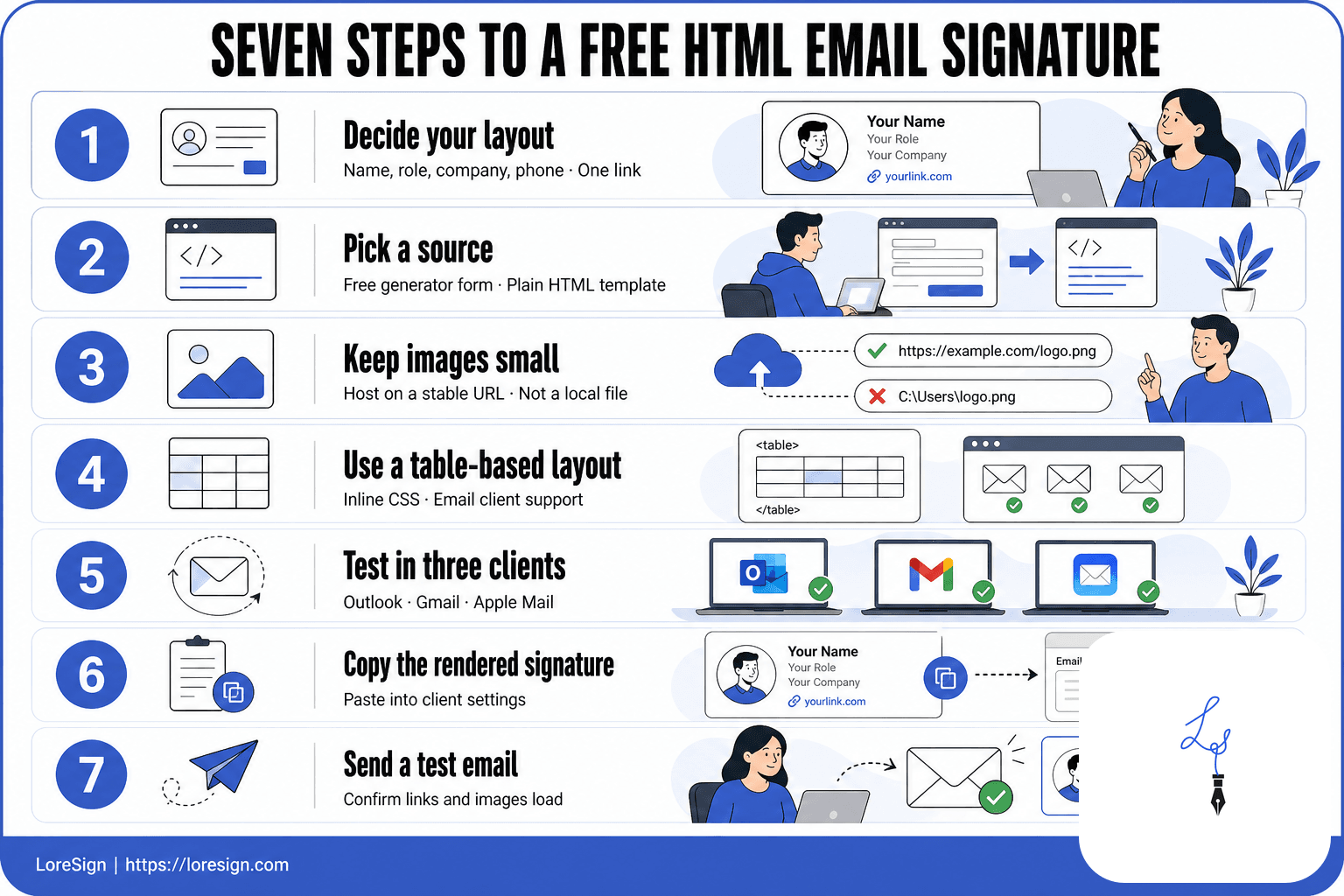
Free Professional Email Signature HTML Templates: A Step-by-Step Guide
- Decide your layout: name, role, company, phone, and one link.
- Pick a source: a free generator form or a plain HTML template you edit.
- Keep images small and host them on a stable URL, not a local file.
- Use a table-based layout with inline CSS for email client support.
- Test in Outlook, Gmail, and Apple Mail before you commit.
- Copy the rendered signature and paste it into your email client's signature settings.
- Send a test email to yourself and a colleague to confirm links and images load.
How to Create a Free HTML Email Signature
The process takes about ten minutes. You'll need a generator, your contact details, and a few minutes to test the output in your actual email client.
Step 1: Choose a template or start from scratch
Pick a template that matches your brand. Most free generators offer 5 to 20 designs. Start from scratch only if you know HTML tables and inline CSS, because that's what email clients actually render.
Step 2: Fill in your details
Enter your name, title, company, phone, and website. Add a photo if you have one. Keep it minimal: name, role, one phone number, one link. Every extra field is another chance for the signature to break in Outlook.
Step 3: Export the HTML code
Copy the generated code. Don't paste it into a word processor first, that adds formatting garbage. Paste it directly into your email client's signature settings.
Step 4: Test before you install
Send a test email to yourself and open it in Gmail, Outlook, and Apple Mail. Check that images load, links work, and nothing wraps awkwardly on mobile. A signature that looks fine in the generator's preview can break in Outlook.
Where to Find Free Professional Email Signature Templates
Free templates live in two places: generator tools with built-in galleries, and standalone collections you download and edit yourself. Both work. Neither is perfect.
Generator tools with built-in template galleries
HubSpot, Blinq, and MySignature all offer free galleries. You pick a design, fill in your details, and export HTML. The catch: most free tiers add a small "Made with" link or watermark, and some require an email address to access the code.
Standalone template collections
Sites like HTML Email Signature and Mail-Signatures host raw HTML files you can copy. No account needed. The tradeoff: you're on your own for editing, and some files are years old, with outdated code that breaks in modern Outlook.
What to look for in a quality template
Check for table-based layout, inline CSS, and no external fonts. If a template uses embedded styles or web fonts, it'll render wrong in Gmail. Test before you install.
Best Free Email Signature Generators Compared
The best free generator depends on what you're willing to trade. Ease of use, customization depth, export quality, and hidden costs all pull in different directions.
Comparison criteria: ease of use, customization, export quality, hidden costs
I judged each tool on four things. Ease of use means how fast you go from landing page to HTML code. Customization covers layout control, colors, fonts, and social icons. Export quality is whether the code renders cleanly in Gmail, Outlook, and Apple Mail. Hidden costs are the watermarks, branding links, and data collection you don't see until step three.
Tool-by-tool breakdown
HubSpot Email Signature Generator is the fastest option. Pick a template, type your details, copy the HTML. No account required. The catch: limited layout control and no dark mode support.
Blinq offers more design flexibility and a cleaner interface. You get social icons and multiple layout options. The free tier adds a small Blinq link to your signature.
Canva Email Signature Generator gives you the most visual control. Drag and drop anything. But the export process is clunkier, and Canva's HTML output sometimes breaks in Outlook.
MySignature has the best template variety and team features. The free plan includes one signature with a watermark. Paid plans start around $4 per month.
Signature.email focuses on clean, minimal designs. Good export quality. The free tier limits you to one signature and adds branding.
Which generator is right for you?
Pick HubSpot if you want something working in five minutes. Pick Canva if design control matters more than clean code. Pick MySignature if you're managing signatures for a team. None of these handle document signing. That's a separate tool.
How to Install Your HTML Email Signature in Gmail, Outlook, and Apple Mail
You've got the HTML code. Now it needs to land in your email client without breaking. Each client handles signatures differently, and the install path isn't obvious in any of them.
Installing in Gmail
Open Gmail settings, scroll to Signature, and click Create new. Name it, then paste your HTML directly into the signature box. Gmail strips some styling on paste, so check that your links and images survived. Save at the bottom.
Installing in Outlook
Outlook desktop and Outlook web are different. On desktop, go to File > Options > Mail > Signatures. Paste your HTML into the editor. Outlook uses Word's rendering engine, which mangles some CSS. Test by sending yourself an email. On the web version, the path is Settings > Mail > Compose and reply.
Installing in Apple Mail
Open Mail, go to Settings > Signatures. Create a new signature, then paste your HTML. Apple Mail sometimes drops background colors and spacing. If your signature looks flat, that's why.
Common installation mistakes to avoid
Don't paste HTML into a plain text signature field. It'll show as code. Don't skip testing. Send yourself an email from each client you use. And don't assume one install covers all your devices. You'll need to repeat this on your phone.
Email Signature HTML Code Quality and Rendering Issues
Your signature rendered fine in Gmail. Then a client opened it in Outlook and the spacing collapsed. That's not bad luck. It's how email clients parse HTML, and it's predictable once you know the rules.
Why table-based layouts still matter
Email clients don't support modern CSS layout. Flexbox and grid fail silently. Tables work everywhere because they've been supported since the 1990s. Build your signature as a single table with rows for each line: name, title, contact details. It's ugly code. It renders.
Inline CSS vs. embedded styles
Gmail strips <style> blocks from the head. Outlook ignores many CSS properties entirely. Inline styles survive both. Put every color, font, and margin directly on the element. It's repetitive. It's the only reliable way.
Testing across email clients
Send yourself a test email to Gmail, Outlook, and Apple Mail. Check images load, links work, spacing holds. Don't skip Outlook. It uses Word's rendering engine, which breaks more signatures than any other client.
Dark mode and mobile responsiveness
Dark mode inverts colors automatically in some clients. Your white background may become black with unreadable text. Use transparent backgrounds where possible. On mobile, wide signatures get cut off. Keep total width under 320 pixels.
Email Signatures and E-Signatures: How They Work Together
Your email signature is the first thing a recipient sees before they open your document. It tells them who's asking. A clean signature with your name, title, and company signals that the contract attached isn't spam.
Why a professional signature increases signing rates
People sign documents from people they trust. A signature with a broken image or mismatched fonts does the opposite. It makes the request look careless. A consistent signature across your team tells the recipient this is a real business, not a one-off. That matters when you're asking someone to put their name on a legal document.
When to use an email signature vs. an e-signature
An email signature identifies you. It sits at the bottom of every message and doesn't change per document. An e-signature is a legal mark applied to a specific document. You can't use one for the other. Don't paste a scanned signature image into an email and call it signed. It isn't.
How LoreSign fits into the document signing workflow
When a recipient is ready to sign, LoreSign takes over. Upload the PDF, place the signing fields, and send one secure link. LoreSign tracks every signer and sends the completed document automatically once everyone's signed. Your email signature got them to open the message. LoreSign gets the signature on the page.
Common Mistakes When Using Free Email Signature Templates
Most broken signatures come from the same four errors. Fix these and your signature works everywhere.
Using outdated or bloated HTML
Copying code from a 2012 tutorial gets you deprecated tags and broken rendering. Table-based layouts still work. Nested divs and external stylesheets don't. Keep the HTML minimal.
Ignoring mobile and dark mode
Half your recipients read email on a phone. A signature that looks fine on desktop can stack awkwardly or clip on mobile. Dark mode inverts colors unless you set them explicitly. Test both.
Not testing before sending
Send yourself a test email to Gmail, Outlook, and Apple Mail. Check images load, links work, and spacing holds. Don't discover the break after a client does.
Overloading with too many links or images
Every image is a request the email client can block. Every link is a chance to look spammy. Three lines of text, one logo, two links. That's enough.
Final Thoughts on Free Professional Email Signature HTML Templates
Free professional email signature HTML templates get the job done if you keep expectations realistic. A clean, tested signature builds trust before you ask anyone to sign a contract. The catch is that free tools stop at the signature.
They won't handle the document itself. No e-signature, no tracking, no automatic delivery of the completed PDF. That's a different tool.
When a recipient is ready to sign, LoreSign takes over: upload the document, place the signing fields, send one secure link. You get the signed copy back automatically. The signature earns the trust. The signing tool closes the loop.
Frequently Asked Questions
How can I create a free HTML email signature?
You can either use a free online generator that outputs HTML, or write a simple table-based HTML block with inline CSS and paste it into your email client's signature settings. Generators are faster; hand-coding gives you full control and no tool branding.
Where can I find free professional email signature templates?
Free templates are widely available from email signature generator sites, design blogs, and GitHub repositories. Check the license before use, and test the template in your specific email client because rendering varies.
What's the best free email signature generator?
There is no single best one; the right choice depends on whether you need team management, branding removal, or simple one-off output. Compare what each free tier includes, especially whether it adds a watermark or collects your contact data.
Is there a free e-signature generator available?
Free e-signature tools exist for basic signing, but they often limit the number of documents or add branding. For contracts that need an audit trail and certificate of completion, a dedicated platform like LoreSign is more appropriate.
Why does my HTML email signature look broken in Outlook?
Outlook uses a different rendering engine than Gmail or Apple Mail, so it may ignore certain CSS or flexbox layouts. Use table-based layouts with inline styles and avoid complex CSS to maximize compatibility.
Do free email signature tools collect my data?
Many free tools process your details on their servers and some may use them for marketing or analytics. Read the privacy policy before entering your contact information, and prefer tools that state clearly what they do with your data.
How does an email signature connect to document signing?
A professional signature builds trust with the recipient before you ask them to sign. When you are ready to send a contract, a platform like LoreSign lets you upload the PDF, place signing fields, and send one secure link so you can track every signer and receive the completed document automatically.
About LoreSign
LoreSign helps For people looking to get documents and contracts signed. get this right. Track every signer and receive the completed document automatically. Whether you are working through frittata professional free email signatures html template e or something adjacent, we publish what we have actually tested, including where it falls short.