How to Fix a PDF Upload Error
How to fix a PDF upload error starts with knowing you're not alone: every professional who sends documents for signature has stared at a failed upload at the worst possible moment. You've prepared the contract, filled in the names, and hit upload only to get a message that says nothing useful. Most PDF upload errors fall into five or six predictable causes, and they're fixable in minutes if you check them in the right order. The good news is that platforms like LoreSign accept standard PDFs without special preparation. The honest answer is that some PDFs are unrecoverable, and this guide tells you how to know when that's the case instead of wasting an hour on repair tools that won't work.
| At a glance | Details |
|---|---|
| Most common cause | File size exceeds the platform limit |
| Second most common | PDF is corrupted or password-protected |
| Quick first check | Confirm file opens in a PDF reader |
| Typical size limit | Often 10–25 MB (check your platform) |
| When to recreate | If repair tools fail to open the file |
| Best prevention | Export a fresh PDF from the source |
In This Guide
- What Causes a PDF Upload Error?
- Compress the PDF vs. Re-export from the source
- Check the File Size First
- How To Fix A PDF Upload Error: A Step-by-Step Guide
- How to Fix a PDF Upload Error Caused by Corruption
- Fix Format and Validation Errors
- Remove Password Protection and Encryption
- Browser and Connection Fixes
- What You Cannot Fix (And What to Do Instead)
What Causes a PDF Upload Error?
Most upload failures come down to six predictable causes. You can usually spot yours in under a minute.
File size exceeds the platform limit
Most e-signature platforms cap uploads between 10 MB and 25 MB. A PDF with scanned pages or embedded images blows past that fast. Check the file size first.
Corrupt or damaged PDF file
A PDF that opens on your machine can still fail validation. Corruption often happens during download, email transfer, or a bad save. Symptoms include blank pages, missing text, or an error when you open it.
Unsupported PDF version or format
Some platforms reject older PDF versions or files saved with non-standard encoders. If you exported from an unusual tool, the file may not meet the platform's spec.
Password protection or encryption
An encrypted PDF can't be processed for signature. The platform needs to read the file structure to place signing fields, and encryption blocks that.
Browser or connection issues
A slow connection can time out mid-upload. Browser extensions, cached data, or an outdated browser can also interfere with the upload script.
Platform-specific validation rules
Each platform runs its own checks. Some reject certain fonts, embedded scripts, or file naming patterns. The error message won't always tell you which rule failed.
A PDF that won't open in any reader is usually unrecoverable — repair tools can sometimes salvage it, but if they fail, recreating the document from the original source is the only reliable fix.
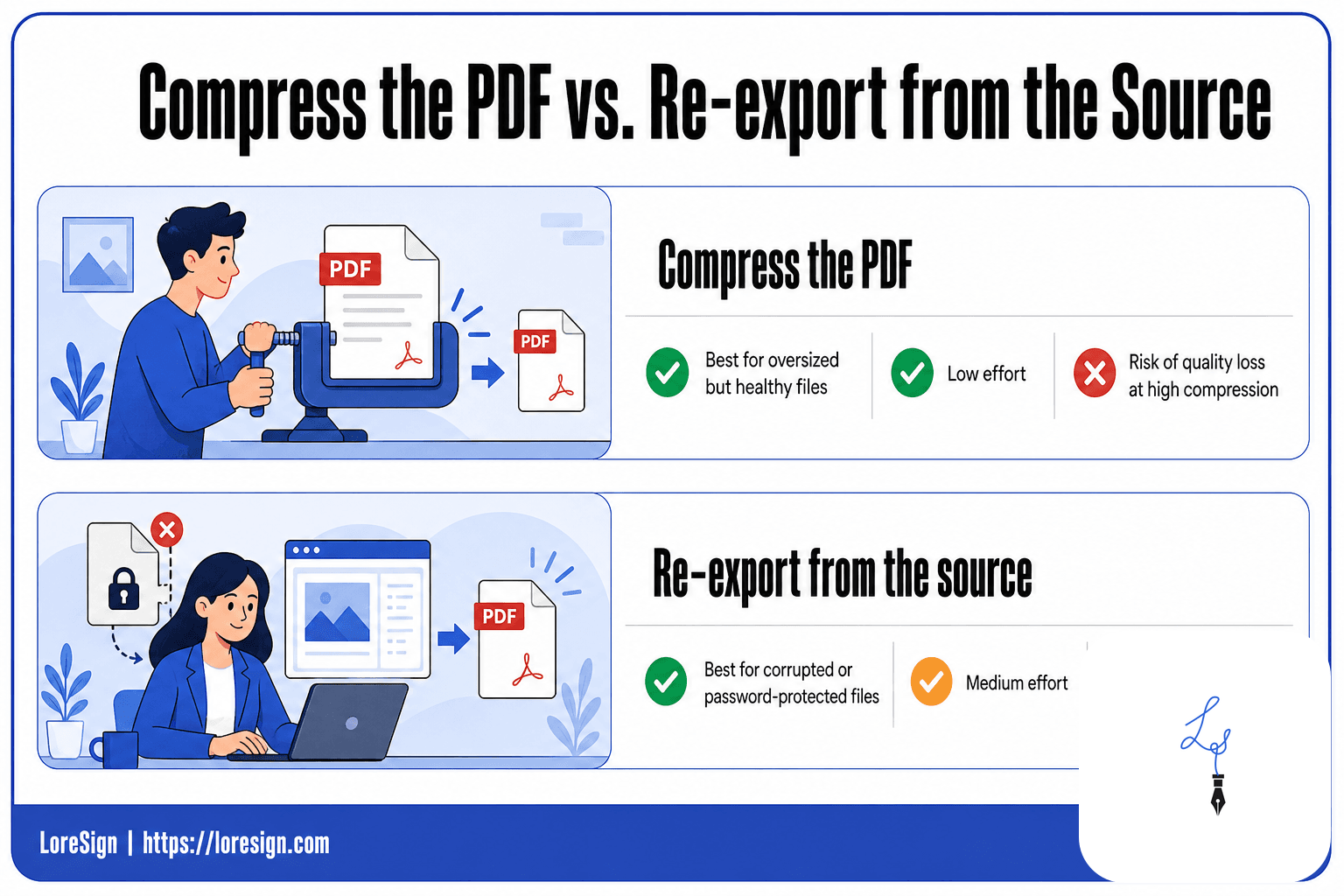
Compress the PDF vs. Re-export from the source
| Factor | Compress the PDF | Re-export from the source |
|---|---|---|
| Best for | Oversized but otherwise healthy files | Corrupted or password-protected files |
| Effort | Low — one tool, one click | Medium — reopen the original app and save again |
| Risk of quality loss | Possible at high compression | None — output matches the source |
| Fixes corruption? | No — compression won't repair damage | Yes — a clean export replaces the broken file |
| Time to result | Seconds | A few minutes |
Check the File Size First
The most common reason a PDF won't upload is that it exceeds the platform's file size limit. Most e-signature and document platforms cap uploads between 10 MB and 25 MB, and a PDF with scanned pages or embedded images can hit that ceiling quickly.
How to check your PDF file size
On Windows, right-click the file and select Properties. On a Mac, right-click and choose Get Info. The size displays in KB or MB. If you're on a phone, open your file manager and tap the file for details.
Anything over 10 MB is worth treating as a suspect. Even if the platform's limit is higher, a large file uploads slower and times out more often.
Common upload limits by platform type
Free e-signature tools typically cap uploads at 10 MB. Paid tiers often allow 25 MB or more, but the limit applies per file, not per document package. Email attachments have their own ceiling, usually 25 MB, which matters if you're sending the PDF to someone else to upload.
If your PDF is under 10 MB and still fails, the size isn't the problem. Move to the next cause.
How to compress a PDF without losing quality
Start by removing unnecessary pages. A 14-page contract with two blank pages at the end is easy to trim.
For actual compression, use a PDF tool that offers "optimize" or "reduce file size" rather than "compress to lowest quality." Most online compressors let you choose a balance between file size and clarity. Text stays sharp at moderate compression. Scanned documents lose legibility faster, so check the result before you upload.
Don't compress below what the signature fields need. If the text blurs, signers will struggle to read what they're signing.
Before uploading to an e-signature platform, always export a fresh PDF directly from the app you wrote the document in (Word, Google Docs, etc.) rather than scanning or screenshotting — this avoids most corruption and size issues before they happen.
How To Fix A PDF Upload Error: A Step-by-Step Guide
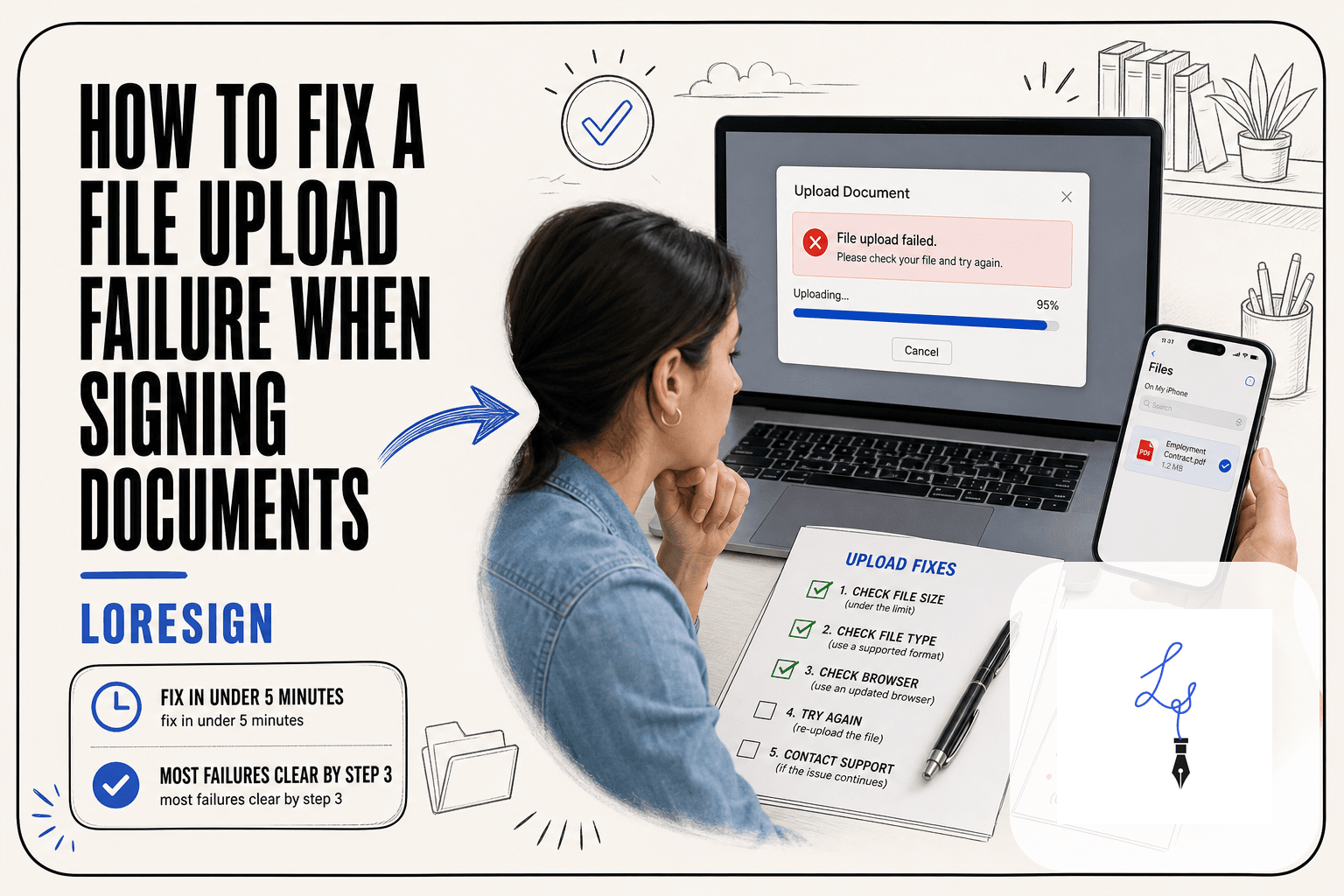
- Open the PDF in a standard reader to confirm it isn't corrupted or password-protected.
- Check the platform's stated file size limit and compare it to your PDF's size.
- If the file is too large, compress it or re-export at a lower quality setting.
- If the PDF is password-protected, remove the password or re-save an unprotected copy.
- If the file won't open at all, run it through a PDF repair tool — or recreate it from the source document.
- Rename the file using only letters, numbers, and hyphens (no special characters or spaces).
- Try a different browser or clear your browser cache, then upload again.
- If the error persists, contact the platform's support with the exact error message and file details.
How to Fix a PDF Upload Error Caused by Corruption
A corrupt PDF is different from a large one. The file opens on your machine, but the upload fails or the platform rejects it. That's a sign the file's internal structure is broken, not its size.
Signs your PDF is corrupt
You'll see one of these: the PDF opens blank or shows garbled text, pages render slowly or freeze, the file won't open in a second reader, or the upload error mentions "invalid file" or "damaged." If the same PDF fails on two different platforms, corruption is the likely cause.
The print-to-PDF workaround
This fix rebuilds the file structure without any repair tool. Open the PDF in any viewer, select Print, and choose "Save as PDF" or "Microsoft Print to PDF" as the destination. The new file is a clean copy. You lose form fields, digital signatures, and sometimes hyperlinks, but the text and layout survive. For a contract headed to e-signature, that's usually enough.
When to use an online repair tool
If print-to-PDF fails or the PDF won't open at all, try a repair tool. iLovePDF and Smallpdf both offer free repair. Upload the file, the tool attempts to rebuild the structure, and you download the result. Check the repaired file opens correctly before you send it for signature.
What repair tools cannot fix
Repair tools rebuild structure. They don't recover missing content. If pages are blank because the data was never written, no tool brings them back. The same goes for a PDF that's actually a renamed image or a file truncated mid-download. When repair returns a file that still won't open, stop trying. Recreate the document from the source file.
Fix Format and Validation Errors
"Please upload a valid PDF file" means the platform checked your file and it isn't what it claims to be. The extension says .pdf, but the content is something else: a Word document renamed by hand, an image with a swapped suffix, or a file saved through a converter that didn't actually produce PDF data.
What 'valid PDF file' means
A valid PDF starts with a specific header (%PDF) and follows a structure the platform can parse. Renaming a file doesn't change its internals. If you changed "contract.docx" to "contract.pdf" in your file explorer, the upload will fail because the bytes are still a Word document.
How to verify your file is a real PDF
Open the file in a PDF reader, not a browser tab that might render anything. Adobe Acrobat, Preview on Mac, or any dedicated reader will refuse to open a fake PDF or show a repair prompt. If it opens cleanly in two different readers, the format is fine and the problem lies elsewhere.
Converting other formats to PDF correctly
Use the application's built-in export, not a rename. In Word, choose File > Save As > PDF. In Google Docs, File > Download > PDF. The same applies to images and spreadsheets. A converted file carries the right header and structure, so the platform accepts it on the first attempt.
Remove Password Protection and Encryption
A password-protected PDF isn't broken. It's locked, and most e-signature platforms can't unlock it for you. The upload fails because the platform needs to read the file's contents to place signature fields, and encryption blocks that read.
How to check if your PDF is encrypted
Open the file in any PDF reader. If you're prompted for a password before the document displays, it's encrypted. If it opens without a prompt, you're clear. Some files have a password only for editing, not opening. Those still cause upload failures on platforms that need to modify the file to add signature fields.
Removing a password from a PDF
You need the password to remove it. Open the file in Adobe Acrobat, go to File > Properties > Security, and set Security Method to "No Security." Save the file. On a Mac, Preview can do this: open the file, enter the password, then File > Export as PDF. The exported copy has no protection.
If you don't have the password, ask whoever sent the file. There's no legitimate workaround.
Why encrypted PDFs fail signature uploads
E-signature platforms parse the PDF to map where signatures go and to track changes. Encryption prevents that parsing. The platform rejects the file rather than send a confusing error later. Remove the protection first, then upload the clean copy.
Browser and Connection Fixes
If the file itself checks out, the problem may sit between your keyboard and the server. Browser cache, extensions, and a weak connection can all block an upload that would otherwise succeed.
Clear cache and cookies
A stale cache can hold an old version of the upload page or a broken session token. Clear your browser's cache and cookies, then reload the platform and try again. You'll need to log back in.
Disable browser extensions
Ad blockers, privacy tools, and script blockers sometimes interfere with upload scripts. Disable all extensions, retry the upload, then re-enable them one by one to find the culprit.
Try a different browser or device
If the upload works in another browser, the issue is local to your setup. Try a different device on the same network to rule out hardware or OS problems.
Check your internet connection
A connection that drops mid-upload produces a timeout error, not a file error. Test your speed. If it's unstable, switch to a wired connection or retry when the network is quieter. Large PDFs need a stable link for the full transfer.
What You Cannot Fix (And What to Do Instead)
Some PDFs are beyond repair. If the file won't open in any reader, a repair tool can't help either. Stop trying and recreate it.
When a PDF is unrecoverable
A PDF that crashes every viewer or shows blank pages after repair is gone. The honest answer: rebuild it from the source file. If you don't have the source, retype from a printed copy or screenshot.
How to recreate a document quickly
Start from the original Word or Google Doc if you still have it. Export to PDF again. No source file? Copy the text into a fresh document, reformat, and export. It's faster than fighting a corrupt file.
Preventing upload errors in the future
Save source files alongside every PDF. Keep PDFs under 10 MB. Test the file opens before you upload. A clean export beats a repair every time. How to fix a PDF upload error, in the end, is mostly about preparation: a clean file, under the size limit, with no encryption, uploaded on a stable connection.
Frequently Asked Questions
Why is my PDF failing to upload?
The most common reasons are file size exceeding the platform's limit, a corrupted PDF, password protection, or a browser issue. Start by checking the file size and confirming the PDF opens correctly in a reader.
How to resolve a PDF error?
First identify the error type: size, corruption, or permissions. For size, compress or re-export. For corruption, try a repair tool or recreate the file. For permissions, remove the password. Then retry the upload.
How to fix error uploading file?
Try a different browser, clear your cache, and ensure your internet connection is stable. If the error persists, the issue is likely with the file itself — check size, corruption, and password protection.
How to fix please upload a valid PDF file?
This message usually means the file isn't a true PDF (even if it has a .pdf extension) or it's corrupted. Re-export the document as a PDF from its original application and try again.
Can I repair a corrupt PDF for free?
Yes, several online tools offer free PDF repair, though they may have file size limits or watermark outputs. For sensitive documents, use a reputable desktop tool or recreate the file from the source.
Why does my PDF upload fail on Mac?
Mac-specific issues include Preview saving PDFs with incompatible compression or permissions. Try exporting via 'Print to PDF' or using a different browser. Also check if the file is locked in Finder.
What should I do if my PDF is password-protected?
You'll need the password to remove protection. Open the PDF in a reader, enter the password, then save a new copy without encryption. If you don't have the password, you cannot upload it to most platforms.
About LoreSign
LoreSign helps individuals and businesses create, send, sign, and track documents in one place. You can upload a PDF or create an agreement, add the required signing fields, send it to recipients, and automatically receive the completed document once everyone has signed.