How to Sign PDF for Free: A Practical Guide to LoreSign and Other Methods
A contract lands in your inbox and you need to sign it fast, without paying for Adobe Acrobat Pro or a Docusign seat. You're a professional who signs forms, agreements, and paperwork regularly, and the last thing you want is to install software or create yet another account. LoreSign handles this: upload any PDF, place the signing fields, and send one secure link. It runs in your browser, costs nothing, and is built for people getting documents signed, not for IT departments.
The honest answer is that not every free method fits every document. Some tools watermark your file. Others cap the page count or demand an account before you can download. This guide covers the free options that actually work: browser tools like LoreSign, desktop apps like Mac Preview and Adobe Reader, and mobile signing on Android and iOS. You'll leave knowing exactly which method fits your document, your device, and your deadline.
| At a glance | Details |
|---|---|
| Free tools | LoreSign, Adobe Acrobat, Google Docs, Apple Preview |
| Limits | Watermarks, file size caps, fewer features |
| Legal validity | Generally valid; check local e-sign laws |
| Mobile support | Android and iOS apps available |
| Ease of use | Most take under 5 minutes |
In This Guide
- What Is the Easiest Way to Sign a PDF for Free?
- LoreSign vs. Adobe Acrobat Reader: Which Free Signing Method Is Best?
- How to Sign PDF for Free Using LoreSign
- How To Sign PDF For Free: A Step-by-Step Guide
- Free Desktop Options for Signing PDFs
- Free Online PDF Signature Services Compared
- How to Make a Digital Signature in PDF for Free
- How to Sign a PDF on Mobile (Android and iOS)
- What Free PDF Signing Tools Cannot Do
- How to Docusign a PDF for Free (Without Docusign)
- Final Thoughts on Signing PDFs for Free
What Is the Easiest Way to Sign a PDF for Free?
The easiest way is to use a free browser-based tool like LoreSign. You upload the PDF, place your signature, and download the signed file. No account, no install, no payment. It takes under two minutes.
Why browser-based signing is fastest
Nothing to download. Nothing to configure. You open the site, drag in the file, sign it, and you're done. Desktop apps and mobile tools work, but they add steps.
When you might need a different method
If you're offline, use Mac Preview or Adobe Reader. If you need a cryptographic digital signature with a certificate, free browser tools won't do it. For everything else, the browser wins.
[!note] Free PDF signing tools often add watermarks or restrict file size; LoreSign does not watermark your documents, but check current file size limits on their site. Digital signatures created with these tools are generally legally binding, but always verify compliance with local e-signature laws for your specific document.
LoreSign vs. Adobe Acrobat Reader: Which Free Signing Method Is Best?
| Factor | LoreSign | Adobe Acrobat Reader |
|---|---|---|
| Cost | Free | Free basic version |
| Watermarks | None | None on fill & sign |
| File size limit | Varies (verify at publish) | Up to 100 MB |
| Mobile app | Yes (Android/iOS) | Yes (Android/iOS) |
| Legal validity | E-signature compliant | E-signature compliant |
How to Sign PDF for Free Using LoreSign
LoreSign runs entirely in your browser. No account, no install, no credit card. You upload a PDF, place a signature, and download the signed file. The whole thing takes under two minutes.
Step 1: Open LoreSign in your browser
Go to loresign.com. It works on Chrome, Safari, Firefox, and Edge. On a phone, the same site works in your mobile browser.
Step 2: Upload your PDF
Drag the file into the upload area or click to browse. LoreSign accepts standard PDFs. Your file stays on your device during signing.
Step 3: Draw, type, or upload your signature
Pick one of three options. Draw with your mouse or finger. Type your name and choose a handwriting-style font. Or upload an image of your signature if you already have one saved.
Step 4: Place and resize the signature
Click where the signature goes. Drag the corners to adjust the size. You can move it around until it sits where you need it.
Step 5: Download your signed PDF
Hit the sign button and download the file. The signed PDF is ready to email back or save.
That's the full process. If you need to sign PDF for free without installing anything, LoreSign covers it. The main catch: it's a basic electronic signature, not a cryptographic digital signature with a certificate. For most contracts and forms, that's enough.
[!tip] For a quick mobile signature, use the LoreSign app on Android or iOS—it lets you sign on the go without needing a desktop. If you're sending a contract to someone else, use the secure link feature so they can sign without creating an account.
How To Sign PDF For Free: A Step-by-Step Guide
- Go to the LoreSign website or open the mobile app.
- Upload your PDF by dragging it into the upload area or tapping 'Choose file'.
- Place signature fields by clicking 'Add Signature' and drawing, typing, or uploading your signature image.
- Add any other required fields, such as date or initials.
- Send a secure link to the signer(s) or sign it yourself.
- Track the signing status and receive the completed document automatically.
Free Desktop Options for Signing PDFs
Desktop tools win when you're offline, handling large files, or signing documents repeatedly. No upload step, no browser tab to keep open.
Mac Preview: built-in and free
Every Mac ships with Preview. Open the PDF, click the Markup icon, then the signature tool. You can draw a signature with your trackpad or hold a signed paper up to the camera. Preview saves it for next time.
The catch: signatures are images, not cryptographic certificates. Fine for most forms, not for regulated filings.
Adobe Acrobat Reader: Fill & Sign feature
Acrobat Reader is free and works on Windows and Mac. The Fill & Sign tool lets you type or draw a signature, then place it anywhere on the page. It also handles form fields.
Keep in mind Adobe pushes paid upgrades hard. The free features work, but you'll see prompts to subscribe.
LibreOffice Draw: open-source alternative
LibreOffice is a full office suite, free and open source. Draw opens PDFs, but the PDF import is imperfect. Complex layouts can shift. For simple one-page forms, it works. For anything with tight formatting, expect to fix things manually.
Free Online PDF Signature Services Compared
Browser tools beat desktop apps when you're on someone else's machine or signing a one-off document. You upload, sign, download. Done. But the free tiers differ more than the marketing pages suggest.
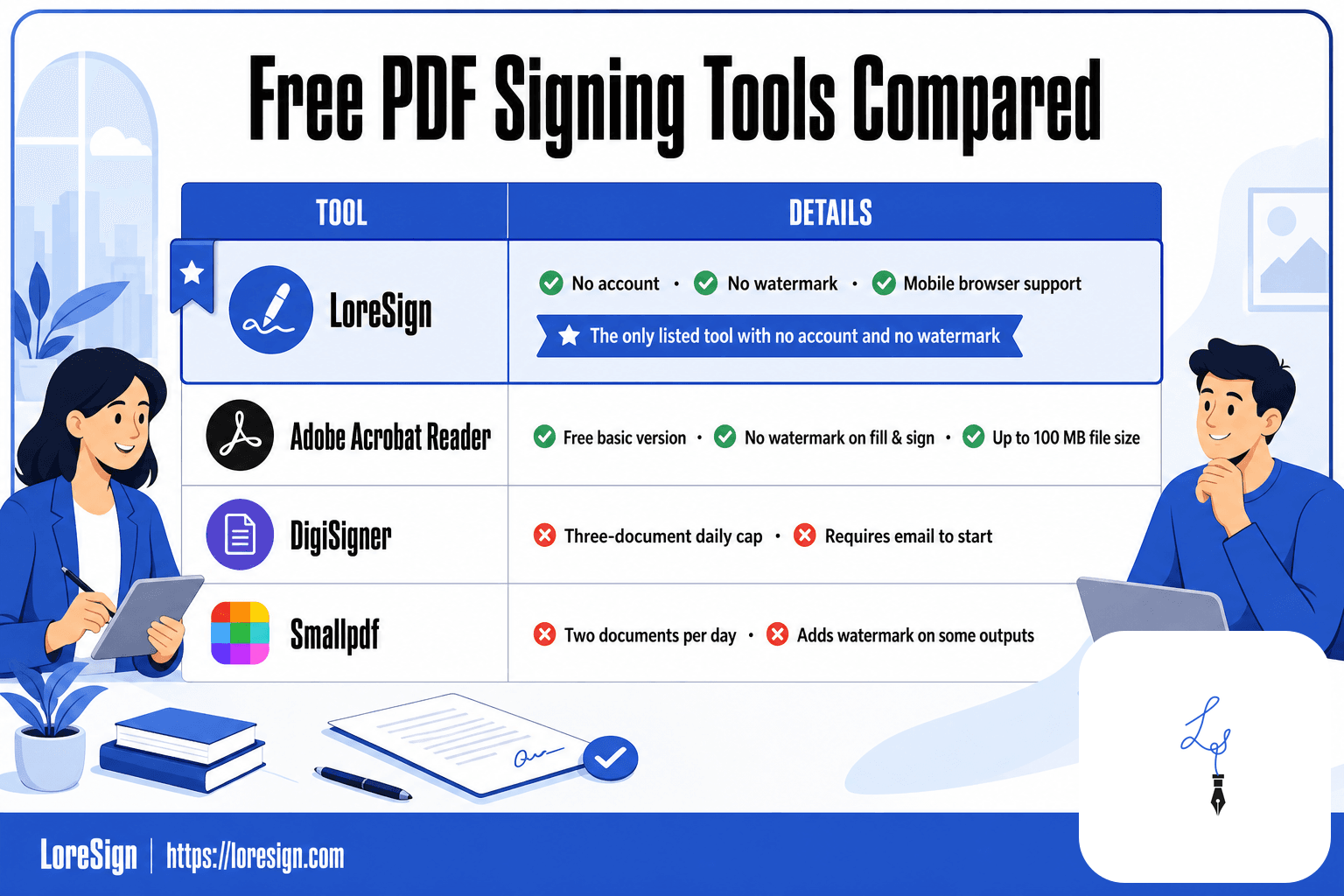
LoreSign vs. DigiSigner vs. Smallpdf
LoreSign handles the basics without an account: upload a PDF, place a signature, download the signed file. No watermark on the output. DigiSigner's free tier is built for testing, with a three-document daily cap. Smallpdf limits free users to two documents per day and adds a watermark on some outputs.
What free tiers actually limit
The limits are real. File size caps sit around 25 MB on most free plans. Daily document counts range from two to five. Some tools compress your PDF during processing, which can blur signatures on print. Others stamp "Signed with [tool name]" in the corner unless you pay.
Which tools require an account
LoreSign doesn't. You can sign and download without creating a login. DigiSigner requires an email to start. Smallpdf wants an account for anything beyond the first document. If you're signing a contract someone else sent, account-free is faster.
How to Make a Digital Signature in PDF for Free
Most people asking this mean an electronic signature: a typed name, a drawn squiggle, or an image of your handwritten signature pasted onto the page. That's what every free tool in this guide produces. A digital signature is a different thing entirely.
Electronic vs. digital signature: what's the difference?
An electronic signature is visual. It shows intent to sign. A digital signature is cryptographic. It uses a certificate to lock the document so any later change breaks the signature. The PDF itself carries proof of who signed and when.
Creating a digital signature with free tools
Free tools can't issue the certificates that make a true digital signature work. You can create a self-signed certificate in Adobe Acrobat Reader, but it proves nothing to anyone else. It's a local signature that only your machine trusts.
When a digital signature is legally required
It depends on the document and the jurisdiction. Most contracts, forms, and agreements accept electronic signatures. Digital signatures with verified certificates matter for government filings, regulated industries, and documents where tamper-proofing is the point. For everyday signing, the free electronic signature is enough.
Other Free Ways to Sign a PDF (No Sign-Up at All)
If you're only signing your own PDF — a form, a waiver, an application — and would rather not create any account, even a free one, your browser or operating system likely already has a signing tool built in.
Method 1: Sign a PDF With LibreOffice Draw (Free, Open Source)
If you'd rather work outside the browser, LibreOffice Draw is a free download that handles this too.
- Open the PDF in LibreOffice Draw.
- Insert a saved image of your signature.
- Resize and place it on the page.
- Export the file as a PDF again.
Method 2: Sign a PDF in Chrome
Chrome's built-in PDF viewer has a draw tool for exactly this.
- Open the PDF in Chrome (drag it into a new tab, or open it from a download).
- Click the pencil or scribble icon in the toolbar.
- Draw your signature with your mouse, trackpad, or a stylus if you have one.
- Place it where it belongs on the page.
- Download the signed file.
It's a hand-drawn mark, not a typed or uploaded signature option, so it works best if you're reasonably steady with a mouse.
Method 3: Sign a PDF in Firefox
Firefox has the most complete built-in signing tool of the major browsers. It gives you three ways to sign, not just one.
- Open the PDF in Firefox.
- Look for the signature icon in the PDF toolbar.
- Choose to type your name in a handwriting-style font, draw your signature, or upload an image of your signature.
- Place the signature on the page.
- Save the signed PDF.
If you already have a saved image of your signature, this is the fastest no-sign-up option for a solo signature on a PDF file.
Method 4: Sign a PDF on a Mac With Preview
Preview, the app that opens PDFs by default on macOS, has built-in signature tools that don't require any download.
- Open the PDF in Preview.
- Click the markup icon, then the signature button.
- Create your signature with your trackpad, your Mac's camera (hold up a signature you've signed on paper), or an iPhone or iPad signed into the same Apple ID.
- Drag the signature onto the page.
- Save the file with Command+S.
Once you've created a signature this way, Preview remembers it for next time.
Method 5: Sign a PDF in Microsoft Edge
Edge doesn't have a dedicated signature tool, but its draw feature gets the job done.
- Open the PDF document in Edge.
- Click the draw icon in the PDF toolbar.
- Draw your signature directly on the page.
- Save with Ctrl+S.
All five methods above are genuinely free and require no sign-up. None of them help once a second person needs to sign the same document — that's where you're back to emailing a PDF and hoping for the best.
Which Method Should You Actually Use?
| Situation | Best free method |
| A client, vendor, or teammate also needs to sign | LoreSign |
| You need to know when the other person actually signs | LoreSign |
| You want the final signed copy of the PDF file delivered automatically to every recipient. | LoreSign |
| You want a certificate of completion or a public verification page | LoreSign |
| Signing a form or waiver, just you, and you'd rather not sign up for anything | LibreOffice Draw, your browser (Chrome, Firefox, or Edge), or Preview on Mac |
| You already have a saved signature image and want the fastest no-sign-up option | LibreOffice Draw, or Firefox |
The moment a second signature enters the workflow, LoreSign is the simpler path, one link, tracked automatically, delivered to every recipient once it's signed. Native tools are worth reaching for only when it's just your own signature and you'd rather skip creating any account at all.
How to Sign a PDF on Mobile (Android and iOS)
Your phone can sign a PDF in under a minute. No printer, no scanner, no desktop.
Signing PDFs on iPhone with Markup
Open the PDF in the Files app or Mail. Tap the Markup icon (a pen tip inside a circle), then tap the plus sign and choose Signature. Draw with your finger, or use a saved signature. Drag it into place and tap Done. The signed file saves back to the same location.
Signing PDFs on Android with Adobe Fill & Sign
Install Adobe Fill & Sign from the Play Store. It's free and doesn't require a Creative Cloud subscription for basic signing. Open the PDF, tap the signature icon, and draw or type your name. Place it, resize it, and save. The app handles multi-page documents without complaint.
Using LoreSign on mobile browsers
LoreSign works in any mobile browser. Upload the PDF, place the signing field, and send one secure link. You receive the completed document automatically. No app install, no account. The main catch: you need a data connection, since nothing runs offline.
What Free PDF Signing Tools Cannot Do
Free tools sign documents. They don't secure them. The gap matters when the document is a contract, a lease, or anything a court might see.
Watermarks and file size limits
Some free services stamp "Created with [Tool Name]" on your signed PDF. Others cap uploads at 10 MB or 3 documents per day. Check before you send.
Legal validity: what "free" doesn't guarantee
An electronic signature is legally binding in most countries. What free tools lack is proof: no audit trail, no timestamp, no signer identity verification. If the signature is challenged, you have nothing to show.
When to upgrade to a paid e-signature tool
Upgrade when you need an audit trail, signer authentication, or a certificate embedded in the PDF. For everyday forms, free works. For high-stakes agreements, pay.
Final Thoughts on Signing PDFs for Free
You don't need to overthink this. If the document is in front of you and you need it signed today, open LoreSign in your browser. Upload the PDF, place your signature, download it. Done in under two minutes.
Desktop tools earn their place when you're offline or handling large files repeatedly. Mac Preview and Acrobat Reader cover that ground without cost. Mobile signing works through the same browser tools, so you're not stuck installing another app.
The honest answer is that free signing covers 95% of what most people need. For the other 5%, paid e-signature tools add audit trails and certificate-based security. Start free. Upgrade only when a document demands it.
Frequently Asked Questions
What is the easiest way to sign a PDF for free?
The easiest way is to use a dedicated e-signature tool like LoreSign, which lets you upload a PDF, add your signature, and send it in minutes. Alternatively, Adobe Acrobat Reader's Fill & Sign tool is free and works well for occasional signing. Both are simpler than printing, signing, and scanning.
What is like Docusign but free?
LoreSign is a free alternative that offers similar features, such as sending secure links and tracking signers. Adobe Acrobat Reader also provides basic fill-and-sign capabilities without cost. For more advanced features, you may need a paid plan, but these free options cover most personal and professional needs.
How to Docusign a PDF for free?
You can't use Docusign for free beyond a trial, but you can achieve the same result with LoreSign or Adobe Acrobat Reader. Upload your PDF, add your signature, and send it via a secure link. These tools are free and provide legally valid e-signatures.
How to make a digital signature in PDF for free?
To create a digital signature, use a free tool like LoreSign or Adobe Acrobat Reader. In LoreSign, upload your PDF and click 'Add Signature' to draw, type, or upload an image of your signature. The tool will place it on the document, and you can save the signed PDF.
Are free PDF signatures legally binding?
Yes, in most jurisdictions, electronic signatures created with free tools are legally binding, provided they meet local e-signature laws like the ESIGN Act in the US or eIDAS in the EU. However, for highly sensitive documents, consult a legal professional to ensure compliance.
Can I sign a PDF on my phone for free?
Yes, you can sign PDFs on your phone using apps like LoreSign, Adobe Acrobat Reader, or Apple Preview (on iPhone). These apps are free and allow you to add your signature directly on the document, making it easy to sign on the go.
What are the limitations of free PDF signing tools?
Free tools often impose file size limits, add watermarks, or lack advanced features like audit trails or multiple signer workflows. For example, some free versions watermark your document, while others restrict the number of documents you can sign per day. Always check the tool's limitations before use.
About LoreSign
LoreSign helps For people looking to get documents and contracts signed. get this right. Track every signer and receive the completed document automatically. Whether you are working through How to sign PDF for free - Using LoreSign and other methods or something adjacent, we publish what we have actually tested, including where it falls short.